> ## Documentation Index
> Fetch the complete documentation index at: https://docs.erstan.com/llms.txt
> Use this file to discover all available pages before exploring further.
# Agents overview
> Meet the three agent shapes — Assistants, Workforces, and Automations — and how they read and act on your NetSuite data.
Agents are Erstan's AI workers. You build, run, and manage them from the **Agents** library, where each agent has a trigger, instructions, skills, and the tools and connectors it needs to do real work on your NetSuite data — with you approving every change.
 ## The Agents library
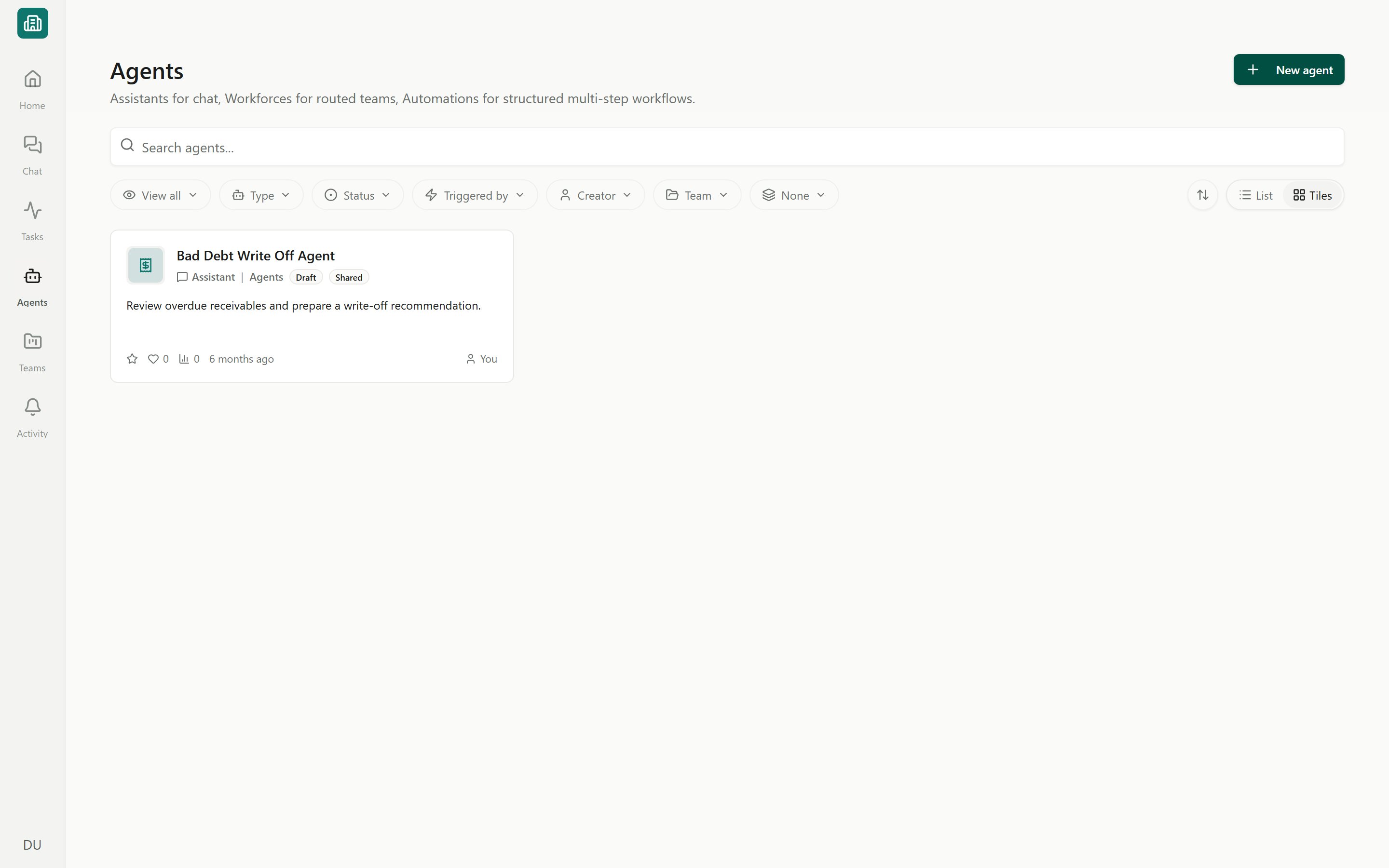
The library at **Agents** lists every agent in your workspace. Use it to find an agent, check its status, and open it to run, edit, or review its history.
* **Search and view presets** — search by name, or switch presets: View all, Shared with me, Popular, Favourites, Recently updated, and Disabled.
* **Filters** — narrow by **Status** (Live, Draft, Archived), **Trigger**, **Creator**, **Team**, and **Type** (Assistant, Workforce, Automation).
* **Layout** — view agents as a **List**, **Tiles**, or a **Board**; group by team and sort to taste.
* **Favourite and organise** — mark agents with the heart, or use an agent's menu to open, edit, view runs, archive, or delete it.
Your filter, layout, and sort choices are remembered per workspace, so deep links keep the view you set.
## The three agent shapes
Every agent is one of three shapes. Pick the shape that matches how the work should start and how much structure it needs. You choose the shape when you create an agent.
## The Agents library
The library at **Agents** lists every agent in your workspace. Use it to find an agent, check its status, and open it to run, edit, or review its history.
* **Search and view presets** — search by name, or switch presets: View all, Shared with me, Popular, Favourites, Recently updated, and Disabled.
* **Filters** — narrow by **Status** (Live, Draft, Archived), **Trigger**, **Creator**, **Team**, and **Type** (Assistant, Workforce, Automation).
* **Layout** — view agents as a **List**, **Tiles**, or a **Board**; group by team and sort to taste.
* **Favourite and organise** — mark agents with the heart, or use an agent's menu to open, edit, view runs, archive, or delete it.
Your filter, layout, and sort choices are remembered per workspace, so deep links keep the view you set.
## The three agent shapes
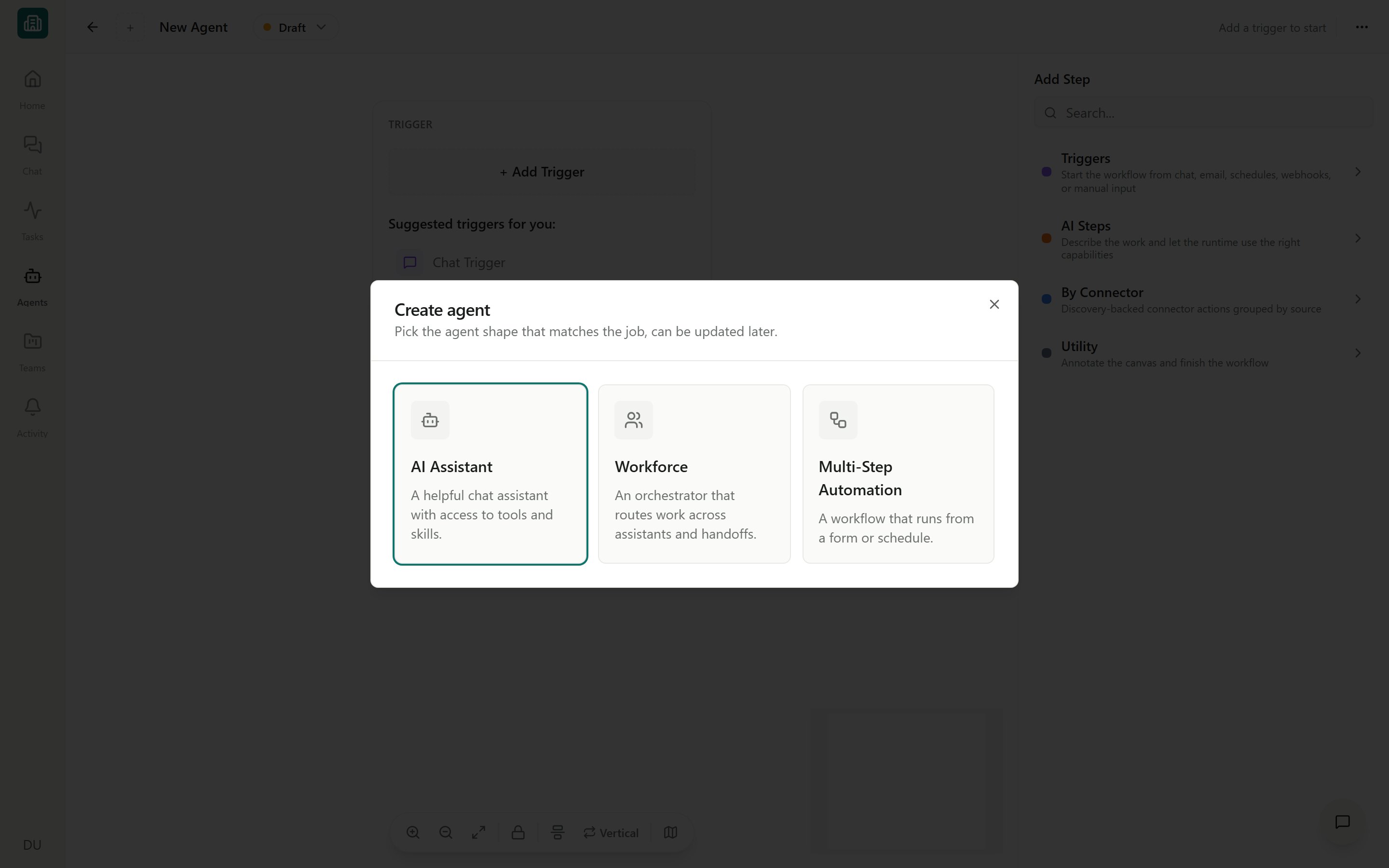
Every agent is one of three shapes. Pick the shape that matches how the work should start and how much structure it needs. You choose the shape when you create an agent.
 | Shape | Also called | Best for | How it starts |
| -------------- | ------------- | ----------------------------------------------------------------------------------- | ---------------- |
| **Assistant** | Domain expert | Chat-first help that plans, retrieves, and acts, looping you in when needed | Chat |
| **Workforce** | Orchestrator | Breaking work into parts and routing it across other agents and human handoffs | Chat |
| **Automation** | Set process | A defined multi-step process that runs the same way every time, with approval gates | Form or Schedule |
An **Assistant** is a chat-first agent — a domain expert you talk to. Ask it to find overdue invoices, summarize AR aging, or draft outreach, and it plans the steps, pulls from NetSuite, and pauses for your approval before any write. This is the simplest shape and the best place to start.
A **Workforce** is an orchestrator. It breaks a request into steps and routes each one to the right specialist Assistant, a tool, or a human, then recombines the results. New Workforce agents start with empty teammate slots — you point each one at a saved agent before it can do anything.
An **Automation** is a set process that runs a fixed sequence of steps the same way every time. It starts from a **form submission** or a **schedule** rather than chat, which makes it the shape for unattended, repeatable jobs like a nightly exception report or an intake pipeline.
You may see **Chat agent** and **Pipeline agent** badges in the app. Assistants and Workforces are chat agents (they run as a conversation); Automations are pipeline agents (they run as a structured sequence). A Chat trigger always makes an agent a chat agent.
## What makes up an agent
Whatever its shape, an agent is assembled from a few building blocks:
* **Trigger** — how the agent starts: **Chat**, **Form**, **Schedule**, **Webhook**, **Email**, or **Manual**. See [Triggers](/agents/triggers).
* **Steps** — units of work on the builder canvas, grouped into **Triggers**, **AI Steps**, **By Connector** (actions), and **Utility**. See the [Step reference](/agents/step-reference).
* **Instructions** — the guidance that tells the agent how to behave and what good output looks like.
* **Skills** — reusable instruction packages that make the agent do a task the expert way every time. See [Skills overview](/skills/overview).
* **Tools & connectors** — the systems the agent can act in, such as your **NetSuite** connection. See [Giving agents tools, skills & connections](/agents/tools-skills-connections).
You design all of this on a drag-and-drop canvas, and an in-builder AI assistant can edit the agent for you from a plain-language description. See [The visual builder](/agents/builder).
Any tool that writes to NetSuite or another system pauses for your approval by default. Agents act with **your** NetSuite user and role, and write actions wait for **Run action** / **Don't run** before they touch your data. See [Approving and rejecting AI actions](/chat/approvals).
## Lifecycle at a glance
Agents move through a simple lifecycle, shown as a badge in the library and builder.
A new or edited agent you are still building. You can **Preview** a draft to test it, but it does not run on triggers yet.
A published agent. Publishing checks that any automated trigger has its **Run As** identity configured. A Live agent can run on demand, on a schedule, or from a form, webhook, or email.
A retired agent. Archived agents stay in the library for reference but cannot be run.
Each agent keeps a **version history**, so you can view earlier versions and restore one if a change does not work out. See [Preview, publish & versions](/agents/publish-lifecycle).
An agent cannot run when it is Archived, has no runnable start step, is missing a required connection (shown as a **Connection required** banner), or already has a run in progress.
## Running and tracking agents
Once an agent is Live, you can run it from a library card, its runs page, or a published builder. Every run produces a tracked **execution** with a live, step-by-step trace, and runs can be assigned as **tasks** that move through **Queued → In Progress → Needs Review → Complete**. See [Running agents](/agents/run-and-tasks) and [Run history, traces & analytics](/agents/run-history-traces).
## Next steps
Build, preview, and publish a working Assistant from scratch.
Choose how an agent starts: chat, form, schedule, webhook, email, or manual.
Design an agent on the canvas with nodes, the inspector, and the AI builder.
Add ready-made agents for AP, AR, Close, and Reporting instead of building.
| Shape | Also called | Best for | How it starts |
| -------------- | ------------- | ----------------------------------------------------------------------------------- | ---------------- |
| **Assistant** | Domain expert | Chat-first help that plans, retrieves, and acts, looping you in when needed | Chat |
| **Workforce** | Orchestrator | Breaking work into parts and routing it across other agents and human handoffs | Chat |
| **Automation** | Set process | A defined multi-step process that runs the same way every time, with approval gates | Form or Schedule |
An **Assistant** is a chat-first agent — a domain expert you talk to. Ask it to find overdue invoices, summarize AR aging, or draft outreach, and it plans the steps, pulls from NetSuite, and pauses for your approval before any write. This is the simplest shape and the best place to start.
A **Workforce** is an orchestrator. It breaks a request into steps and routes each one to the right specialist Assistant, a tool, or a human, then recombines the results. New Workforce agents start with empty teammate slots — you point each one at a saved agent before it can do anything.
An **Automation** is a set process that runs a fixed sequence of steps the same way every time. It starts from a **form submission** or a **schedule** rather than chat, which makes it the shape for unattended, repeatable jobs like a nightly exception report or an intake pipeline.
You may see **Chat agent** and **Pipeline agent** badges in the app. Assistants and Workforces are chat agents (they run as a conversation); Automations are pipeline agents (they run as a structured sequence). A Chat trigger always makes an agent a chat agent.
## What makes up an agent
Whatever its shape, an agent is assembled from a few building blocks:
* **Trigger** — how the agent starts: **Chat**, **Form**, **Schedule**, **Webhook**, **Email**, or **Manual**. See [Triggers](/agents/triggers).
* **Steps** — units of work on the builder canvas, grouped into **Triggers**, **AI Steps**, **By Connector** (actions), and **Utility**. See the [Step reference](/agents/step-reference).
* **Instructions** — the guidance that tells the agent how to behave and what good output looks like.
* **Skills** — reusable instruction packages that make the agent do a task the expert way every time. See [Skills overview](/skills/overview).
* **Tools & connectors** — the systems the agent can act in, such as your **NetSuite** connection. See [Giving agents tools, skills & connections](/agents/tools-skills-connections).
You design all of this on a drag-and-drop canvas, and an in-builder AI assistant can edit the agent for you from a plain-language description. See [The visual builder](/agents/builder).
Any tool that writes to NetSuite or another system pauses for your approval by default. Agents act with **your** NetSuite user and role, and write actions wait for **Run action** / **Don't run** before they touch your data. See [Approving and rejecting AI actions](/chat/approvals).
## Lifecycle at a glance
Agents move through a simple lifecycle, shown as a badge in the library and builder.
A new or edited agent you are still building. You can **Preview** a draft to test it, but it does not run on triggers yet.
A published agent. Publishing checks that any automated trigger has its **Run As** identity configured. A Live agent can run on demand, on a schedule, or from a form, webhook, or email.
A retired agent. Archived agents stay in the library for reference but cannot be run.
Each agent keeps a **version history**, so you can view earlier versions and restore one if a change does not work out. See [Preview, publish & versions](/agents/publish-lifecycle).
An agent cannot run when it is Archived, has no runnable start step, is missing a required connection (shown as a **Connection required** banner), or already has a run in progress.
## Running and tracking agents
Once an agent is Live, you can run it from a library card, its runs page, or a published builder. Every run produces a tracked **execution** with a live, step-by-step trace, and runs can be assigned as **tasks** that move through **Queued → In Progress → Needs Review → Complete**. See [Running agents](/agents/run-and-tasks) and [Run history, traces & analytics](/agents/run-history-traces).
## Next steps
Build, preview, and publish a working Assistant from scratch.
Choose how an agent starts: chat, form, schedule, webhook, email, or manual.
Design an agent on the canvas with nodes, the inspector, and the AI builder.
Add ready-made agents for AP, AR, Close, and Reporting instead of building.