> ## Documentation Index
> Fetch the complete documentation index at: https://docs.erstan.com/llms.txt
> Use this file to discover all available pages before exploring further.
# Running agents
> Run agents on demand and assign runs as tasks — now, scheduled, or recurring.
Once an agent is published, you can run it whenever you need it. A run is one invocation of an agent; it produces a tracked execution with live status and a step-by-step trace. You can start a run for yourself right now, or assign it as a [task](/tasks/overview) for a teammate to own and review.
## Where to start a run
You can launch the same agent from several places, and they all open the same run dialog.
On the **Agents** page, use an agent card's menu or open the agent and choose **Run**.
On an agent's runs page, click **Run Agent** in the header.
A published agent shows a **Run** action in the [visual builder](/agents/builder) header.
Chat-first agents (Assistants and Workforces) can also be started straight from [Chat](/chat/overview) by @mentioning them. See [Working with agents in chat](/chat/agents-mentions).
## The run dialog
When you start a run, a dialog collects what the agent needs to begin. What appears depends on the agent's [trigger](/agents/triggers):
* **Trigger inputs** — For an Automation with a Form trigger, you fill in the form fields the agent's creator defined.
* **Conversation starters** — Chat-first agents may offer ready-made opening messages you can pick instead of typing your own.
* **Attachments** — Add files for the agent to work with, where the agent supports it.
Submit to start the run immediately, or switch the dialog to assign the run as a task instead (below). Track progress on the run detail page — see [Run history, traces & analytics](/agents/run-history-traces).
## Assigning a run as a task
Instead of running an agent just for yourself, you can turn the run into a **task** so the work is tracked, owned, and reviewable. Every assigned run becomes a task that moves through **Queued → In Progress → Needs Review → Complete**.
Start a run from the library, runs page, or builder as above. You can also click **New task** on the [Tasks](/tasks/overview) page and pick the agent there.
Give the task a **Task name** and a short **Description** of what it should produce or monitor.
Choose an **Assignee** (who the task belongs to) and a **Reviewer** (who signs off on the output). Both default to **Unassigned**.
Set a **Priority** (No priority, Urgent, High, Medium, or Low) and apply any **Labels** to help the task surface in the right views.
Pick a **Schedule mode** — **Now**, **Scheduled**, or **Recurring** — then submit.
 ### Schedule modes
The agent runs immediately and the task moves into **In Progress**. Use this for one-off work you want done right away.
Set a single future time. The run waits, then fires once at that time. Upcoming runs appear in the **Scheduled** tab on Tasks and on the team [Overview](/teams/overview).
Set a cadence — minutes, hourly, daily, weekly, or monthly — and a time zone in **Schedule details**. The agent runs on that cadence and produces a fresh task each time. Manage these in the **Recurring** tab. See [Scheduling recurring runs](/agents/schedules).
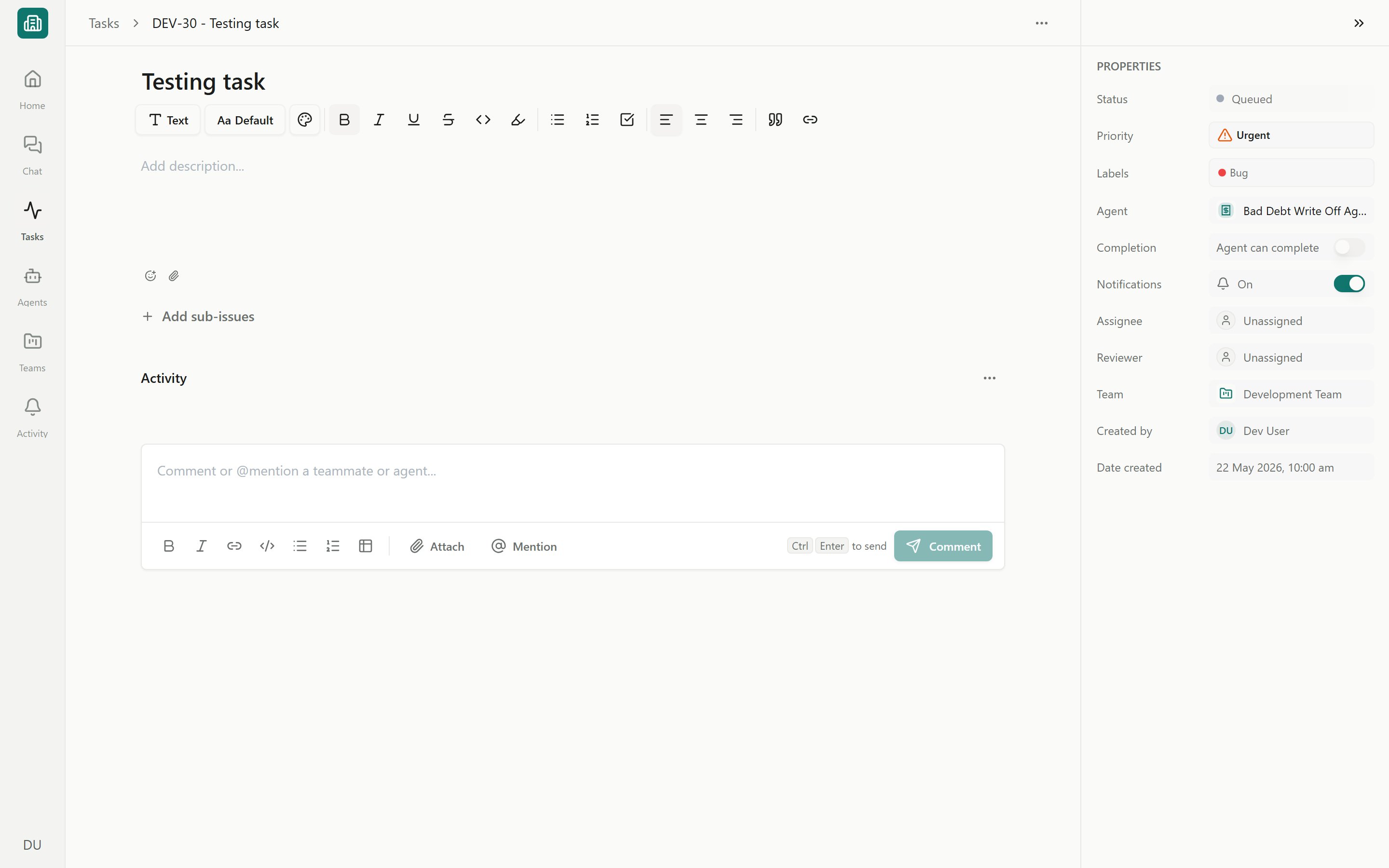
You can adjust an assigned task after it is created — change the assignee, due date, labels, or run it again — from the task's properties rail. See [Working with tasks](/tasks/working-with-tasks).
## Approvals during a run
Agents that write to NetSuite or other systems pause mid-run for a person to approve the change before it goes through.
Any step that **writes to NetSuite** (creating or editing records, applying payments, posting transactions) is gated by the connector's [write policy](/connectors/netsuite-manage). When a step needs approval, the run pauses and its task stays **In Progress** until an authorized task viewer chooses **Run action** or **Don't run**. **Needs Review** is reserved for finished work awaiting final confirmation. Review the change before approving — see [Approving and rejecting AI actions](/chat/approvals).
If a team requires human confirmation, completed work is sent to **Needs Review** rather than marked done automatically. Reviewers can approve it or send it back — see [Reviewing and approving agent work](/tasks/review-approve).
## When a run is blocked
Sometimes the run dialog won't let you start. The common reasons are easy to fix:
Archived agents cannot be run. Restore the agent to **Live** (or **Draft** and republish) before running it. See [Preview, publish & versions](/agents/publish-lifecycle).
The agent has no way to start — for example, a trigger hasn't been set up. Open the [builder](/agents/builder) and add or finish the trigger, then publish.
A step needs a connector that isn't set up — most often NetSuite or an LLM provider. The run shows a **Connection required** banner. Connect or authorize the system and try again. For NetSuite, each member [authorizes their own user](/connectors/netsuite-authorize).
The agent already has a run in progress for this thread. Wait for it to finish, or open the active run and cancel it before starting a new one.
An agent published with later unsaved edits prompts you to **Save** before it runs the newest draft, so you always run the version you expect.
## Next steps
Track every run, read its step-by-step trace, and review usage and cost.
Run an agent automatically on a schedule and manage Run As.
Open a task, chat with the agent, and set its properties.
Review write actions before they run, and decide when to auto-approve.
### Schedule modes
The agent runs immediately and the task moves into **In Progress**. Use this for one-off work you want done right away.
Set a single future time. The run waits, then fires once at that time. Upcoming runs appear in the **Scheduled** tab on Tasks and on the team [Overview](/teams/overview).
Set a cadence — minutes, hourly, daily, weekly, or monthly — and a time zone in **Schedule details**. The agent runs on that cadence and produces a fresh task each time. Manage these in the **Recurring** tab. See [Scheduling recurring runs](/agents/schedules).
You can adjust an assigned task after it is created — change the assignee, due date, labels, or run it again — from the task's properties rail. See [Working with tasks](/tasks/working-with-tasks).
## Approvals during a run
Agents that write to NetSuite or other systems pause mid-run for a person to approve the change before it goes through.
Any step that **writes to NetSuite** (creating or editing records, applying payments, posting transactions) is gated by the connector's [write policy](/connectors/netsuite-manage). When a step needs approval, the run pauses and its task stays **In Progress** until an authorized task viewer chooses **Run action** or **Don't run**. **Needs Review** is reserved for finished work awaiting final confirmation. Review the change before approving — see [Approving and rejecting AI actions](/chat/approvals).
If a team requires human confirmation, completed work is sent to **Needs Review** rather than marked done automatically. Reviewers can approve it or send it back — see [Reviewing and approving agent work](/tasks/review-approve).
## When a run is blocked
Sometimes the run dialog won't let you start. The common reasons are easy to fix:
Archived agents cannot be run. Restore the agent to **Live** (or **Draft** and republish) before running it. See [Preview, publish & versions](/agents/publish-lifecycle).
The agent has no way to start — for example, a trigger hasn't been set up. Open the [builder](/agents/builder) and add or finish the trigger, then publish.
A step needs a connector that isn't set up — most often NetSuite or an LLM provider. The run shows a **Connection required** banner. Connect or authorize the system and try again. For NetSuite, each member [authorizes their own user](/connectors/netsuite-authorize).
The agent already has a run in progress for this thread. Wait for it to finish, or open the active run and cancel it before starting a new one.
An agent published with later unsaved edits prompts you to **Save** before it runs the newest draft, so you always run the version you expect.
## Next steps
Track every run, read its step-by-step trace, and review usage and cost.
Run an agent automatically on a schedule and manage Run As.
Open a task, chat with the agent, and set its properties.
Review write actions before they run, and decide when to auto-approve.