> ## Documentation Index
> Fetch the complete documentation index at: https://docs.erstan.com/llms.txt
> Use this file to discover all available pages before exploring further.
# Run history, traces & analytics
> Track every agent run, read its step-by-step trace, and review feedback, usage, and cost.
Every time an agent runs, Erstan records it as a tracked run with a step-by-step trace and live status. This page shows you where to find that history, how to read a single run, and what the admin-only analytics tell you about feedback, token usage, and cost.
 ## Run history for an agent
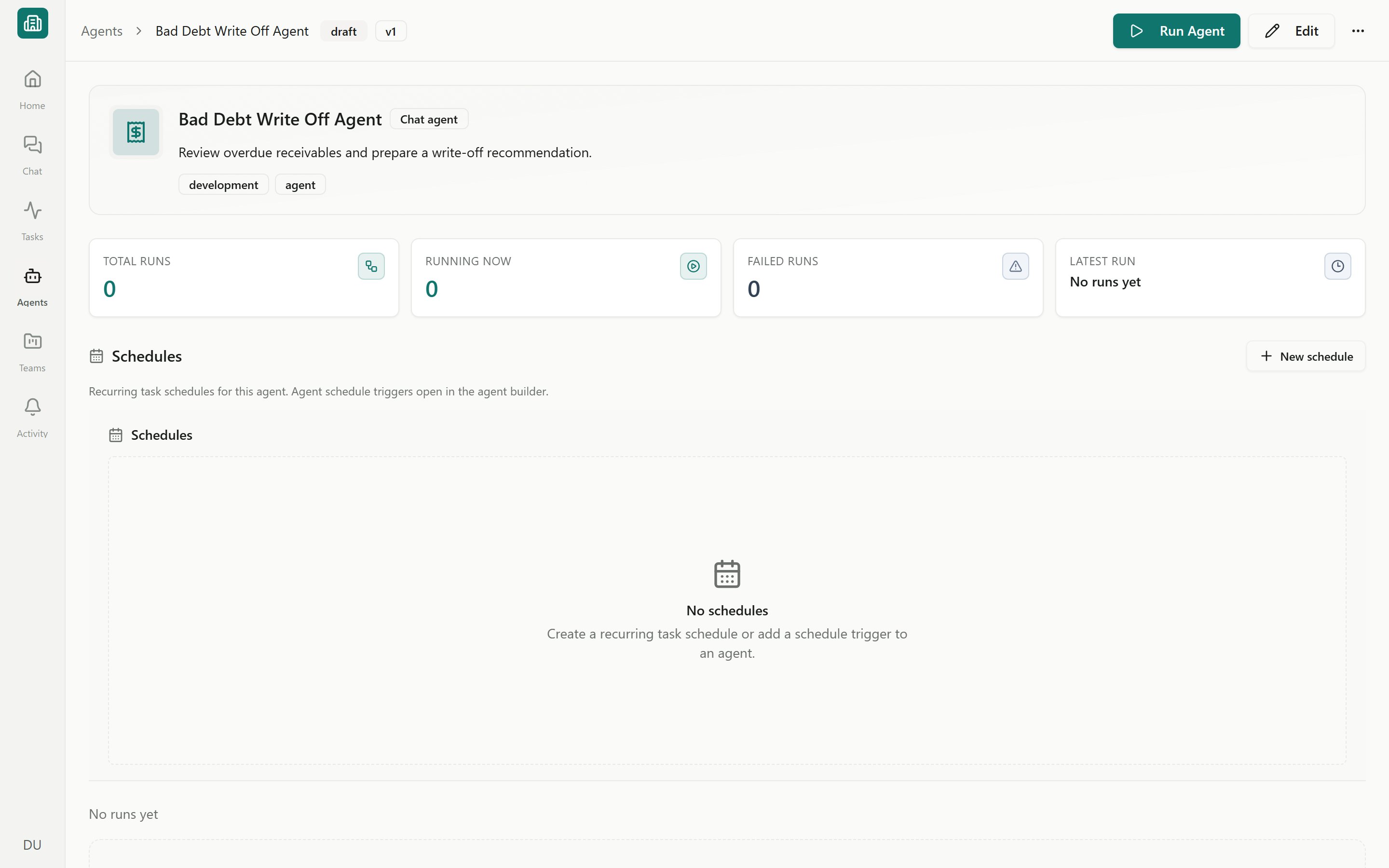
Open an agent and go to its **runs** page (also reachable from the agent's card menu in the [Agents library](/agents/overview)). The page opens with four summary cards and a table of every run.
| Summary card | What it tells you |
| --------------- | ------------------------------------ |
| **Total runs** | How many times this agent has run. |
| **Running now** | Runs that are currently in progress. |
| **Failed runs** | Runs that ended in an error. |
| **Latest run** | When the agent last ran. |
### The runs table
Each row is one run. The columns help you scan and sort:
* **Run** — the run's name or number (shown as `Run {n} of {n}` when a run is part of a continued conversation).
* **Run by** — the person or trigger that started it.
* **Task** — the task this run is attached to, if any.
* **Status** — running, completed, failed, cancelled, waiting, or stale.
* **Type** — chat agent or pipeline (automation) run.
* **Trigger** — how it started (chat, form, schedule, webhook, email, or manual).
* **Started** and **Duration**.
* **Actions** — per-row controls such as **Cancel Run**.
Runs that share a conversation are grouped together as a **Task thread**, **Agent chat**, or **Conversation**, with unread and updated badges so you can spot fresh activity. Preview runs from the builder are tagged **Preview run** so they don't get mistaken for real work.
### Cancelling runs
Use **Cancel Run** on a single row to stop one run, or **Cancel All** to stop every active run for the agent at once. Cancelling is the safe way to halt a run that is taking too long or that you started by mistake.
## Reading a single run
Click any run to open its detail view. This is where you watch the agent work and see exactly what it did, step by step.
The run detail page shows the agent's steps as a pipeline (for automations) or a step trace (for chat agents), with a live status badge at the top.
Status updates stream live, so you can watch each step start, run, and finish. Statuses include running, completed, failed, cancelled, waiting, and stale.
If a step needs your sign-off before it writes to NetSuite or another system, the run pauses and you can **Approve** or **Reject** it inline. See [Approving and rejecting AI actions](/chat/approvals).
Use **Retry Run** to re-run a stalled run, or **Cancel Run** to stop one in progress.
A run pauses for approval before any write to NetSuite. Approving a step lets the agent make a real change in your NetSuite account, acting with your NetSuite role and permissions. Read the change preview before you approve.
### Run actions
Depending on the run, the detail view offers extra ways to dig in or jump to related work:
* **View full trace** — opens the **Trace Debugger** for the complete, low-level step-by-step record.
* **View in Chat** — jumps to the chat thread (shown only for runs that have one).
* **Open task** — opens the backing task (shown only for task-backed runs).
* **Audit in Erstan** — opens the workspace audit record for the run.
Run detail streams live as the agent works. If the live stream drops, Erstan falls back to polling so the view keeps catching up on its own. A run that has been idle for a long stretch shows a **stale** status; reload the page to pull its latest state.
## Agent analytics (admin)
Workspace **Owners and admins** can open an agent's **Analytics** page (from the runs menu) to see how it is performing over time. Pick a range — last **7**, **30**, or **90 days** — to scope the figures. Analytics focuses on chat agents and aggregates feedback and usage.
Analytics is admin-only. Members without admin access see a message that they don't have access to the Builder.
| Metric | What it measures |
| ----------------------------------- | ------------------------------------------------------------------ |
| **Feedback** | Thumbs-up / thumbs-down ratings people gave the agent's responses. |
| **Positive Rate** | The share of feedback that was positive. |
| **Tokens** | Total model tokens the agent has used. |
| **Estimated Cost** | An estimate of model cost based on token usage. |
| **Top Agents (by feedback volume)** | Which agents get the most feedback. |
| **Recent Feedback** | The latest rated responses, newest first. |
From **Recent Feedback** you can open a single response's detail, the underlying run, or its chat thread to understand the rating in context. Use these signals to decide which agents to refine, promote, or retire.
Estimated cost is exactly that — an estimate from token counts, not a billing figure. Treat it as a relative guide for comparing agents and trends.
## Frequently asked
A run that has been idle for a long stretch is marked stale. Reload the page to pull its current state, or use **Retry Run** if it genuinely stopped.
Analytics is limited to workspace Owners and admins. If you need it, ask a workspace admin for access or to share the figures you need.
**View in Chat** appears only when a run has a chat thread, and **Open task** only when a run is backed by a task. Runs started from a schedule or webhook may have neither.
Preview runs are test runs you start from the builder; they're tagged **Preview run** in the history so you can tell them apart from runs that did real work.
## Next steps
Run agents on demand and assign runs as tasks.
Run an agent automatically on a schedule.
Review and approve writes before they run.
See the workspace audit trail and track usage and cost.
## Run history for an agent
Open an agent and go to its **runs** page (also reachable from the agent's card menu in the [Agents library](/agents/overview)). The page opens with four summary cards and a table of every run.
| Summary card | What it tells you |
| --------------- | ------------------------------------ |
| **Total runs** | How many times this agent has run. |
| **Running now** | Runs that are currently in progress. |
| **Failed runs** | Runs that ended in an error. |
| **Latest run** | When the agent last ran. |
### The runs table
Each row is one run. The columns help you scan and sort:
* **Run** — the run's name or number (shown as `Run {n} of {n}` when a run is part of a continued conversation).
* **Run by** — the person or trigger that started it.
* **Task** — the task this run is attached to, if any.
* **Status** — running, completed, failed, cancelled, waiting, or stale.
* **Type** — chat agent or pipeline (automation) run.
* **Trigger** — how it started (chat, form, schedule, webhook, email, or manual).
* **Started** and **Duration**.
* **Actions** — per-row controls such as **Cancel Run**.
Runs that share a conversation are grouped together as a **Task thread**, **Agent chat**, or **Conversation**, with unread and updated badges so you can spot fresh activity. Preview runs from the builder are tagged **Preview run** so they don't get mistaken for real work.
### Cancelling runs
Use **Cancel Run** on a single row to stop one run, or **Cancel All** to stop every active run for the agent at once. Cancelling is the safe way to halt a run that is taking too long or that you started by mistake.
## Reading a single run
Click any run to open its detail view. This is where you watch the agent work and see exactly what it did, step by step.
The run detail page shows the agent's steps as a pipeline (for automations) or a step trace (for chat agents), with a live status badge at the top.
Status updates stream live, so you can watch each step start, run, and finish. Statuses include running, completed, failed, cancelled, waiting, and stale.
If a step needs your sign-off before it writes to NetSuite or another system, the run pauses and you can **Approve** or **Reject** it inline. See [Approving and rejecting AI actions](/chat/approvals).
Use **Retry Run** to re-run a stalled run, or **Cancel Run** to stop one in progress.
A run pauses for approval before any write to NetSuite. Approving a step lets the agent make a real change in your NetSuite account, acting with your NetSuite role and permissions. Read the change preview before you approve.
### Run actions
Depending on the run, the detail view offers extra ways to dig in or jump to related work:
* **View full trace** — opens the **Trace Debugger** for the complete, low-level step-by-step record.
* **View in Chat** — jumps to the chat thread (shown only for runs that have one).
* **Open task** — opens the backing task (shown only for task-backed runs).
* **Audit in Erstan** — opens the workspace audit record for the run.
Run detail streams live as the agent works. If the live stream drops, Erstan falls back to polling so the view keeps catching up on its own. A run that has been idle for a long stretch shows a **stale** status; reload the page to pull its latest state.
## Agent analytics (admin)
Workspace **Owners and admins** can open an agent's **Analytics** page (from the runs menu) to see how it is performing over time. Pick a range — last **7**, **30**, or **90 days** — to scope the figures. Analytics focuses on chat agents and aggregates feedback and usage.
Analytics is admin-only. Members without admin access see a message that they don't have access to the Builder.
| Metric | What it measures |
| ----------------------------------- | ------------------------------------------------------------------ |
| **Feedback** | Thumbs-up / thumbs-down ratings people gave the agent's responses. |
| **Positive Rate** | The share of feedback that was positive. |
| **Tokens** | Total model tokens the agent has used. |
| **Estimated Cost** | An estimate of model cost based on token usage. |
| **Top Agents (by feedback volume)** | Which agents get the most feedback. |
| **Recent Feedback** | The latest rated responses, newest first. |
From **Recent Feedback** you can open a single response's detail, the underlying run, or its chat thread to understand the rating in context. Use these signals to decide which agents to refine, promote, or retire.
Estimated cost is exactly that — an estimate from token counts, not a billing figure. Treat it as a relative guide for comparing agents and trends.
## Frequently asked
A run that has been idle for a long stretch is marked stale. Reload the page to pull its current state, or use **Retry Run** if it genuinely stopped.
Analytics is limited to workspace Owners and admins. If you need it, ask a workspace admin for access or to share the figures you need.
**View in Chat** appears only when a run has a chat thread, and **Open task** only when a run is backed by a task. Runs started from a schedule or webhook may have neither.
Preview runs are test runs you start from the builder; they're tagged **Preview run** in the history so you can tell them apart from runs that did real work.
## Next steps
Run agents on demand and assign runs as tasks.
Run an agent automatically on a schedule.
Review and approve writes before they run.
See the workspace audit trail and track usage and cost.