> ## Documentation Index
> Fetch the complete documentation index at: https://docs.erstan.com/llms.txt
> Use this file to discover all available pages before exploring further.
# Scheduling recurring runs
> Run an agent automatically on a schedule — minutes, hourly, daily, weekly, or monthly — and manage it from the agent's runs page.
A schedule runs an [agent](/agents/overview) on a cadence without anyone starting it by hand — every morning's AR aging summary, an hourly check for new overdue invoices, a monthly vendor-bill roundup. Each scheduled run produces a [task](/tasks/overview) you can review, so the work stays visible and under your control.
 ## Add a schedule
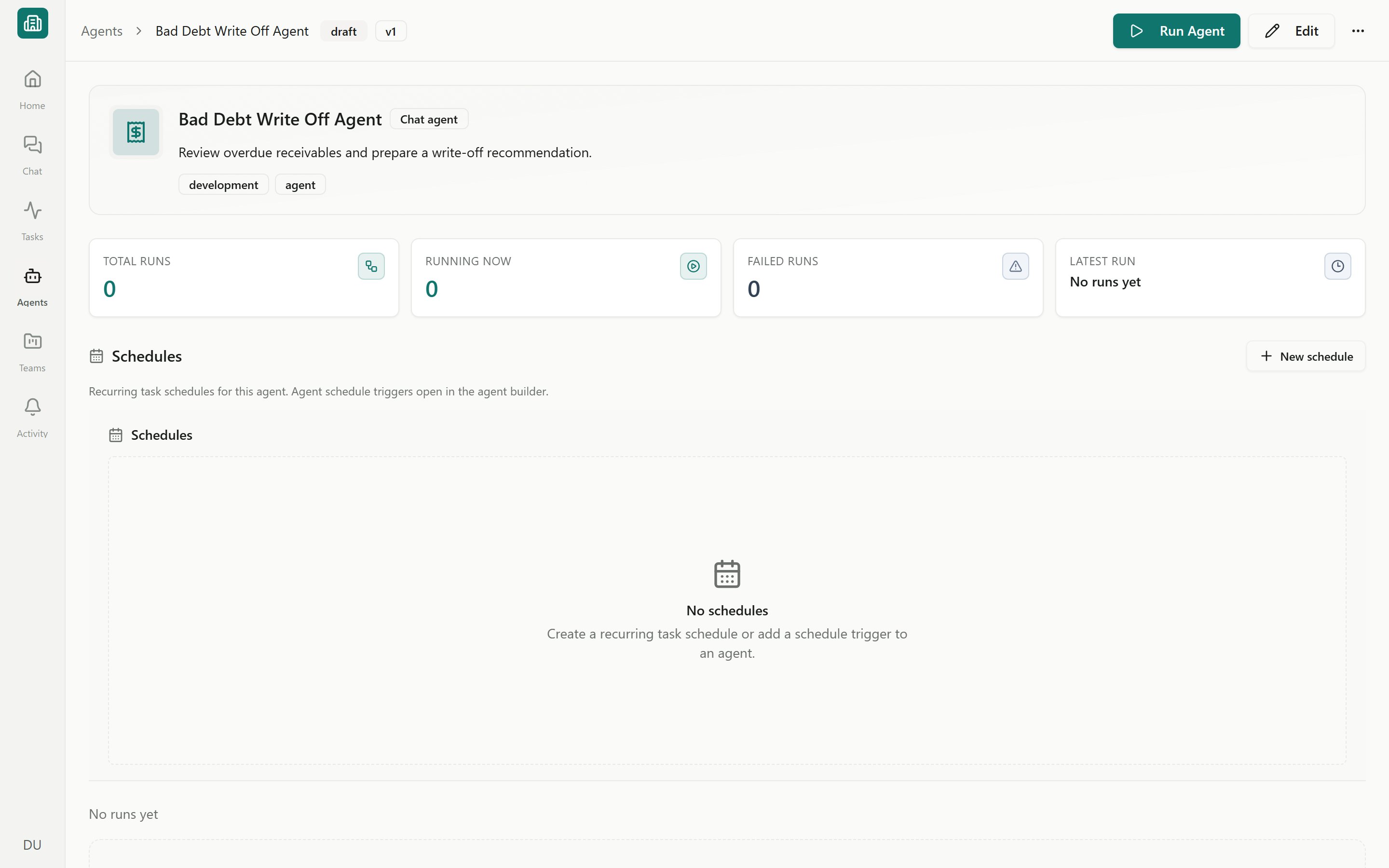
Schedules live on each agent's **runs** page, in the **Schedules** section beneath the summary cards.
Go to **Agents**, open the agent, and switch to its **Runs** view. Scroll to the **Schedules** section.
Select **New schedule** to add a recurring run.
Choose how often it runs — **minutes**, **hourly**, **daily**, **weekly**, or **monthly** — and set the **time zone** so runs fire at the hour you expect.
Save the schedule. The agent now runs on that cadence and creates a task for each run.
The agent must be **Live** (published) with a runnable start step before a schedule can run it. See [Publishing & lifecycle](/agents/publish-lifecycle).
## Cadences
| Cadence | Use it for |
| ----------- | -------------------------------------------------------------------- |
| **Minutes** | Frequent polling — e.g. watch for new records during business hours. |
| **Hourly** | Intraday checks, like new overdue invoices or incoming orders. |
| **Daily** | Morning summaries — AR aging, cash position, open approvals. |
| **Weekly** | Recurring reports on a fixed weekday. |
| **Monthly** | Period-close prep, vendor-bill roundups, monthly reconciliations. |
The recurrence type and time zone are set in the **Schedule details** dialog, the same controls used for [recurring tasks](/tasks/working-with-tasks).
## Manage an existing schedule
Each schedule in the list has its own controls:
* **Run now** — trigger an off-cycle recurring-task run immediately, without waiting for the next scheduled time.
* **Pause / Resume** — temporarily stop a schedule from firing, then turn it back on. Paused schedules keep their settings.
* **Edit** — change the cadence, time zone, or inputs.
* **Delete** — permanently remove a recurring task schedule and stop its future runs. Existing tasks and agent runs stay in place.
Where **Edit** opens depends on how the schedule was set up. A schedule built from a **Schedule trigger** in the agent opens in the [visual builder](/agents/builder) so you can adjust or remove the trigger step. A recurring **task** schedule opens in the **Schedule details** dialog, where it can also be deleted.
## How schedules relate to tasks
Scheduling reuses the same recurring-run system as [Tasks](/tasks/overview). The two modes you'll see when starting agent work are:
* **Scheduled** — a one-time run set for a future time. Upcoming runs show in the **Scheduled** tab and on the team [Overview](/teams/overview).
* **Recurring** — a saved schedule that runs on a cadence and produces a task each time. Manage these in the **Recurring** tab or on the agent's runs page.
Because every scheduled run lands as a task, results flow through the normal lifecycle — **Queued → In Progress → Needs Review → Complete**. If the agent's team requires human confirmation, finished runs wait in [Needs Review](/tasks/review-approve) until a person approves them, rather than completing silently.
## Run As for scheduled runs
A scheduled run starts with no one sitting at the keyboard, so the agent needs to know **which NetSuite user identity to run under**. That is the **Run As** setting on the agent's trigger.
On the agent's trigger, set **Run As** to the user whose [NetSuite authorization](/connectors/netsuite-authorize) the run should use. Automated agents can't be published until Run As is configured.
Running as a fixed user requires that user's consent. Watch for states like **Needs Run As**, **Needs consent**, **Wrong user**, or **Not available**, and resolve them before relying on the schedule.
Scheduled runs use the **Run As** user's NetSuite permissions and [write policy](/connectors/netsuite-manage). If that agent can write to NetSuite and **auto-approve writes** is on, scheduled runs will post changes — creating records or updating data — with no one watching. Keep writes set to **Require approval**, or confirm the schedule only does read and draft work, before turning it on. Review [Approvals](/chat/approvals) for how write gates behave.
## Frequently asked
Each fire produces its own run and task. Check the **Running now** card and the runs table on the runs page to see overlap, and use **Cancel** on a run if needed.
No. Pausing only stops future runs. Past runs and their tasks stay in [run history](/agents/run-history-traces).
No. Deleting removes the schedule and stops future runs, but existing tasks and agent runs remain available. A run already in progress continues.
Schedules suit **Automation** agents built on a Schedule trigger. Assistant and Workforce agents are chat-first; to run one on a cadence, set up a recurring task for it instead.
The most common causes are an unconfigured **Run As**, a missing [connection](/agents/tools-skills-connections), the agent being in **Draft**, or a paused schedule. See [Common issues](/troubleshooting/common-issues).
## Next steps
How Chat, Form, Schedule, Webhook, and Email triggers start an agent.
Track every scheduled run and inspect its step-by-step trace.
Set recurrence, assignees, and reviewers on the tasks schedules create.
Set the per-user authorization a Run As schedule depends on.
## Add a schedule
Schedules live on each agent's **runs** page, in the **Schedules** section beneath the summary cards.
Go to **Agents**, open the agent, and switch to its **Runs** view. Scroll to the **Schedules** section.
Select **New schedule** to add a recurring run.
Choose how often it runs — **minutes**, **hourly**, **daily**, **weekly**, or **monthly** — and set the **time zone** so runs fire at the hour you expect.
Save the schedule. The agent now runs on that cadence and creates a task for each run.
The agent must be **Live** (published) with a runnable start step before a schedule can run it. See [Publishing & lifecycle](/agents/publish-lifecycle).
## Cadences
| Cadence | Use it for |
| ----------- | -------------------------------------------------------------------- |
| **Minutes** | Frequent polling — e.g. watch for new records during business hours. |
| **Hourly** | Intraday checks, like new overdue invoices or incoming orders. |
| **Daily** | Morning summaries — AR aging, cash position, open approvals. |
| **Weekly** | Recurring reports on a fixed weekday. |
| **Monthly** | Period-close prep, vendor-bill roundups, monthly reconciliations. |
The recurrence type and time zone are set in the **Schedule details** dialog, the same controls used for [recurring tasks](/tasks/working-with-tasks).
## Manage an existing schedule
Each schedule in the list has its own controls:
* **Run now** — trigger an off-cycle recurring-task run immediately, without waiting for the next scheduled time.
* **Pause / Resume** — temporarily stop a schedule from firing, then turn it back on. Paused schedules keep their settings.
* **Edit** — change the cadence, time zone, or inputs.
* **Delete** — permanently remove a recurring task schedule and stop its future runs. Existing tasks and agent runs stay in place.
Where **Edit** opens depends on how the schedule was set up. A schedule built from a **Schedule trigger** in the agent opens in the [visual builder](/agents/builder) so you can adjust or remove the trigger step. A recurring **task** schedule opens in the **Schedule details** dialog, where it can also be deleted.
## How schedules relate to tasks
Scheduling reuses the same recurring-run system as [Tasks](/tasks/overview). The two modes you'll see when starting agent work are:
* **Scheduled** — a one-time run set for a future time. Upcoming runs show in the **Scheduled** tab and on the team [Overview](/teams/overview).
* **Recurring** — a saved schedule that runs on a cadence and produces a task each time. Manage these in the **Recurring** tab or on the agent's runs page.
Because every scheduled run lands as a task, results flow through the normal lifecycle — **Queued → In Progress → Needs Review → Complete**. If the agent's team requires human confirmation, finished runs wait in [Needs Review](/tasks/review-approve) until a person approves them, rather than completing silently.
## Run As for scheduled runs
A scheduled run starts with no one sitting at the keyboard, so the agent needs to know **which NetSuite user identity to run under**. That is the **Run As** setting on the agent's trigger.
On the agent's trigger, set **Run As** to the user whose [NetSuite authorization](/connectors/netsuite-authorize) the run should use. Automated agents can't be published until Run As is configured.
Running as a fixed user requires that user's consent. Watch for states like **Needs Run As**, **Needs consent**, **Wrong user**, or **Not available**, and resolve them before relying on the schedule.
Scheduled runs use the **Run As** user's NetSuite permissions and [write policy](/connectors/netsuite-manage). If that agent can write to NetSuite and **auto-approve writes** is on, scheduled runs will post changes — creating records or updating data — with no one watching. Keep writes set to **Require approval**, or confirm the schedule only does read and draft work, before turning it on. Review [Approvals](/chat/approvals) for how write gates behave.
## Frequently asked
Each fire produces its own run and task. Check the **Running now** card and the runs table on the runs page to see overlap, and use **Cancel** on a run if needed.
No. Pausing only stops future runs. Past runs and their tasks stay in [run history](/agents/run-history-traces).
No. Deleting removes the schedule and stops future runs, but existing tasks and agent runs remain available. A run already in progress continues.
Schedules suit **Automation** agents built on a Schedule trigger. Assistant and Workforce agents are chat-first; to run one on a cadence, set up a recurring task for it instead.
The most common causes are an unconfigured **Run As**, a missing [connection](/agents/tools-skills-connections), the agent being in **Draft**, or a paused schedule. See [Common issues](/troubleshooting/common-issues).
## Next steps
How Chat, Form, Schedule, Webhook, and Email triggers start an agent.
Track every scheduled run and inspect its step-by-step trace.
Set recurrence, assignees, and reviewers on the tasks schedules create.
Set the per-user authorization a Run As schedule depends on.