> ## Documentation Index
> Fetch the complete documentation index at: https://docs.erstan.com/llms.txt
> Use this file to discover all available pages before exploring further.
# Triggers
> Choose how an agent starts: chat, form, schedule, webhook, email, or manual — and which agent shape each one implies.
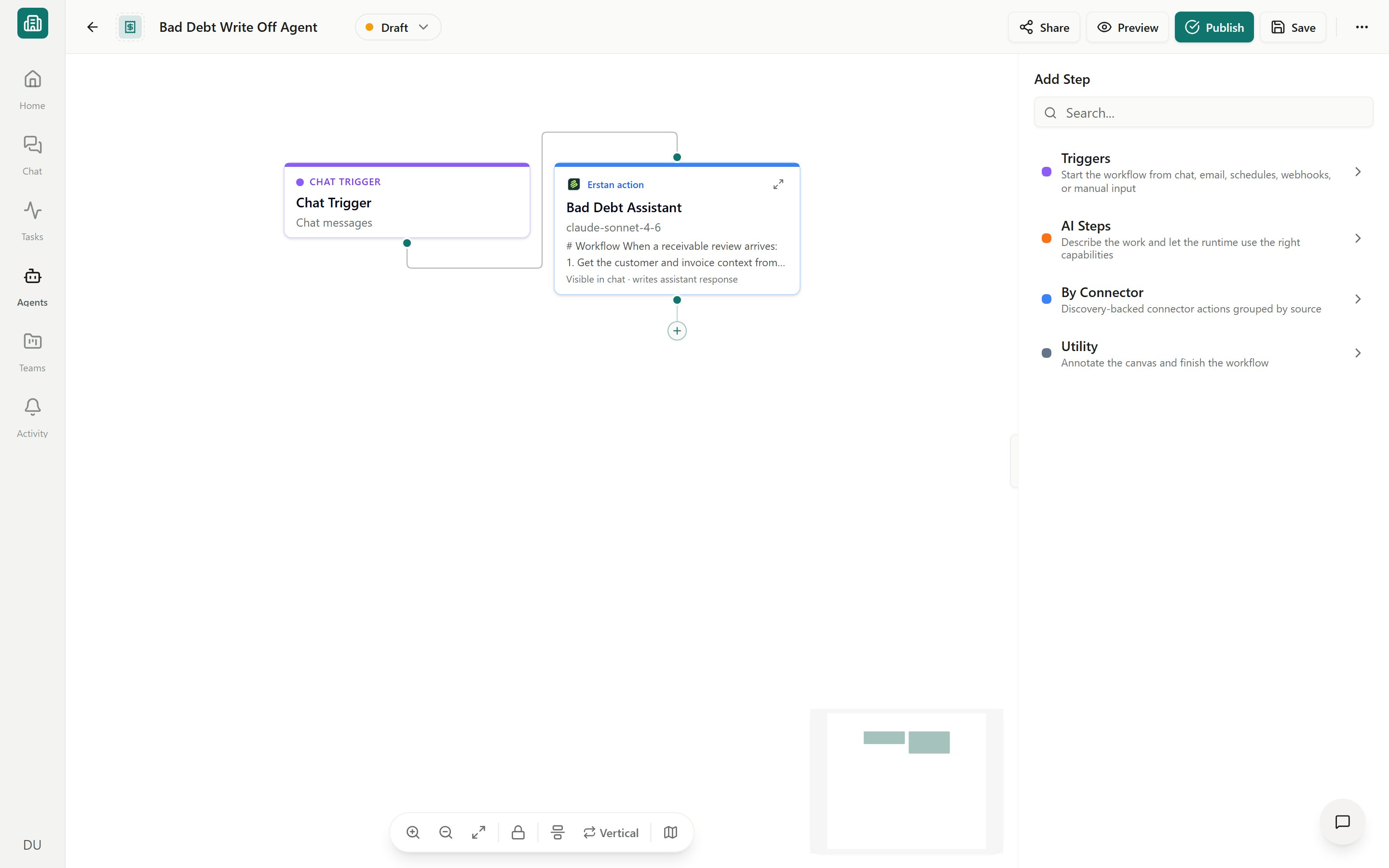
A **trigger** is how an agent starts. It is the first node on the builder canvas, and it decides whether your agent is a chat-first **Assistant** you talk to or a hands-off **Automation** that runs on its own. Pick the trigger that matches the job, then configure who the run acts as.
 ## Trigger types
Every agent has exactly one trigger. The trigger you choose also shapes the agent: a **Chat Trigger** makes a [chat agent](/get-started/concepts) (an Assistant or Workforce), while a **Form Input** or **Schedule** trigger makes a pipeline-style [Automation](/agents/overview).
| Trigger | Starts when… | Agent shape | Use it for |
| ------------ | ------------------------------------- | ---------------------------------- | ----------------------------------------------------------------------- |
| **Chat** | You send a message in chat | Assistant / Workforce (chat agent) | Conversational help — ask, analyze, and act with you in the loop |
| **Form** | Someone submits a form | Automation (pipeline) | Intake and structured requests — a vendor onboarding, a quote, a refund |
| **Schedule** | A recurring time arrives | Automation (pipeline) | Routine jobs — a daily AR aging summary, a weekly close checklist |
| **Webhook** | An external system calls a URL | Automation (pipeline) | System-to-system handoffs from another app or service |
| **Email** | A message lands at an inbound address | Automation (pipeline) | Email-driven intake — forwarded invoices, supplier replies |
| **Manual** | You press **Run** | Any | One-off runs and testing |
In the agent library, the **Trigger** filter labels these as **Chat message**, **Form submission**, **Scheduled event**, **Webhook**, **Email**, and **Manual** so you can find agents by how they start.
### Chat trigger
The default for an **Assistant Agent** or **Workforce Agent**. The agent listens for your messages and replies, planning and calling tools as needed. A Chat trigger always makes the agent interactive — you stay in the conversation and approve any writes to NetSuite. See [Chatting with agents](/chat/overview).
### Form trigger
A **Form Input** trigger turns an agent into an [Automation](/agents/overview) that runs from a small form. You define the fields someone fills in (for example, a customer ID and an aging threshold), and each submission starts one run with those values. Good for repeatable requests that anyone on the team can kick off without writing a prompt.
### Schedule trigger
A **Schedule** trigger runs the agent on a recurring cadence — minutes, hourly, daily, weekly, or monthly. Schedules live in the agent's **Schedules** section on its run history page, where you can add, pause, resume, and edit them. Remove an agent-owned schedule trigger in the visual builder; recurring task schedules can also be run immediately or deleted. See [Scheduling agent runs](/agents/schedules) for the full setup.
### Webhook and email triggers
These open the agent to **inbound automation** from outside Erstan — covered in detail [below](#webhook--email-triggers-for-inbound-automation).
## Run As: which identity an automated run uses
When an agent runs by itself — on a schedule, from a form, a webhook, or an email — there is no person clicking buttons. **Run As** decides which NetSuite user identity the run acts under, so that any reads and writes use a real, authorized account.
Because NetSuite uses [per-user authorization](/connectors/netsuite-authorize), the chosen user must have authorized their own NetSuite access and consented to let the agent run on their behalf. The builder surfaces the current state on the trigger:
| State | Meaning |
| ---------------------------------- | ----------------------------------------------------------------- |
| **Configured** | A user is set and ready; the agent can run. |
| **Needs Run As** | No identity is set yet — pick one before publishing. |
| **Needs consent** | The chosen user must approve running on their behalf. |
| **Wrong user** / **Not available** | The set identity no longer matches an authorized, available user. |
In the [builder](/agents/builder), select the trigger node and open **Trigger setup**.
Pick the user the automated run should act as. For NetSuite work this should be a user with the right role and permissions.
If prompted with **Needs consent**, have that user authorize the agent to run under their identity.
Once **Run As** reads **Configured**, you can [publish](/agents/publish-lifecycle). Publishing is blocked until it is set.
**Run As** governs whose NetSuite account performs reads and writes. An automated run can create or change records on that user's behalf, so set it to a user with appropriate permissions and keep NetSuite **write approvals** in place. See [Approvals](/chat/approvals) before turning on **Auto-approve writes**.
Chat agents don't need **Run As** — they run as the person chatting. **Run As** matters only for triggers that fire without a live user (form, schedule, webhook, email).
## Webhook & email triggers for inbound automation
Webhook and email triggers let other systems — or a forwarded email — start an Erstan agent. Both produce an [Automation](/agents/overview) and run under the trigger's **Run As** identity.
A **Webhook** trigger gives the agent a URL that an external system can call to start a run, passing data in the request. Use it to wire Erstan into another app's events — a new order, an approval in another tool, a nightly export. Configure the endpoint in the builder's **Trigger setup**, and call it from your system. For request formats, authentication, and starting runs programmatically, see the [Developer API](/developers/run-agents).
An **Email** trigger starts a run when a message arrives at an inbound address. Forward supplier replies or invoice emails to it and let the agent extract and act on the contents. A common pattern is OCR intake — reading an attached PDF quote or bill into NetSuite. Walk through that end to end in the [OCR quote intake example](/developers/netsuite-ocr-quote-intake).
Inbound triggers are most useful with an [Automation](/agents/overview) that has clear steps and approval gates. Test with **Preview** in the builder before pointing real traffic at the trigger.
## FAQs
The trigger reflects the agent's shape. Chat agents (Assistant, Workforce) keep a Chat trigger; Automations use Form, Schedule, Webhook, or Email. To run the same agent a different way, add a [schedule](/agents/schedules) or run it [manually](/agents/run-and-tasks) rather than swapping its core trigger.
A triggered agent must have its **Run As** set to **Configured** (and consented if required) before it can be published. Open the trigger's **Trigger setup**, choose an identity, and resolve any consent prompt.
The run is blocked with a **Connection required** banner until the [NetSuite connection](/connectors/netsuite) and per-user authorization are in place. See [connector troubleshooting](/connectors/troubleshooting).
## Next steps
Add triggers and steps on the visual canvas.
Set up daily, weekly, or monthly automations.
Start runs from webhooks and external systems.
Move an agent from Draft to Live.
## Trigger types
Every agent has exactly one trigger. The trigger you choose also shapes the agent: a **Chat Trigger** makes a [chat agent](/get-started/concepts) (an Assistant or Workforce), while a **Form Input** or **Schedule** trigger makes a pipeline-style [Automation](/agents/overview).
| Trigger | Starts when… | Agent shape | Use it for |
| ------------ | ------------------------------------- | ---------------------------------- | ----------------------------------------------------------------------- |
| **Chat** | You send a message in chat | Assistant / Workforce (chat agent) | Conversational help — ask, analyze, and act with you in the loop |
| **Form** | Someone submits a form | Automation (pipeline) | Intake and structured requests — a vendor onboarding, a quote, a refund |
| **Schedule** | A recurring time arrives | Automation (pipeline) | Routine jobs — a daily AR aging summary, a weekly close checklist |
| **Webhook** | An external system calls a URL | Automation (pipeline) | System-to-system handoffs from another app or service |
| **Email** | A message lands at an inbound address | Automation (pipeline) | Email-driven intake — forwarded invoices, supplier replies |
| **Manual** | You press **Run** | Any | One-off runs and testing |
In the agent library, the **Trigger** filter labels these as **Chat message**, **Form submission**, **Scheduled event**, **Webhook**, **Email**, and **Manual** so you can find agents by how they start.
### Chat trigger
The default for an **Assistant Agent** or **Workforce Agent**. The agent listens for your messages and replies, planning and calling tools as needed. A Chat trigger always makes the agent interactive — you stay in the conversation and approve any writes to NetSuite. See [Chatting with agents](/chat/overview).
### Form trigger
A **Form Input** trigger turns an agent into an [Automation](/agents/overview) that runs from a small form. You define the fields someone fills in (for example, a customer ID and an aging threshold), and each submission starts one run with those values. Good for repeatable requests that anyone on the team can kick off without writing a prompt.
### Schedule trigger
A **Schedule** trigger runs the agent on a recurring cadence — minutes, hourly, daily, weekly, or monthly. Schedules live in the agent's **Schedules** section on its run history page, where you can add, pause, resume, and edit them. Remove an agent-owned schedule trigger in the visual builder; recurring task schedules can also be run immediately or deleted. See [Scheduling agent runs](/agents/schedules) for the full setup.
### Webhook and email triggers
These open the agent to **inbound automation** from outside Erstan — covered in detail [below](#webhook--email-triggers-for-inbound-automation).
## Run As: which identity an automated run uses
When an agent runs by itself — on a schedule, from a form, a webhook, or an email — there is no person clicking buttons. **Run As** decides which NetSuite user identity the run acts under, so that any reads and writes use a real, authorized account.
Because NetSuite uses [per-user authorization](/connectors/netsuite-authorize), the chosen user must have authorized their own NetSuite access and consented to let the agent run on their behalf. The builder surfaces the current state on the trigger:
| State | Meaning |
| ---------------------------------- | ----------------------------------------------------------------- |
| **Configured** | A user is set and ready; the agent can run. |
| **Needs Run As** | No identity is set yet — pick one before publishing. |
| **Needs consent** | The chosen user must approve running on their behalf. |
| **Wrong user** / **Not available** | The set identity no longer matches an authorized, available user. |
In the [builder](/agents/builder), select the trigger node and open **Trigger setup**.
Pick the user the automated run should act as. For NetSuite work this should be a user with the right role and permissions.
If prompted with **Needs consent**, have that user authorize the agent to run under their identity.
Once **Run As** reads **Configured**, you can [publish](/agents/publish-lifecycle). Publishing is blocked until it is set.
**Run As** governs whose NetSuite account performs reads and writes. An automated run can create or change records on that user's behalf, so set it to a user with appropriate permissions and keep NetSuite **write approvals** in place. See [Approvals](/chat/approvals) before turning on **Auto-approve writes**.
Chat agents don't need **Run As** — they run as the person chatting. **Run As** matters only for triggers that fire without a live user (form, schedule, webhook, email).
## Webhook & email triggers for inbound automation
Webhook and email triggers let other systems — or a forwarded email — start an Erstan agent. Both produce an [Automation](/agents/overview) and run under the trigger's **Run As** identity.
A **Webhook** trigger gives the agent a URL that an external system can call to start a run, passing data in the request. Use it to wire Erstan into another app's events — a new order, an approval in another tool, a nightly export. Configure the endpoint in the builder's **Trigger setup**, and call it from your system. For request formats, authentication, and starting runs programmatically, see the [Developer API](/developers/run-agents).
An **Email** trigger starts a run when a message arrives at an inbound address. Forward supplier replies or invoice emails to it and let the agent extract and act on the contents. A common pattern is OCR intake — reading an attached PDF quote or bill into NetSuite. Walk through that end to end in the [OCR quote intake example](/developers/netsuite-ocr-quote-intake).
Inbound triggers are most useful with an [Automation](/agents/overview) that has clear steps and approval gates. Test with **Preview** in the builder before pointing real traffic at the trigger.
## FAQs
The trigger reflects the agent's shape. Chat agents (Assistant, Workforce) keep a Chat trigger; Automations use Form, Schedule, Webhook, or Email. To run the same agent a different way, add a [schedule](/agents/schedules) or run it [manually](/agents/run-and-tasks) rather than swapping its core trigger.
A triggered agent must have its **Run As** set to **Configured** (and consented if required) before it can be published. Open the trigger's **Trigger setup**, choose an identity, and resolve any consent prompt.
The run is blocked with a **Connection required** banner until the [NetSuite connection](/connectors/netsuite) and per-user authorization are in place. See [connector troubleshooting](/connectors/troubleshooting).
## Next steps
Add triggers and steps on the visual canvas.
Set up daily, weekly, or monthly automations.
Start runs from webhooks and external systems.
Move an agent from Draft to Live.