> ## Documentation Index
> Fetch the complete documentation index at: https://docs.erstan.com/llms.txt
> Use this file to discover all available pages before exploring further.
# Connect App data
> Choose Data Sources, App resources, and actions from the App's Data section.
Open **App actions → Edit App → Data** to see what an App reads, stores, and changes. The **App data** view separates three kinds of access.
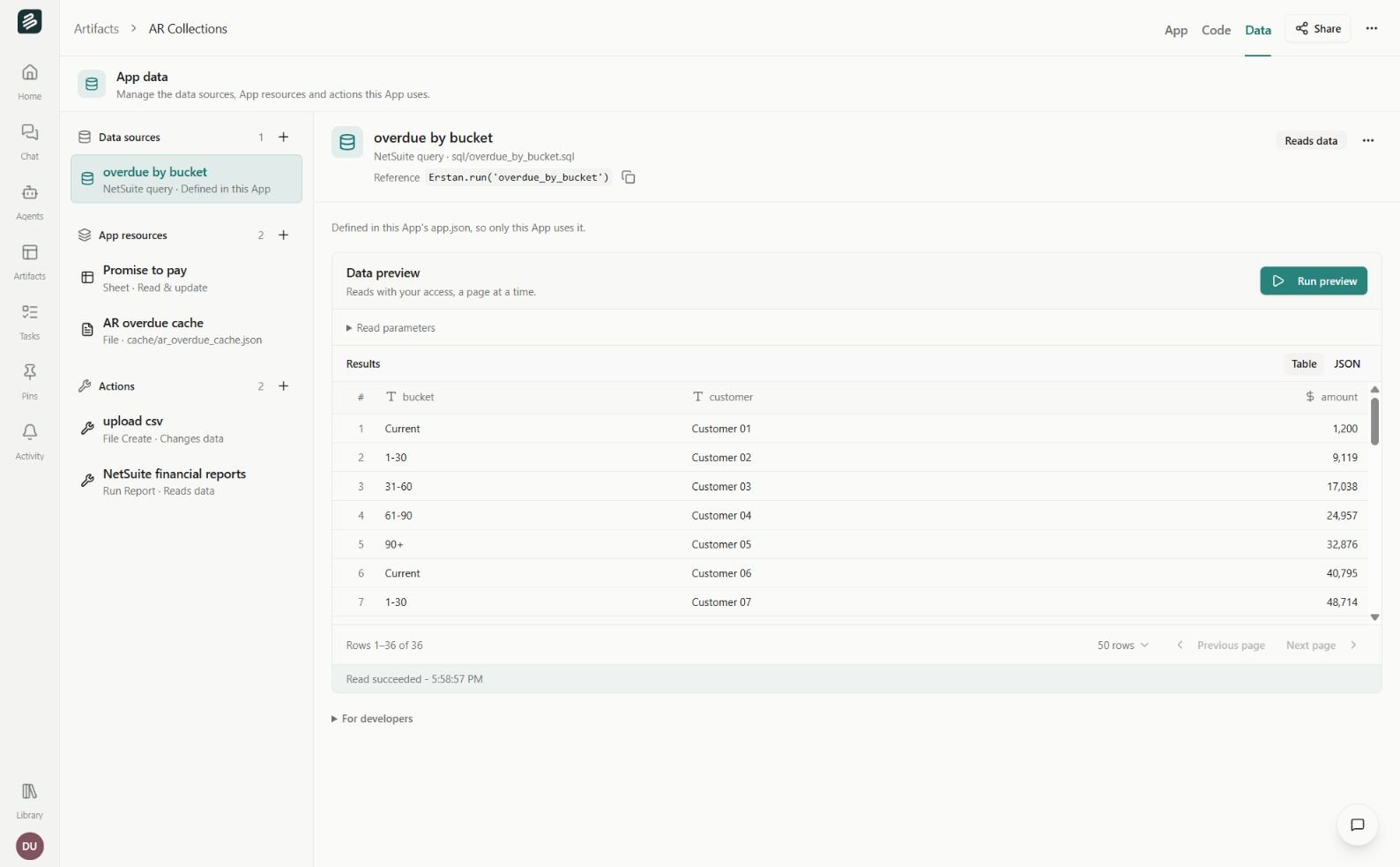 | Kind | Purpose | Example |
| - | - | - |
| **Data sources** | Reads defined in this App or reusable published definitions shared with other Apps and Agents. | A NetSuite query or a read from a connected service. |
| **App resources** | Resources attached to this App, with their configured capabilities. | A native Sheet, Database table, file, or App storage. |
| **Actions** | Operations the App can run through tools. | Create a record or start a business action. |
## Add a Data Source
Choose **Add data source** and search for an existing source or browse the available systems and Erstan data. You can reuse a published Data Source or create one from a supported read. The editor stays inside the App while you configure it.
For a new source, configure the read, run a preview, check the returned columns, and review and publish it before adding it to the App. See [Data Sources](/data/data-sources) for the full lifecycle.
An App binding can fix input values and expose other declared inputs to its interface. For example, fix a subsidiary while allowing the user to choose a date range. Keep those settings aligned with the App's filters and intended audience.
Data Sources follow their current published definition. Saving source edits as a draft does not change consumers; publishing a compatible source update does. Removing a source from an App does not delete the shared source.
A read labelled **Defined in this App** belongs to this App's configuration. A **Shared data source** follows the reusable source's published changes. Check the label before editing so you understand who else may be affected.
## Use native resources
[Sheets](/content/sheets) suit workbook calculations and tabular reports. [Databases](/content/databases) suit structured records, relationships, and saved views. They can also appear as native pages inside an App.
The App's configured capabilities limit what it can read or change. Each user also needs access to the original resource. Draft previews cannot write production data through those bindings.
Files and App storage serve different needs from a reusable Data Source. Use a resource when it belongs to the App's own working data; use a Data Source when Apps or Agents should reuse a named read.
## Configure actions
Actions invoke configured tools and may read or change data. Check the **Reads data** or **Changes data** label before using one. Review the tool, fixed arguments, and inputs the App may supply. An App action continues to follow the caller's connected-system permissions and applicable approval policy.
**Can use** permits a user to run the published App's configured actions. It does not bypass a denied tool, provide someone else's connection, or remove a required approval.
## Refresh and troubleshoot
Preview a read to check its current inputs and output. A preview is a sample, not necessarily the full dataset; use the App's paging controls for larger results. A saved source may cache results where supported, while its draft preview always reads live.
If a user can open the App but cannot load its data, check access in this order:
1. The App itself.
2. The Data Source or native resource.
3. The user's connection and permissions in the underlying system.
Use **App activity** to identify the failing read or action. Sharing the App alone does not satisfy the other access requirements.
| Kind | Purpose | Example |
| - | - | - |
| **Data sources** | Reads defined in this App or reusable published definitions shared with other Apps and Agents. | A NetSuite query or a read from a connected service. |
| **App resources** | Resources attached to this App, with their configured capabilities. | A native Sheet, Database table, file, or App storage. |
| **Actions** | Operations the App can run through tools. | Create a record or start a business action. |
## Add a Data Source
Choose **Add data source** and search for an existing source or browse the available systems and Erstan data. You can reuse a published Data Source or create one from a supported read. The editor stays inside the App while you configure it.
For a new source, configure the read, run a preview, check the returned columns, and review and publish it before adding it to the App. See [Data Sources](/data/data-sources) for the full lifecycle.
An App binding can fix input values and expose other declared inputs to its interface. For example, fix a subsidiary while allowing the user to choose a date range. Keep those settings aligned with the App's filters and intended audience.
Data Sources follow their current published definition. Saving source edits as a draft does not change consumers; publishing a compatible source update does. Removing a source from an App does not delete the shared source.
A read labelled **Defined in this App** belongs to this App's configuration. A **Shared data source** follows the reusable source's published changes. Check the label before editing so you understand who else may be affected.
## Use native resources
[Sheets](/content/sheets) suit workbook calculations and tabular reports. [Databases](/content/databases) suit structured records, relationships, and saved views. They can also appear as native pages inside an App.
The App's configured capabilities limit what it can read or change. Each user also needs access to the original resource. Draft previews cannot write production data through those bindings.
Files and App storage serve different needs from a reusable Data Source. Use a resource when it belongs to the App's own working data; use a Data Source when Apps or Agents should reuse a named read.
## Configure actions
Actions invoke configured tools and may read or change data. Check the **Reads data** or **Changes data** label before using one. Review the tool, fixed arguments, and inputs the App may supply. An App action continues to follow the caller's connected-system permissions and applicable approval policy.
**Can use** permits a user to run the published App's configured actions. It does not bypass a denied tool, provide someone else's connection, or remove a required approval.
## Refresh and troubleshoot
Preview a read to check its current inputs and output. A preview is a sample, not necessarily the full dataset; use the App's paging controls for larger results. A saved source may cache results where supported, while its draft preview always reads live.
If a user can open the App but cannot load its data, check access in this order:
1. The App itself.
2. The Data Source or native resource.
3. The user's connection and permissions in the underlying system.
Use **App activity** to identify the failing read or action. Sharing the App alone does not satisfy the other access requirements.