> ## Documentation Index
> Fetch the complete documentation index at: https://docs.erstan.com/llms.txt
> Use this file to discover all available pages before exploring further.
# Approving and rejecting AI actions
> Stay in control: review write actions before they run, and decide when to auto-approve.
When an agent wants to change data in NetSuite or another connected system, it pauses and asks you first. You review exactly what it plans to do, then approve or reject it — so nothing is written without your say-so.
## Why approvals exist
Reading data is safe; writing it is not. Creating a vendor bill, updating a customer record, or applying a payment changes your real NetSuite account, so Erstan treats every **write** as something you sign off on.
By default, write actions are gated by an approval. The agent does its research, drafts the change, and then stops at an **approval card** above the composer until you decide. This is the **human-in-the-loop** model: the AI proposes, you dispose.
Each tool's behavior is set by a **write policy** — **Allow**, **Require approval**, or **Deny**. Tools set to *Require approval* produce the card described below. Owners and admins manage these policies on the [NetSuite connector](/connectors/netsuite-manage) and per agent.
## The approval card
When the agent reaches a write step, an **Approval required** card appears just above the message composer.
The card names the action the agent wants to run (for example, creating a record or updating a field) and explains why it needs approval.
Click **View details** to open the **Before / After** preview. It shows the current values next to the proposed values so you can confirm the change is correct. Click **Hide details** to collapse it.
Click **Run action** (or **Run actions** when several are bundled) to let it proceed, or **Don't run** to reject it. The agent continues based on your choice.
Approval decisions must use the authenticated **Run action** or **Don't run** controls on the current card. A chat reply is feedback only: it does not approve or reject the pending action. To revise the proposal, reject the current card, send the revised instructions, and review the replacement approval card.
For an approval linked to a task, the assigned approver remains visible, but any teammate with normal access to that task can use the card so the run does not stay stuck. The run records the person who actually decided and continues with its original run identity. Direct and private chat approvals remain available only to their assigned approver.
Approving a card writes to your live NetSuite account (or other connected system). Always check the **Before / After** preview — amounts, record IDs, and which environment you are in — before clicking **Run action**. A standing reminder under the composer notes that AI can make mistakes, so check important details before acting.
## Auto-approve writes
If you are doing repetitive work and trust the agent's output, you can skip the per-action prompt. Open the **+** menu in the composer and turn on **Auto-approve writes**. While it is on, a disclaimer reading **Auto-approve writes enabled** shows under the composer, and writes run without stopping for the card.
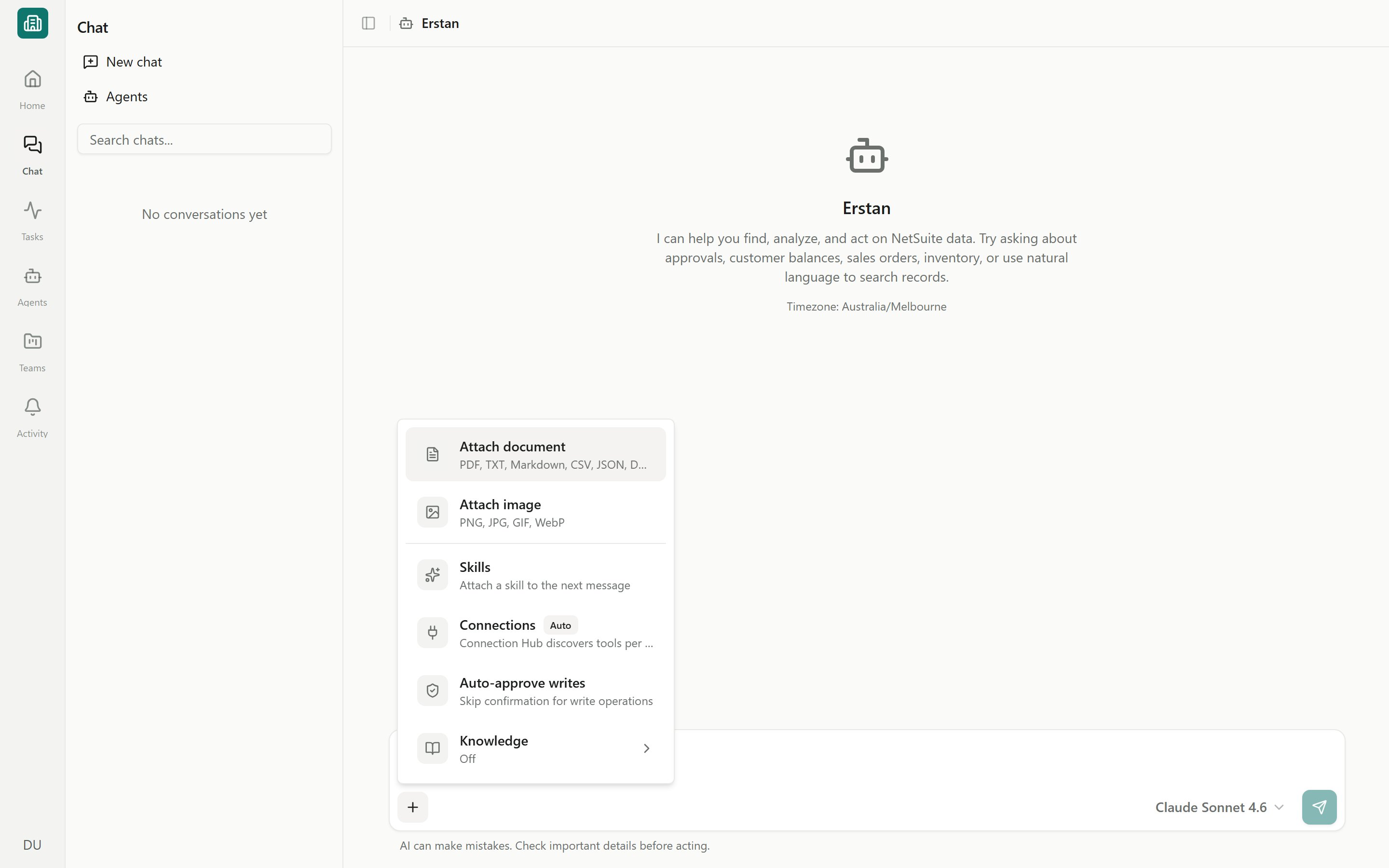 Auto-approve applies to your current **plain chat** with the default Erstan assistant. It is a personal setting that affects only you, so it does not change anything for your teammates and does not carry over to scoped agents that have their own governance.
Auto-approve writes removes the approval step for ERP writes — the agent can create and change NetSuite records without asking. Use it only for low-risk, well-understood tasks, and turn it off when you are done. For anything financial or irreversible, leave approvals on.
## Other cards you may see
Not every card above the composer is an approval. Two look similar but mean different things.
A read-only **Queued** card — for example, **Queued — NetSuite** — appears when downstream work is briefly held, usually when the **"NetSuite is busy" queue** is throttling requests. It shows how many items are **ahead** and reads **This continues automatically — no action needed.** There are no buttons; the run resumes on its own once capacity frees up. This is informational, not an approval.
An **Authorization Required** card appears when a tool needs access to a connected account you have not authorized yet. Click **Authorize account** to open the provider's sign-in window, complete it, then click **I've Completed Authorization** (or **Done**) to continue. NetSuite uses [per-user authorization](/connectors/netsuite-authorize), so each member authorizes their own access the first time an agent needs it.
Quick way to tell them apart: an **approval card** has **Run action** / **Don't run** buttons and a Before / After preview; a **Queued** card has no buttons and clears itself; an **Authorization Required** card has an **Authorize account** button.
## FAQ
The write is skipped and the agent continues with that action rejected. You can tell it what to do instead, or ask it to revise the change and try again.
Either **Auto-approve writes** is on (check for the disclaimer under the composer), or the tool's write policy is set to **Allow**. Owners and admins can review policies on the [NetSuite connector](/connectors/netsuite-manage).
Yes. Agent runs keep a trace of every step, including approved writes. See [run history and traces](/agents/run-history-traces).
No — that was a **Queued** card. Queue notices resume automatically and need no action. Only cards with **Run action** / **Don't run** buttons require your decision.
## Next steps
How chatting with Erstan works end to end.
Control which connections and tools the AI can use.
Set up your per-user NetSuite access.
Approve agent work that lands in the task board.
Auto-approve applies to your current **plain chat** with the default Erstan assistant. It is a personal setting that affects only you, so it does not change anything for your teammates and does not carry over to scoped agents that have their own governance.
Auto-approve writes removes the approval step for ERP writes — the agent can create and change NetSuite records without asking. Use it only for low-risk, well-understood tasks, and turn it off when you are done. For anything financial or irreversible, leave approvals on.
## Other cards you may see
Not every card above the composer is an approval. Two look similar but mean different things.
A read-only **Queued** card — for example, **Queued — NetSuite** — appears when downstream work is briefly held, usually when the **"NetSuite is busy" queue** is throttling requests. It shows how many items are **ahead** and reads **This continues automatically — no action needed.** There are no buttons; the run resumes on its own once capacity frees up. This is informational, not an approval.
An **Authorization Required** card appears when a tool needs access to a connected account you have not authorized yet. Click **Authorize account** to open the provider's sign-in window, complete it, then click **I've Completed Authorization** (or **Done**) to continue. NetSuite uses [per-user authorization](/connectors/netsuite-authorize), so each member authorizes their own access the first time an agent needs it.
Quick way to tell them apart: an **approval card** has **Run action** / **Don't run** buttons and a Before / After preview; a **Queued** card has no buttons and clears itself; an **Authorization Required** card has an **Authorize account** button.
## FAQ
The write is skipped and the agent continues with that action rejected. You can tell it what to do instead, or ask it to revise the change and try again.
Either **Auto-approve writes** is on (check for the disclaimer under the composer), or the tool's write policy is set to **Allow**. Owners and admins can review policies on the [NetSuite connector](/connectors/netsuite-manage).
Yes. Agent runs keep a trace of every step, including approved writes. See [run history and traces](/agents/run-history-traces).
No — that was a **Queued** card. Queue notices resume automatically and need no action. Only cards with **Run action** / **Don't run** buttons require your decision.
## Next steps
How chatting with Erstan works end to end.
Control which connections and tools the AI can use.
Set up your per-user NetSuite access.
Approve agent work that lands in the task board.