> ## Documentation Index
> Fetch the complete documentation index at: https://docs.erstan.com/llms.txt
> Use this file to discover all available pages before exploring further.
# Knowledge, Tools, Web Search & Models
> Control what Erstan can see and use in chat: connections, knowledge sources, web search, and the model behind each reply.
Every chat reply is shaped by what Erstan is allowed to see and use: which tools it can call, which knowledge it can pull from, whether it can search the web, and which model is doing the thinking. You set all of this from the composer's **+** menu, and your choices stick from one message to the next.
 ## The composer + menu
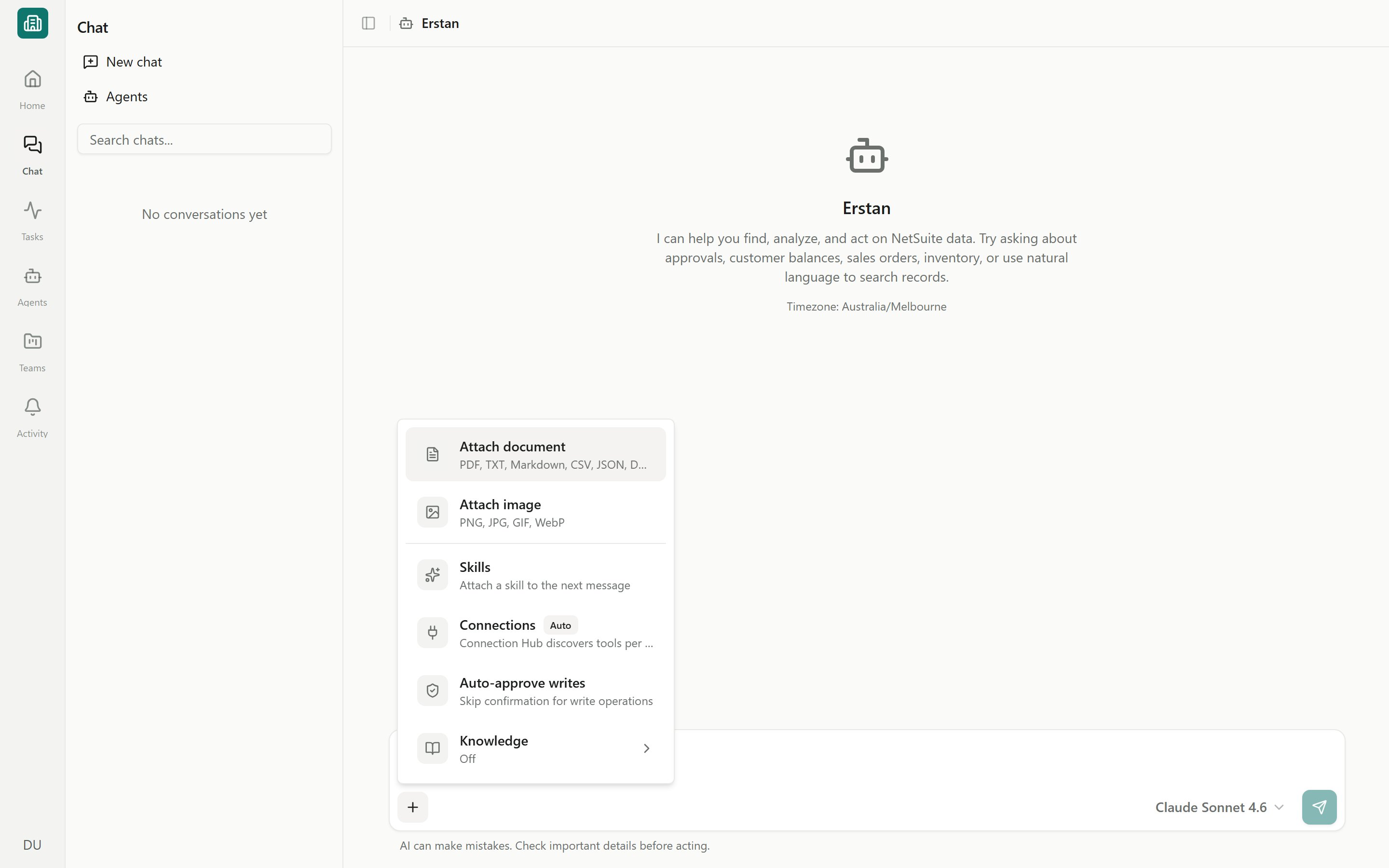
Click the **+** button at the left of the message box to open the actions menu. Alongside attachments and [Skills](/skills/overview), it holds the controls that govern a conversation:
| Control | What it does |
| ----------------------- | ------------------------------------------------------------------------------------------------------------------------------- |
| **Connections** | Choose which tools the assistant may call (NetSuite and other connectors). |
| **Knowledge** | Search active Team Files and set their team scope. NetSuite product updates are retrieved automatically for relevant questions. |
| **Web search** | Let the model look things up on the public web (when supported). |
| **Auto-approve writes** | Skip the per-action approval prompt for writes — see [Approving and rejecting AI actions](/chat/approvals). |
| **Show agent progress** | Show step-by-step run progress in agent-scoped chats. |
| **Model settings** | Pick the provider, model, and reasoning effort. |
Some controls appear only in certain contexts. **Web search** shows when the selected provider and model support it, and **Show agent progress** mainly appears when you are chatting with a specific agent rather than the default assistant.
## Connections (tools)
**Connections** are the external tools the assistant may use to do real work — querying NetSuite, calling other [connectors](/connectors/overview), and Erstan's built-in tools. Open **Connections** from the **+** menu to choose how tools are selected.
In **Auto** mode, Erstan discovers and picks the right tools for each message on its own — the panel describes this as *"Connection Hub discovers tools per message."* This is the default and the best choice for everyday chat: you ask a question, and Erstan reaches for the NetSuite or connector tools it needs to answer it.
**Expert** mode opens the full tool catalog with individual checkboxes, so you can pin exactly which tools are available for the conversation. Use the **Search connections and tools…** box to find a specific tool, or reset back to defaults. Expert mode is for when you want tight, predictable control over what the assistant can touch.
If a tool the assistant needs isn't connected yet, you'll be prompted to set it up — owners and admins connect NetSuite and other systems from [Connectors](/connectors/netsuite). NetSuite uses per-user authorization, so if your own NetSuite user and role aren't authorized yet, an **Authorization Required** card appears in the transcript and you can authorize without leaving chat; see [Authorize your NetSuite access](/connectors/netsuite-authorize).
Connecting a tool that can change NetSuite data does not bypass safety. Write-capable actions still pause for your approval before they run, unless **Auto-approve writes** is on. Review [write safety](/security/overview) before enabling broad tool access.
## Knowledge
**Knowledge** lets the assistant ground answers in searchable Team Files. Open **Knowledge** from the **+** menu to turn Team File search on and set its scope. Erstan-managed NetSuite product updates do not need a per-chat toggle: Erstan searches them automatically when a question clearly concerns a NetSuite release, version, feature, or product update.
Pulls from files your teams have made searchable as **Agent knowledge** — for example a vendor policy, a chart of accounts mapping, or a process doc. Only files that are AI-search ready are used. See [Agent knowledge](/content/agent-knowledge) for how to make a file available.
Erstan automatically retrieves relevant release notes and feature updates for questions such as *"What's new in NetSuite 2026.2?"* Ordinary chat turns do not search this source. Workspace owners can disable or remove the source from **Knowledge**.
Set how widely Knowledge searches: **All my teams** looks across every team you belong to, while **This team** limits retrieval to the current team's files. Narrow the scope when you want answers grounded only in one team's content.
Knowledge is for context the assistant should *read*. To have it *act* on NetSuite — pulling live invoices, balances, or records — that comes through **Connections**, not Knowledge.
## Web search
The **Web search** toggle lets the model look up information on the public web during a reply, which is useful for general context that isn't in your NetSuite account or your team files. It appears in the **+** menu only when the selected provider and model support web search; if you don't see it, switch to a model that does in **Model settings**.
Web search reaches outside your workspace. It does not read your NetSuite data — that always flows through Connections and Knowledge — and it has no bearing on approvals for write actions.
## Model settings
Open **Model settings** from the **+** menu to choose which AI model answers you. The picker combines three choices in one place.
## The composer + menu
Click the **+** button at the left of the message box to open the actions menu. Alongside attachments and [Skills](/skills/overview), it holds the controls that govern a conversation:
| Control | What it does |
| ----------------------- | ------------------------------------------------------------------------------------------------------------------------------- |
| **Connections** | Choose which tools the assistant may call (NetSuite and other connectors). |
| **Knowledge** | Search active Team Files and set their team scope. NetSuite product updates are retrieved automatically for relevant questions. |
| **Web search** | Let the model look things up on the public web (when supported). |
| **Auto-approve writes** | Skip the per-action approval prompt for writes — see [Approving and rejecting AI actions](/chat/approvals). |
| **Show agent progress** | Show step-by-step run progress in agent-scoped chats. |
| **Model settings** | Pick the provider, model, and reasoning effort. |
Some controls appear only in certain contexts. **Web search** shows when the selected provider and model support it, and **Show agent progress** mainly appears when you are chatting with a specific agent rather than the default assistant.
## Connections (tools)
**Connections** are the external tools the assistant may use to do real work — querying NetSuite, calling other [connectors](/connectors/overview), and Erstan's built-in tools. Open **Connections** from the **+** menu to choose how tools are selected.
In **Auto** mode, Erstan discovers and picks the right tools for each message on its own — the panel describes this as *"Connection Hub discovers tools per message."* This is the default and the best choice for everyday chat: you ask a question, and Erstan reaches for the NetSuite or connector tools it needs to answer it.
**Expert** mode opens the full tool catalog with individual checkboxes, so you can pin exactly which tools are available for the conversation. Use the **Search connections and tools…** box to find a specific tool, or reset back to defaults. Expert mode is for when you want tight, predictable control over what the assistant can touch.
If a tool the assistant needs isn't connected yet, you'll be prompted to set it up — owners and admins connect NetSuite and other systems from [Connectors](/connectors/netsuite). NetSuite uses per-user authorization, so if your own NetSuite user and role aren't authorized yet, an **Authorization Required** card appears in the transcript and you can authorize without leaving chat; see [Authorize your NetSuite access](/connectors/netsuite-authorize).
Connecting a tool that can change NetSuite data does not bypass safety. Write-capable actions still pause for your approval before they run, unless **Auto-approve writes** is on. Review [write safety](/security/overview) before enabling broad tool access.
## Knowledge
**Knowledge** lets the assistant ground answers in searchable Team Files. Open **Knowledge** from the **+** menu to turn Team File search on and set its scope. Erstan-managed NetSuite product updates do not need a per-chat toggle: Erstan searches them automatically when a question clearly concerns a NetSuite release, version, feature, or product update.
Pulls from files your teams have made searchable as **Agent knowledge** — for example a vendor policy, a chart of accounts mapping, or a process doc. Only files that are AI-search ready are used. See [Agent knowledge](/content/agent-knowledge) for how to make a file available.
Erstan automatically retrieves relevant release notes and feature updates for questions such as *"What's new in NetSuite 2026.2?"* Ordinary chat turns do not search this source. Workspace owners can disable or remove the source from **Knowledge**.
Set how widely Knowledge searches: **All my teams** looks across every team you belong to, while **This team** limits retrieval to the current team's files. Narrow the scope when you want answers grounded only in one team's content.
Knowledge is for context the assistant should *read*. To have it *act* on NetSuite — pulling live invoices, balances, or records — that comes through **Connections**, not Knowledge.
## Web search
The **Web search** toggle lets the model look up information on the public web during a reply, which is useful for general context that isn't in your NetSuite account or your team files. It appears in the **+** menu only when the selected provider and model support web search; if you don't see it, switch to a model that does in **Model settings**.
Web search reaches outside your workspace. It does not read your NetSuite data — that always flows through Connections and Knowledge — and it has no bearing on approvals for write actions.
## Model settings
Open **Model settings** from the **+** menu to choose which AI model answers you. The picker combines three choices in one place.
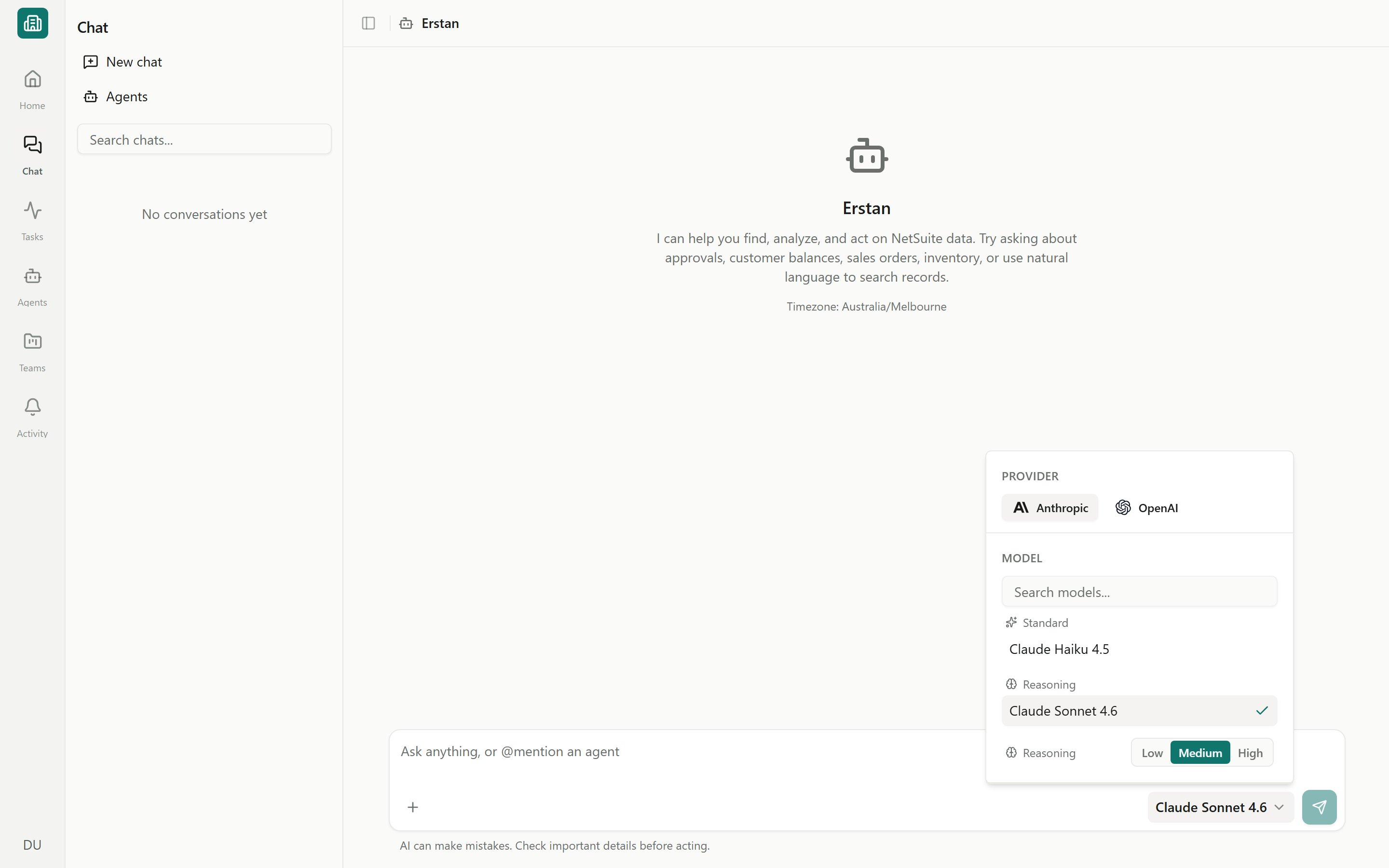 Pick a connected provider such as **Anthropic** or **OpenAI**. Only providers your workspace has connected appear here — see [Connecting an LLM provider](/connectors/llm-providers).
Choose a specific model from that provider. Different models trade off speed, capability, and cost.
For models that support it, set how hard the model thinks — **low**, **medium**, **high**, **xhigh**, or **max**. Higher effort can improve quality on complex finance reasoning but takes longer.
Your last-used model is remembered per user and re-applied across sessions. If you've never chosen one, chat falls back to the workspace default model and provider.
Chat needs a connected LLM provider. If none is connected, the composer reads **"Connect an LLM to start chatting…"** with a link to [Connectors](/connectors/llm-providers) — connect a provider first, then your model choices appear in **Model settings**.
## Next steps
The basics of starting a chat and reading replies.
Review write actions before they run, and when to auto-approve.
Add OpenAI or Anthropic and choose which models agents can use.
Make team files searchable so chat and agents can use them.
Pick a connected provider such as **Anthropic** or **OpenAI**. Only providers your workspace has connected appear here — see [Connecting an LLM provider](/connectors/llm-providers).
Choose a specific model from that provider. Different models trade off speed, capability, and cost.
For models that support it, set how hard the model thinks — **low**, **medium**, **high**, **xhigh**, or **max**. Higher effort can improve quality on complex finance reasoning but takes longer.
Your last-used model is remembered per user and re-applied across sessions. If you've never chosen one, chat falls back to the workspace default model and provider.
Chat needs a connected LLM provider. If none is connected, the composer reads **"Connect an LLM to start chatting…"** with a link to [Connectors](/connectors/llm-providers) — connect a provider first, then your model choices appear in **Model settings**.
## Next steps
The basics of starting a chat and reading replies.
Review write actions before they run, and when to auto-approve.
Add OpenAI or Anthropic and choose which models agents can use.
Make team files searchable so chat and agents can use them.