> ## Documentation Index
> Fetch the complete documentation index at: https://docs.erstan.com/llms.txt
> Use this file to discover all available pages before exploring further.
# Chatting with Erstan
> Ask Erstan to find, analyze, and act on your NetSuite data, and follow its replies in the transcript.
Chat is where you talk to Erstan's AI in plain language to find, analyze, and act on your NetSuite and business data. You type a message, the assistant streams a reply, runs the tools it needs, and pauses for your approval before it writes anything back.
 ## Start a new chat
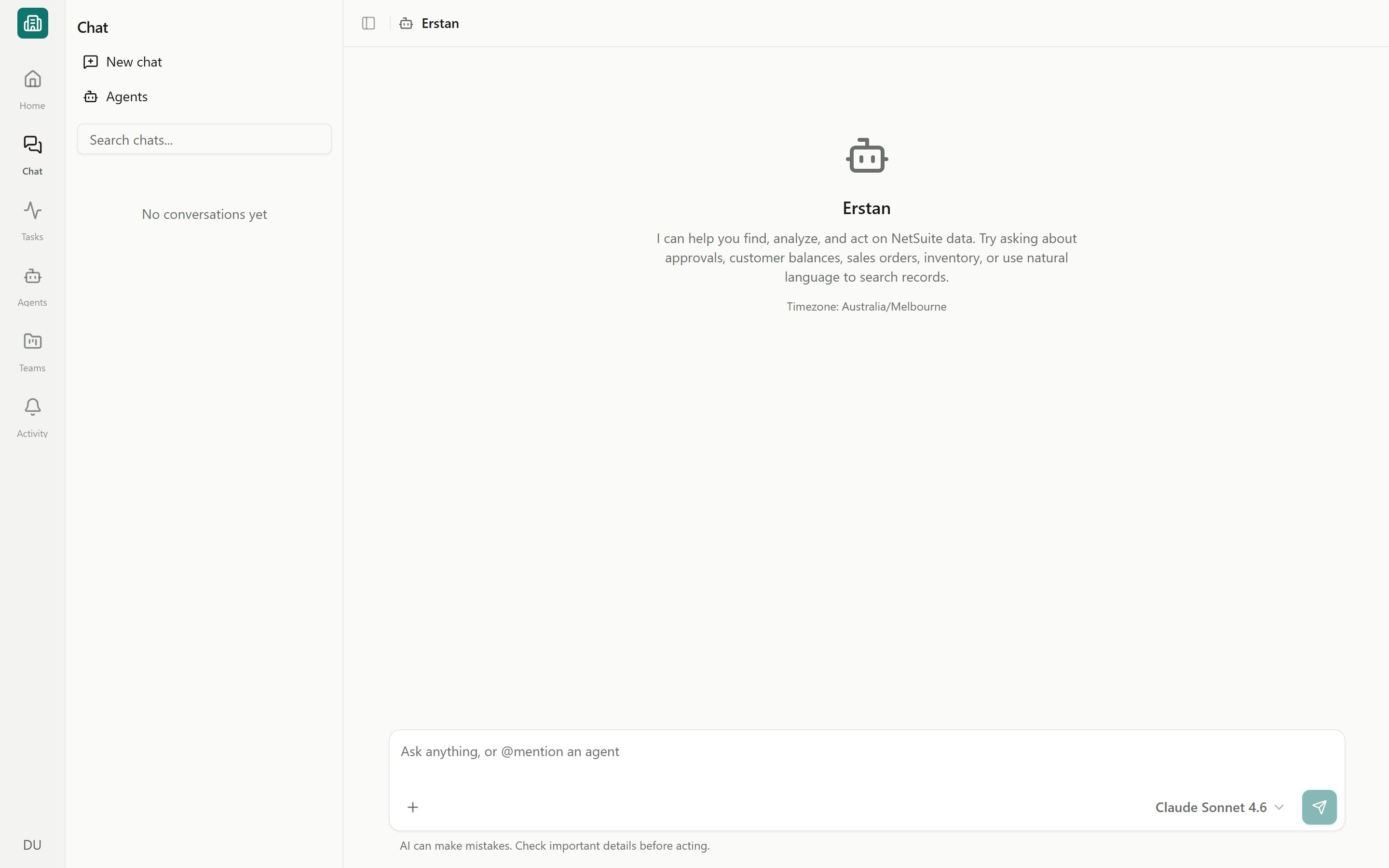
Open **Chat** from the sidebar, or click **New chat** in the history panel. A fresh conversation shows the Erstan assistant intro — "I can help you find, analyze, and act on NetSuite data..." — and the composer at the bottom.
Use the composer at the bottom. The placeholder reads **"Ask anything, or @mention an agent"**. Ask in business terms, for example *"Show me overdue invoices over 60 days"* or *"Summarize AR aging by customer"*.
Press **Enter** or click the submit button.
The assistant streams its answer into the transcript. **Tool calls** (such as a SuiteQL query or a NetSuite lookup) and reasoning can appear inline so you can see what it is doing, not just the final result.
By default you are talking to **Erstan**, the default assistant. To route a conversation to a specific agent instead, type `@` to mention one — see [Working with agents in chat](/chat/agents-mentions).
A standing disclaimer sits under the composer: **"AI can make mistakes. Check important details before acting."** Always review figures and records before you rely on them.
### Attachments and skills
The composer's **+** menu lets you attach a document or image, and insert a saved **Skill** into your message. You can also drag-and-drop or paste an image straight onto the chat. Attachments show as a chip above the input before you send. For the full menu — connections, knowledge, web search, and model — see [Knowledge, tools, web search & models](/chat/knowledge-tools-models).
## Following replies and giving feedback
Each assistant message renders text, inline tool calls, and any artifacts it produced. Hover a reply to:
* **Copy response** — puts the message on your clipboard.
* **Thumbs up / thumbs down** — rate the answer, with an optional **Send feedback** dialog for details.
When the assistant needs to perform a write or other action, it pauses with an approval card so you stay in control. See [Approving and rejecting AI actions](/chat/approvals).
## The chat history panel
The panel on the left keeps every conversation. Use it to move between threads and tidy up.
| Action | Where | What it does |
| ----------------- | ----------------- | ----------------------------------- |
| **New chat** | Top of the panel | Starts a fresh conversation. |
| **Agents** | Top of the panel | Jumps to the Agents library. |
| **Search chats…** | Search box | Filters your conversations by text. |
| **Load more…** | Bottom of a group | Pages in older conversations. |
Threads are grouped under date headers (such as **Today**), and conversations tied to an agent group under that agent's name. Live **status dots** show when a run is in progress, needs attention, or failed.
Each thread has its own menu for **Rename** and **Delete**. The panel's history menu offers **Refresh** and **Clear history**.
**Clear history** permanently deletes every conversation except the one you currently have open. Rename, Delete, and Clear history each ask you to confirm first.
## The Canvas panel
When a reply references a document, team file, SuiteQL query, or NetSuite record, you can open it in **Canvas** — a side panel beside the chat — to read or edit the artifact without leaving the conversation. Learn more in [The Canvas panel](/chat/canvas).
## You need a connected AI provider
Chat runs on a large language model, so a workspace must have an **LLM provider** (OpenAI or Anthropic) connected before you can chat. If none is connected, the composer reads **"Connect an LLM to start chatting…"** with a link to Connectors.
See [Connecting an LLM provider](/connectors/llm-providers) to add OpenAI or Anthropic and choose which models agents can use.
## Next steps
Use @mentions to direct a conversation to a specific agent and follow its run.
Control what Erstan can see and use, and pick the model and reasoning effort.
Review write actions before they run, and decide when to auto-approve.
Open documents, files, SuiteQL, and NetSuite records inline beside your chat.
## Start a new chat
Open **Chat** from the sidebar, or click **New chat** in the history panel. A fresh conversation shows the Erstan assistant intro — "I can help you find, analyze, and act on NetSuite data..." — and the composer at the bottom.
Use the composer at the bottom. The placeholder reads **"Ask anything, or @mention an agent"**. Ask in business terms, for example *"Show me overdue invoices over 60 days"* or *"Summarize AR aging by customer"*.
Press **Enter** or click the submit button.
The assistant streams its answer into the transcript. **Tool calls** (such as a SuiteQL query or a NetSuite lookup) and reasoning can appear inline so you can see what it is doing, not just the final result.
By default you are talking to **Erstan**, the default assistant. To route a conversation to a specific agent instead, type `@` to mention one — see [Working with agents in chat](/chat/agents-mentions).
A standing disclaimer sits under the composer: **"AI can make mistakes. Check important details before acting."** Always review figures and records before you rely on them.
### Attachments and skills
The composer's **+** menu lets you attach a document or image, and insert a saved **Skill** into your message. You can also drag-and-drop or paste an image straight onto the chat. Attachments show as a chip above the input before you send. For the full menu — connections, knowledge, web search, and model — see [Knowledge, tools, web search & models](/chat/knowledge-tools-models).
## Following replies and giving feedback
Each assistant message renders text, inline tool calls, and any artifacts it produced. Hover a reply to:
* **Copy response** — puts the message on your clipboard.
* **Thumbs up / thumbs down** — rate the answer, with an optional **Send feedback** dialog for details.
When the assistant needs to perform a write or other action, it pauses with an approval card so you stay in control. See [Approving and rejecting AI actions](/chat/approvals).
## The chat history panel
The panel on the left keeps every conversation. Use it to move between threads and tidy up.
| Action | Where | What it does |
| ----------------- | ----------------- | ----------------------------------- |
| **New chat** | Top of the panel | Starts a fresh conversation. |
| **Agents** | Top of the panel | Jumps to the Agents library. |
| **Search chats…** | Search box | Filters your conversations by text. |
| **Load more…** | Bottom of a group | Pages in older conversations. |
Threads are grouped under date headers (such as **Today**), and conversations tied to an agent group under that agent's name. Live **status dots** show when a run is in progress, needs attention, or failed.
Each thread has its own menu for **Rename** and **Delete**. The panel's history menu offers **Refresh** and **Clear history**.
**Clear history** permanently deletes every conversation except the one you currently have open. Rename, Delete, and Clear history each ask you to confirm first.
## The Canvas panel
When a reply references a document, team file, SuiteQL query, or NetSuite record, you can open it in **Canvas** — a side panel beside the chat — to read or edit the artifact without leaving the conversation. Learn more in [The Canvas panel](/chat/canvas).
## You need a connected AI provider
Chat runs on a large language model, so a workspace must have an **LLM provider** (OpenAI or Anthropic) connected before you can chat. If none is connected, the composer reads **"Connect an LLM to start chatting…"** with a link to Connectors.
See [Connecting an LLM provider](/connectors/llm-providers) to add OpenAI or Anthropic and choose which models agents can use.
## Next steps
Use @mentions to direct a conversation to a specific agent and follow its run.
Control what Erstan can see and use, and pick the model and reasoning effort.
Review write actions before they run, and decide when to auto-approve.
Open documents, files, SuiteQL, and NetSuite records inline beside your chat.