> ## Documentation Index
> Fetch the complete documentation index at: https://docs.erstan.com/llms.txt
> Use this file to discover all available pages before exploring further.
# Connecting an LLM provider
> Connect OpenAI or Anthropic and choose which models your agents and chat can use.
Erstan agents and Chat run on a large language model (LLM), so your workspace needs at least one connected AI provider before anyone can chat or run an agent. You connect a provider once with a workspace API key, then pick which of its models are available.
Connecting and managing an LLM provider is an Owner/Admin task. Members see the connected models in Chat but cannot change keys or the model allowlist — some controls show **Requires Admin permission to change.**
## Why a provider is required
Every reply in Chat and every AI step in an agent is generated by a model from a connected provider. Until one is connected, the chat composer is blocked and prompts you to connect a provider, with a button that links straight to **Connectors**.
Providers appear in the [Connectors](/connectors/overview) list with an **LLM** type badge. Erstan supports **OpenAI** and **Anthropic**.
## Connect a provider
You connect a provider by pasting one workspace API key from that provider. The key is stored for this workspace only.
Go to **Connectors**, then open **OpenAI** or **Anthropic**. (NetSuite is connected separately — see [Connecting NetSuite](/connectors/netsuite).)
Open the **Tokens** tab and find the **Provider API key** field.
Paste the API key from your OpenAI or Anthropic account and save. One workspace API key applies per provider.
Switch to the **Models** tab to choose which models agents and Chat can use (next section).
The API key bills usage to your provider account, so treat it like a secret. Anyone the key reaches can spend against it. Use **Replace key** to rotate it and **Remove key** to revoke access for the whole workspace. Keys are scoped to this one workspace.
## Choose which models are enabled
The **Models** tab lists the provider's **Available models**, which are managed by Erstan Admin. From there you control your workspace allowlist:
* Toggle individual models on or off, then **Save**.
* Use **Reset to defaults** to return to the standard set.
* Search the model list and open a model for its details.
* Enabled models become the choices in the Chat model picker; Chat and agents fall back to the workspace default when no model is chosen.
Keep the allowlist focused. Enabling only the models your team actually uses keeps the Chat model picker short and makes costs easier to predict.
### Provider Tools
OpenAI and Anthropic also expose **Provider Tools** — provider built-ins such as web search, file search, and code interpreter — in a separate sub-card on the connector. These are managed alongside the provider rather than as NetSuite tools.
## How model choice surfaces in Chat
Once a provider is connected and models are enabled, you pick a model per conversation from **Model settings** in the chat composer's **+** menu. It sets the **provider, model, and reasoning effort** together.
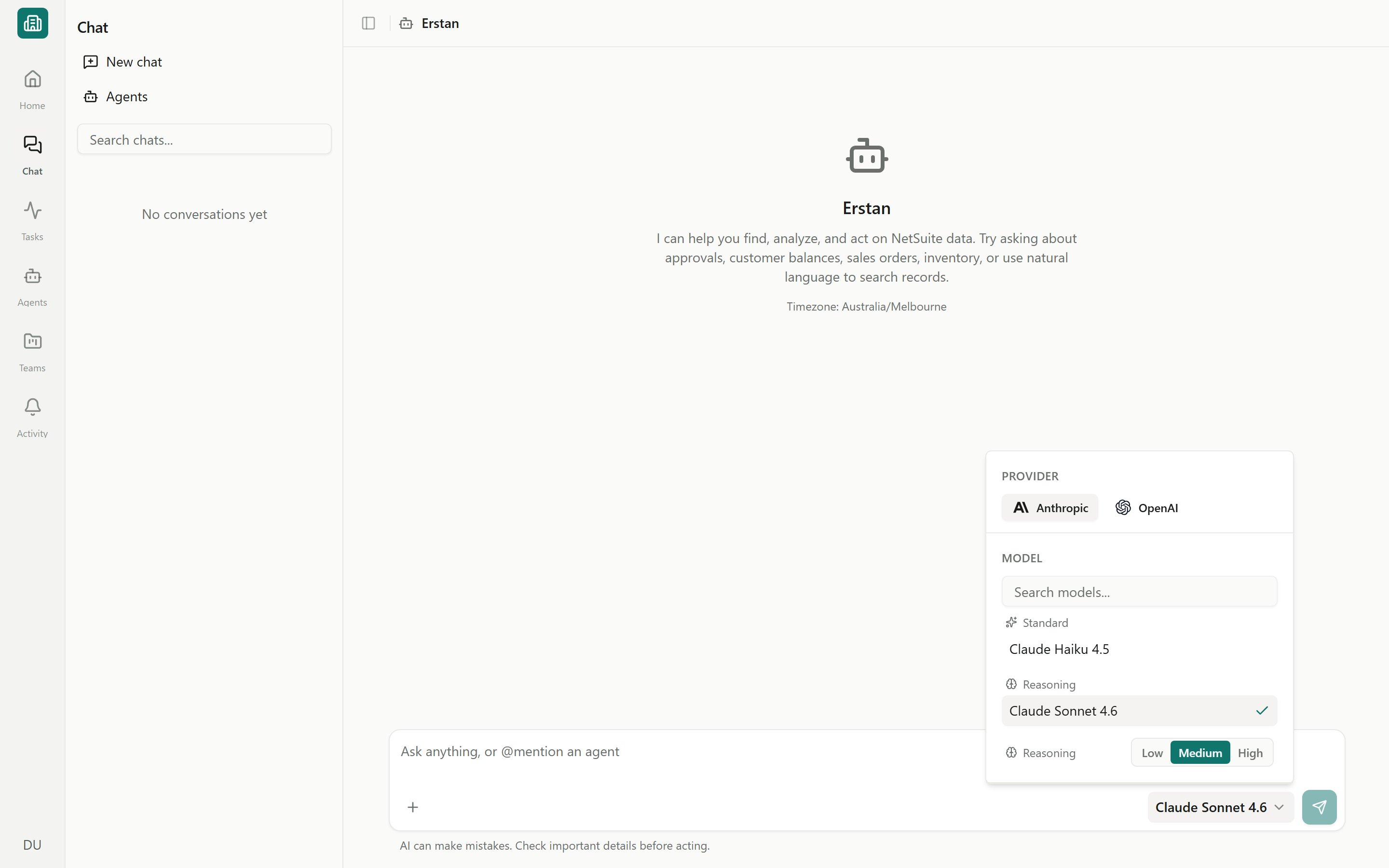 * Chat remembers your **last-used model** so you don't reset it every time.
* If you don't choose one, Chat uses the workspace default.
* Higher **reasoning effort** trades speed for more careful answers on complex finance questions.
For the full Chat controls — connections, knowledge, and web search alongside the model — see [Knowledge, tools, web search & models](/chat/knowledge-tools-models).
## Common questions
Yes. NetSuite is the data connector; an LLM provider supplies the model that reads and reasons over that data. Chat and agents stay blocked until both are in place. See [Connect NetSuite](/connectors/netsuite).
No. There is one workspace API key per provider, set by an Owner or Admin, and everyone in the workspace shares it.
Available models are managed by Erstan Admin. If a model isn't offered for the provider, it can't be enabled. Check that your provider account has access to that model, and confirm an admin hasn't turned it off in the **Models** tab.
The provider has no valid key, or no models are enabled. Open the connector, confirm the **Provider API key** is saved on the **Tokens** tab, and enable at least one model on the **Models** tab.
## Next steps
See every connector and its connection status.
Link your NetSuite account so agents can read and act on your data.
Control what Erstan can see and which model it uses per message.
Fix expired keys, unhealthy connections, and re-authentication.
* Chat remembers your **last-used model** so you don't reset it every time.
* If you don't choose one, Chat uses the workspace default.
* Higher **reasoning effort** trades speed for more careful answers on complex finance questions.
For the full Chat controls — connections, knowledge, and web search alongside the model — see [Knowledge, tools, web search & models](/chat/knowledge-tools-models).
## Common questions
Yes. NetSuite is the data connector; an LLM provider supplies the model that reads and reasons over that data. Chat and agents stay blocked until both are in place. See [Connect NetSuite](/connectors/netsuite).
No. There is one workspace API key per provider, set by an Owner or Admin, and everyone in the workspace shares it.
Available models are managed by Erstan Admin. If a model isn't offered for the provider, it can't be enabled. Check that your provider account has access to that model, and confirm an admin hasn't turned it off in the **Models** tab.
The provider has no valid key, or no models are enabled. Open the connector, confirm the **Provider API key** is saved on the **Tokens** tab, and enable at least one model on the **Models** tab.
## Next steps
See every connector and its connection status.
Link your NetSuite account so agents can read and act on your data.
Control what Erstan can see and which model it uses per message.
Fix expired keys, unhealthy connections, and re-authentication.