> ## Documentation Index
> Fetch the complete documentation index at: https://docs.erstan.com/llms.txt
> Use this file to discover all available pages before exploring further.
# Managing NetSuite: tools & write policy
> Control which NetSuite tools agents can use and which actions need approval from the connector's detail tabs.
Once NetSuite is connected and your users are authorized, the connector's detail page is where Owners and admins decide exactly what agents may do — which NetSuite tools are available, and which actions can run automatically versus pause for a person. This is your main control surface for keeping ERP writes safe.
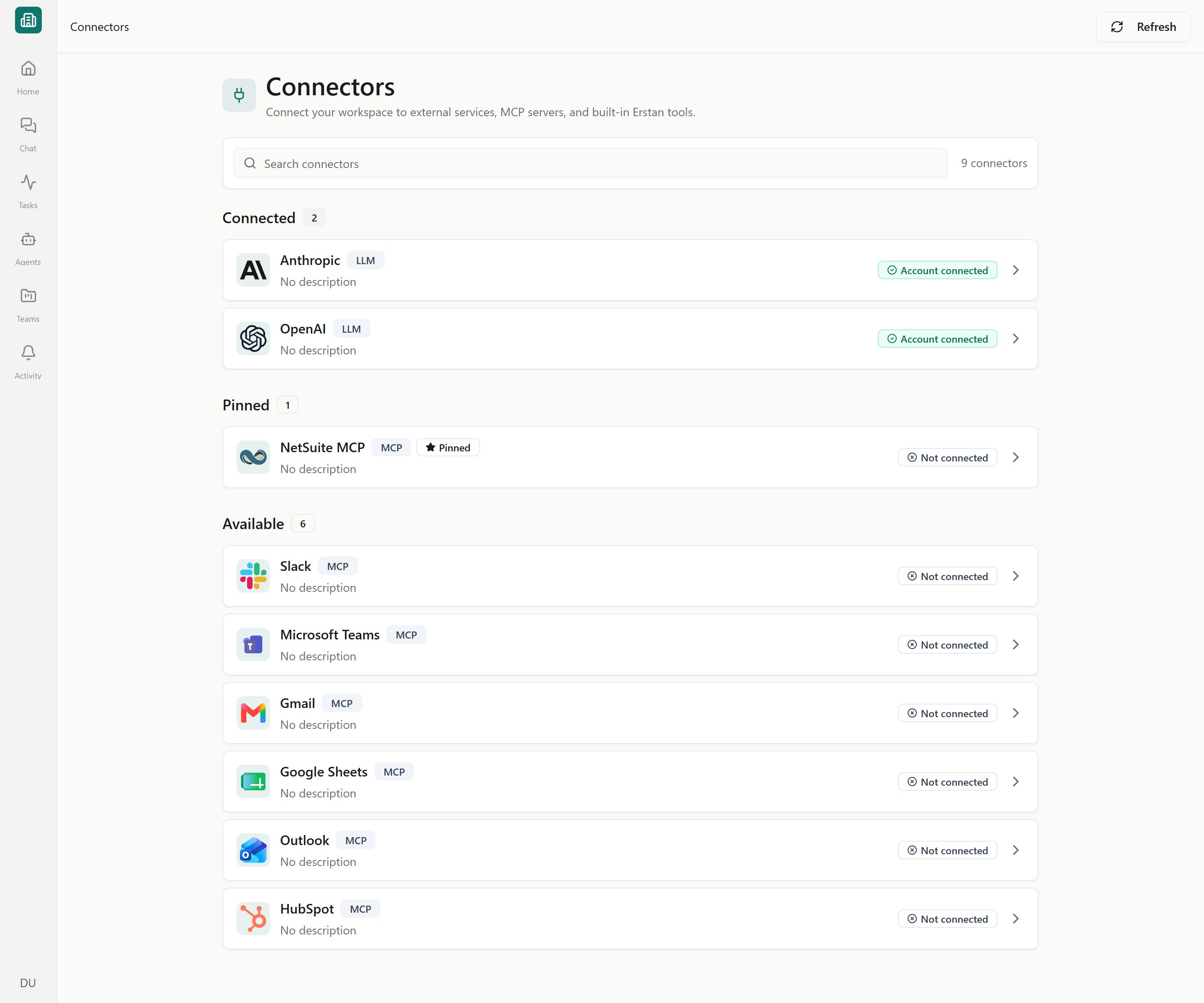 Open the NetSuite connector from **Connectors** in the sidebar and click the **NetSuite** row. Managing tools, authorizations, and the workspace connection requires the **Owner** or **Admin** role; **Members** see the tools and policies in a read-only view and cannot change them.
## The connector detail tabs
The NetSuite connector page is organized into tabs. Each one manages a different part of the connection.
| Tab | What it does |
| ------------------ | --------------------------------------------------------------------------------------------------------------------------------------------------------------------------- |
| **Setup** | Connection status (the shared **Workspace OAuth connection** plus **Your NetSuite user** authorization), **Test connection**, configuration metadata, and the MCP endpoint. |
| **Authorizations** | Your personal NetSuite authorization plus the **Workspace members** roster — who has authorized, their role, and connected/expires/last-used times. |
| **Knowledge** | Erstan-managed NetSuite product updates available for release and feature questions. |
| **Tools** | The list of **Available Tools** agents can call, each with a **write policy**, plus a way to test-run a tool. |
Setup and authorization are covered in their own pages: [Connecting NetSuite](/connectors/netsuite) and [Authorizing your NetSuite user](/connectors/netsuite-authorize). This page focuses on the **Tools** and **Knowledge** tabs.
## The Tools tab
The **Tools** tab lists every NetSuite tool agents can call — both the static built-ins and the ones discovered from the NetSuite MCP endpoint. Each tool shows a short description, a risk hint, and its current **write policy**.
### Write policy per tool
Every tool can be set to one of three policies. This is how you control whether an agent can change NetSuite data on its own or must wait for a person.
| Policy | What happens |
| -------------------- | ------------------------------------------------------------------------------------------------------------------- |
| **Allow** | The tool runs automatically whenever an agent calls it, with no pause. |
| **Require approval** | The agent pauses and surfaces an approval card; a person clicks **Run action** or **Don't run** before it proceeds. |
| **Deny** | The tool is blocked entirely — agents cannot call it. |
Read-only tools (looking up records, running SuiteQL queries) are safe to leave on **Allow**. Anything that creates, edits, or deletes NetSuite records is a write and should stay on **Require approval** unless you have a deliberate reason to change it.
Setting a write-capable NetSuite tool to **Allow** lets agents change your ERP data — create vendor bills, edit invoices, post transactions — with no human checkpoint. Keep writes on **Require approval** for anything that posts to the ledger or touches money. Change a write tool to **Allow** only for low-risk actions you have tested and trust.
On the NetSuite connector page, select **Tools** to see the **Available Tools** list.
Locate the tool whose behavior you want to change. The risk hint and description tell you whether it reads or writes.
Choose **Allow**, **Require approval**, or **Deny** for that tool. The change applies to how agents in this workspace call it.
Use the tool's **test** action to run it once yourself and confirm it returns what you expect before agents rely on it.
Per-tool write policy is the connector-level default. An individual agent's setup and chat-level controls (like **Auto-approve writes**) interact with these settings — review [Approving and rejecting AI actions](/chat/approvals) to see how a write actually surfaces to the person reviewing it.
## The Knowledge tab
The **Knowledge** tab surfaces **NetSuite product updates** — Erstan-managed release notes and feature changes. Erstan retrieves this source automatically for clear NetSuite release, version, feature, and product-update questions, unless the workspace disables or removes it.
This product knowledge is separate from a team's **Team Files**. See [Agent knowledge](/content/agent-knowledge) for making your own files searchable, and [Knowledge, tools, web search & models](/chat/knowledge-tools-models) for how automatic product-update retrieval and Team File scope work.
## How this fits write safety
Per-user authorization decides *who* an agent acts as in NetSuite; write policy decides *what* it can do without asking. Together they are the core of Erstan's write safety model.
Only **Owners** and **Admins**. **Members** can see the tools and their current policies but cannot change them.
The connector's write policy is the workspace default for each tool. Agent configuration and chat-level **Auto-approve writes** build on top of it. When in doubt, leave writes on **Require approval** so a person always sees the change first.
The list combines static tools with ones discovered from the NetSuite MCP endpoint. If a tool is missing, re-sync the connector from the Connectors list (**Refresh**) and confirm the connection is healthy on the **Setup** tab.
## Next steps
How per-user authorization, write policy, and approvals keep your NetSuite data safe.
What an approval card looks like and how to run or decline a write.
Each member authorizes their own NetSuite user and role.
Fix expired auth, unhealthy connections, and the busy queue.
Open the NetSuite connector from **Connectors** in the sidebar and click the **NetSuite** row. Managing tools, authorizations, and the workspace connection requires the **Owner** or **Admin** role; **Members** see the tools and policies in a read-only view and cannot change them.
## The connector detail tabs
The NetSuite connector page is organized into tabs. Each one manages a different part of the connection.
| Tab | What it does |
| ------------------ | --------------------------------------------------------------------------------------------------------------------------------------------------------------------------- |
| **Setup** | Connection status (the shared **Workspace OAuth connection** plus **Your NetSuite user** authorization), **Test connection**, configuration metadata, and the MCP endpoint. |
| **Authorizations** | Your personal NetSuite authorization plus the **Workspace members** roster — who has authorized, their role, and connected/expires/last-used times. |
| **Knowledge** | Erstan-managed NetSuite product updates available for release and feature questions. |
| **Tools** | The list of **Available Tools** agents can call, each with a **write policy**, plus a way to test-run a tool. |
Setup and authorization are covered in their own pages: [Connecting NetSuite](/connectors/netsuite) and [Authorizing your NetSuite user](/connectors/netsuite-authorize). This page focuses on the **Tools** and **Knowledge** tabs.
## The Tools tab
The **Tools** tab lists every NetSuite tool agents can call — both the static built-ins and the ones discovered from the NetSuite MCP endpoint. Each tool shows a short description, a risk hint, and its current **write policy**.
### Write policy per tool
Every tool can be set to one of three policies. This is how you control whether an agent can change NetSuite data on its own or must wait for a person.
| Policy | What happens |
| -------------------- | ------------------------------------------------------------------------------------------------------------------- |
| **Allow** | The tool runs automatically whenever an agent calls it, with no pause. |
| **Require approval** | The agent pauses and surfaces an approval card; a person clicks **Run action** or **Don't run** before it proceeds. |
| **Deny** | The tool is blocked entirely — agents cannot call it. |
Read-only tools (looking up records, running SuiteQL queries) are safe to leave on **Allow**. Anything that creates, edits, or deletes NetSuite records is a write and should stay on **Require approval** unless you have a deliberate reason to change it.
Setting a write-capable NetSuite tool to **Allow** lets agents change your ERP data — create vendor bills, edit invoices, post transactions — with no human checkpoint. Keep writes on **Require approval** for anything that posts to the ledger or touches money. Change a write tool to **Allow** only for low-risk actions you have tested and trust.
On the NetSuite connector page, select **Tools** to see the **Available Tools** list.
Locate the tool whose behavior you want to change. The risk hint and description tell you whether it reads or writes.
Choose **Allow**, **Require approval**, or **Deny** for that tool. The change applies to how agents in this workspace call it.
Use the tool's **test** action to run it once yourself and confirm it returns what you expect before agents rely on it.
Per-tool write policy is the connector-level default. An individual agent's setup and chat-level controls (like **Auto-approve writes**) interact with these settings — review [Approving and rejecting AI actions](/chat/approvals) to see how a write actually surfaces to the person reviewing it.
## The Knowledge tab
The **Knowledge** tab surfaces **NetSuite product updates** — Erstan-managed release notes and feature changes. Erstan retrieves this source automatically for clear NetSuite release, version, feature, and product-update questions, unless the workspace disables or removes it.
This product knowledge is separate from a team's **Team Files**. See [Agent knowledge](/content/agent-knowledge) for making your own files searchable, and [Knowledge, tools, web search & models](/chat/knowledge-tools-models) for how automatic product-update retrieval and Team File scope work.
## How this fits write safety
Per-user authorization decides *who* an agent acts as in NetSuite; write policy decides *what* it can do without asking. Together they are the core of Erstan's write safety model.
Only **Owners** and **Admins**. **Members** can see the tools and their current policies but cannot change them.
The connector's write policy is the workspace default for each tool. Agent configuration and chat-level **Auto-approve writes** build on top of it. When in doubt, leave writes on **Require approval** so a person always sees the change first.
The list combines static tools with ones discovered from the NetSuite MCP endpoint. If a tool is missing, re-sync the connector from the Connectors list (**Refresh**) and confirm the connection is healthy on the **Setup** tab.
## Next steps
How per-user authorization, write policy, and approvals keep your NetSuite data safe.
What an approval card looks like and how to run or decline a write.
Each member authorizes their own NetSuite user and role.
Fix expired auth, unhealthy connections, and the busy queue.