> ## Documentation Index
> Fetch the complete documentation index at: https://docs.erstan.com/llms.txt
> Use this file to discover all available pages before exploring further.
# Slack and other connectors
> Connect Slack, MCP servers, and other systems your agents can act in.
Beyond [NetSuite](/connectors/netsuite) and your [LLM provider](/connectors/llm-providers), Erstan can connect to other systems so your agents reach past your ERP — Slack, popular business apps like Gmail, Google Sheets, Microsoft Teams, Outlook, and HubSpot, and any MCP server. This page covers those connectors, the built-in Erstan tools, and the shared pattern every connector follows.
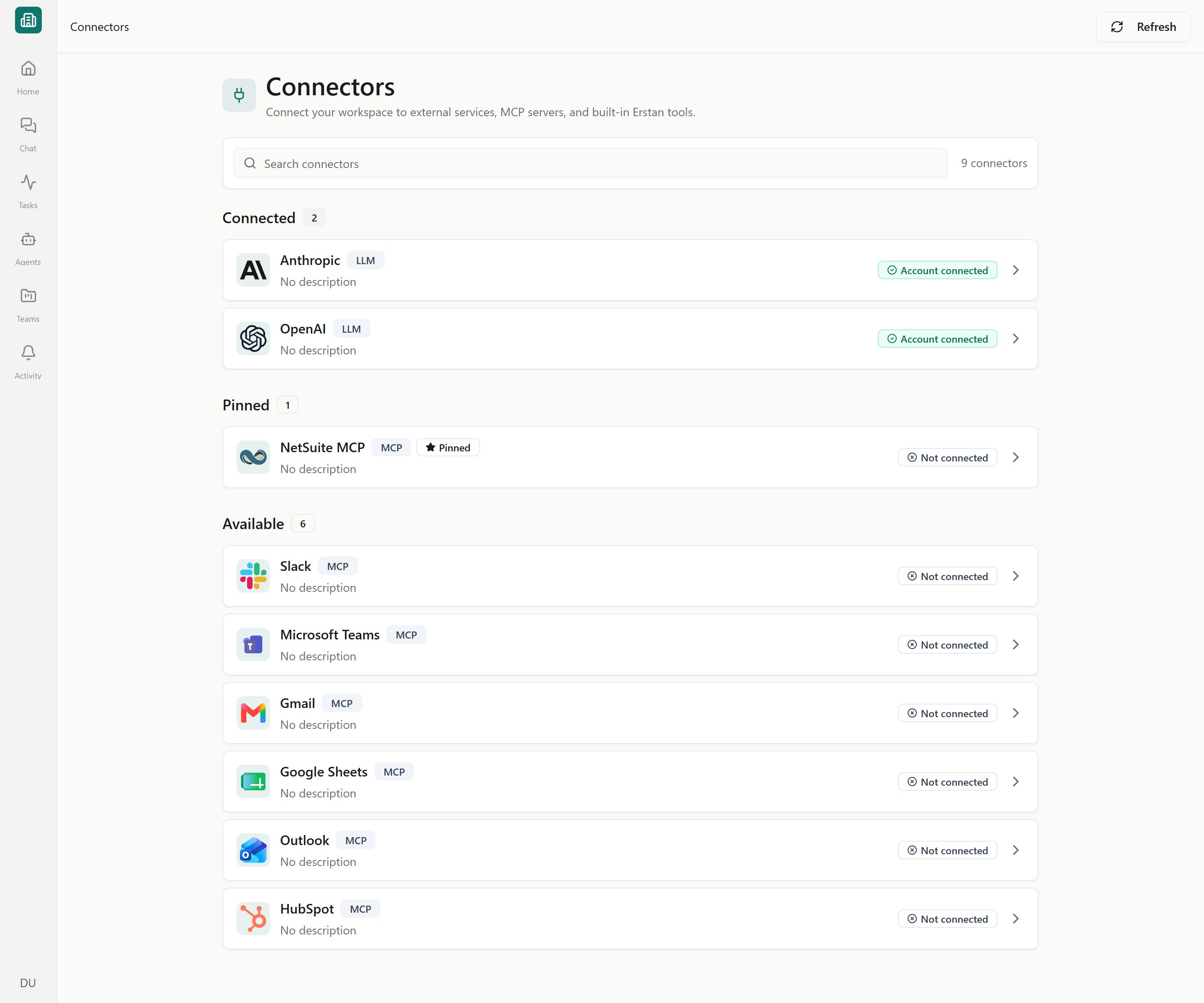 Erstan loads its connector catalog from the backend, so the exact systems you see under **Available** depend on what your workspace has enabled. If a connector shows a disabled **Coming Soon** button, it is listed but not yet available to connect.
## Slack
Slack appears in the [Connectors](/connectors/overview) list as an OAuth connector. Connecting it lets your agents act in Slack on your behalf, alongside their NetSuite work.
Go to **Connectors**, find **Slack** under **Available**, and click into it.
Click **Connect**. A Slack window opens for you to sign in and approve the access Erstan requests.
When approval finishes, the connector shows a **Connected** status badge. You can verify it any time from the **Setup** tab with **Test connection**.
Connecting opens a popup. If nothing happens, allow popups for Erstan in your browser and try **Connect** again.
## Business apps
Erstan also connects to a growing set of popular business apps so your agents can read and act across the tools your team already uses — for example **Gmail**, **Google Sheets**, **Google Drive**, **Microsoft Teams**, **Outlook**, and **HubSpot**, with more added over time. An agent can pull a spreadsheet into a reconciliation, draft an email, post to a channel, or update a CRM record alongside its NetSuite work.
These app connectors are provisioned for your workspace and appear under **Available** in the [Connectors](/connectors/overview) list. You connect each one the same way as Slack:
Open **Connectors** and locate the app under **Available** (use **Search connectors** to filter).
Click into it and choose **Connect**. A sign-in window opens for that app so you can approve the access Erstan requests.
Once connected, the app's actions appear as connector tools your agents and chats can use — governed by the same per-tool write policy as every other connector.
The exact apps available to you depend on what your workspace has enabled, so your **Available** list may differ from the examples above. New connectors appear here automatically as they are turned on for your workspace.
## MCP servers
An **MCP server** is a Model Context Protocol endpoint that exposes a set of tools your agents can call. When you add one, its connector detail page shows the **MCP endpoint URL** and the tools discovered from it, which then become available to agents like any other connector tool.
* The connector lists its **Available Tools** on the **Tools** tab, discovered from the server.
* If the server can't be reached, the connector reports **Endpoint unhealthy** — check the endpoint and re-sync from the [Connectors](/connectors/overview) list with **Refresh**.
MCP tools can include write actions against external systems. Review each tool's write policy on the **Tools** tab before agents use it — see [Controlling what agents can do](#managing-any-connector) below.
## Built-in Erstan tools
Some connectors are **built in** to Erstan and need no setup — they show a **Built in** badge and **No setup required.** These give agents core capabilities (such as working with your team content) and expose only a **Tools** tab; there is nothing to authorize or disconnect.
You can still review what they provide and set a write policy per tool, the same as any other connector.
## The shared connect, authorize, and manage pattern
Most connectors follow the same lifecycle, so once you've connected one you know them all. The connector detail page organizes everything into tabs.
Shows the current connection status and a **Test connection** action. For connectors that need re-approval, an action banner here prompts you to **authorize**, **re-authorize**, or **reconnect**. It also lists configuration metadata (such as the integration slug and authentication type) and, where relevant, the **MCP endpoint URL**.
Where the connection's credentials live. The exact controls adapt to the connector: OAuth connectors offer **Re-authenticate**, **Refresh token**, and **Test token refresh**; API-key connectors (like LLM providers) let you replace or remove the key. NetSuite is the exception — it uses a shared workspace connection plus [per-user authorization](/connectors/netsuite-authorize).
Lists the connector's **Available Tools**, each with a write policy you can set to **Allow**, **Require approval**, or **Deny**, plus a test action to try a tool. This is how you control which actions agents can take automatically.
### Connection statuses
Connectors share a common set of status badges so you can tell at a glance whether a connection is working.
| Status | What it means |
| --------------------------------------- | ---------------------------------------------------------------------------------- |
| **Connected** / **Account connected** | The connection is live and ready for agents to use. |
| **Authorization required** | Connected at the workspace level, but you still need to authorize your own access. |
| **Pending** / **Refreshing** | A connect or re-sync is in progress. |
| **Expired** / **Authorization expired** | Credentials lapsed — re-authenticate to restore access. |
| **Error** / **Endpoint unhealthy** | The connection or endpoint can't be reached. |
| **Not connected** / **Disconnected** | No active connection yet. |
See [Connection troubleshooting](/connectors/troubleshooting) for what to do when a connection expires, goes unhealthy, or needs re-authenticating.
### Managing any connector
Any connector tool set to **Allow** lets agents run it — including writes to the connected system — without pausing for you. Keep write-capable tools on **Require approval** unless you have a specific reason to change it, so changes still surface as [approvals](/chat/approvals). Managing tools, credentials, and the workspace connection requires the **Owner** or **Admin** role; some controls show "Requires Admin permission to change."
To remove a connection, use **Disconnect** (or **Disconnect Account** / **Disconnect Workspace Integration**) on the relevant tab, and **Delete** to remove a non-built-in connector entirely. Built-in connectors can't be disconnected or deleted.
## Next steps
See the full Connectors list and how connections are grouped.
Set up the flagship connector for your finance data.
Connect OpenAI or Anthropic and choose enabled models.
Review write actions before agents run them.
Erstan loads its connector catalog from the backend, so the exact systems you see under **Available** depend on what your workspace has enabled. If a connector shows a disabled **Coming Soon** button, it is listed but not yet available to connect.
## Slack
Slack appears in the [Connectors](/connectors/overview) list as an OAuth connector. Connecting it lets your agents act in Slack on your behalf, alongside their NetSuite work.
Go to **Connectors**, find **Slack** under **Available**, and click into it.
Click **Connect**. A Slack window opens for you to sign in and approve the access Erstan requests.
When approval finishes, the connector shows a **Connected** status badge. You can verify it any time from the **Setup** tab with **Test connection**.
Connecting opens a popup. If nothing happens, allow popups for Erstan in your browser and try **Connect** again.
## Business apps
Erstan also connects to a growing set of popular business apps so your agents can read and act across the tools your team already uses — for example **Gmail**, **Google Sheets**, **Google Drive**, **Microsoft Teams**, **Outlook**, and **HubSpot**, with more added over time. An agent can pull a spreadsheet into a reconciliation, draft an email, post to a channel, or update a CRM record alongside its NetSuite work.
These app connectors are provisioned for your workspace and appear under **Available** in the [Connectors](/connectors/overview) list. You connect each one the same way as Slack:
Open **Connectors** and locate the app under **Available** (use **Search connectors** to filter).
Click into it and choose **Connect**. A sign-in window opens for that app so you can approve the access Erstan requests.
Once connected, the app's actions appear as connector tools your agents and chats can use — governed by the same per-tool write policy as every other connector.
The exact apps available to you depend on what your workspace has enabled, so your **Available** list may differ from the examples above. New connectors appear here automatically as they are turned on for your workspace.
## MCP servers
An **MCP server** is a Model Context Protocol endpoint that exposes a set of tools your agents can call. When you add one, its connector detail page shows the **MCP endpoint URL** and the tools discovered from it, which then become available to agents like any other connector tool.
* The connector lists its **Available Tools** on the **Tools** tab, discovered from the server.
* If the server can't be reached, the connector reports **Endpoint unhealthy** — check the endpoint and re-sync from the [Connectors](/connectors/overview) list with **Refresh**.
MCP tools can include write actions against external systems. Review each tool's write policy on the **Tools** tab before agents use it — see [Controlling what agents can do](#managing-any-connector) below.
## Built-in Erstan tools
Some connectors are **built in** to Erstan and need no setup — they show a **Built in** badge and **No setup required.** These give agents core capabilities (such as working with your team content) and expose only a **Tools** tab; there is nothing to authorize or disconnect.
You can still review what they provide and set a write policy per tool, the same as any other connector.
## The shared connect, authorize, and manage pattern
Most connectors follow the same lifecycle, so once you've connected one you know them all. The connector detail page organizes everything into tabs.
Shows the current connection status and a **Test connection** action. For connectors that need re-approval, an action banner here prompts you to **authorize**, **re-authorize**, or **reconnect**. It also lists configuration metadata (such as the integration slug and authentication type) and, where relevant, the **MCP endpoint URL**.
Where the connection's credentials live. The exact controls adapt to the connector: OAuth connectors offer **Re-authenticate**, **Refresh token**, and **Test token refresh**; API-key connectors (like LLM providers) let you replace or remove the key. NetSuite is the exception — it uses a shared workspace connection plus [per-user authorization](/connectors/netsuite-authorize).
Lists the connector's **Available Tools**, each with a write policy you can set to **Allow**, **Require approval**, or **Deny**, plus a test action to try a tool. This is how you control which actions agents can take automatically.
### Connection statuses
Connectors share a common set of status badges so you can tell at a glance whether a connection is working.
| Status | What it means |
| --------------------------------------- | ---------------------------------------------------------------------------------- |
| **Connected** / **Account connected** | The connection is live and ready for agents to use. |
| **Authorization required** | Connected at the workspace level, but you still need to authorize your own access. |
| **Pending** / **Refreshing** | A connect or re-sync is in progress. |
| **Expired** / **Authorization expired** | Credentials lapsed — re-authenticate to restore access. |
| **Error** / **Endpoint unhealthy** | The connection or endpoint can't be reached. |
| **Not connected** / **Disconnected** | No active connection yet. |
See [Connection troubleshooting](/connectors/troubleshooting) for what to do when a connection expires, goes unhealthy, or needs re-authenticating.
### Managing any connector
Any connector tool set to **Allow** lets agents run it — including writes to the connected system — without pausing for you. Keep write-capable tools on **Require approval** unless you have a specific reason to change it, so changes still surface as [approvals](/chat/approvals). Managing tools, credentials, and the workspace connection requires the **Owner** or **Admin** role; some controls show "Requires Admin permission to change."
To remove a connection, use **Disconnect** (or **Disconnect Account** / **Disconnect Workspace Integration**) on the relevant tab, and **Delete** to remove a non-built-in connector entirely. Built-in connectors can't be disconnected or deleted.
## Next steps
See the full Connectors list and how connections are grouped.
Set up the flagship connector for your finance data.
Connect OpenAI or Anthropic and choose enabled models.
Review write actions before agents run them.