> ## Documentation Index
> Fetch the complete documentation index at: https://docs.erstan.com/llms.txt
> Use this file to discover all available pages before exploring further.
# Connectors overview
> Link your workspace to NetSuite, AI providers, Slack, and more so your agents can read and act on your data.
A **connector** links your Erstan workspace to an external system — or to a built-in toolset — so agents can read and act in that system on your behalf. Without connectors, an agent has nothing to work with. With them, the same agent can pull AR aging from NetSuite, reason with a model from OpenAI or Anthropic, and post a summary to Slack.
 ## The Connectors page
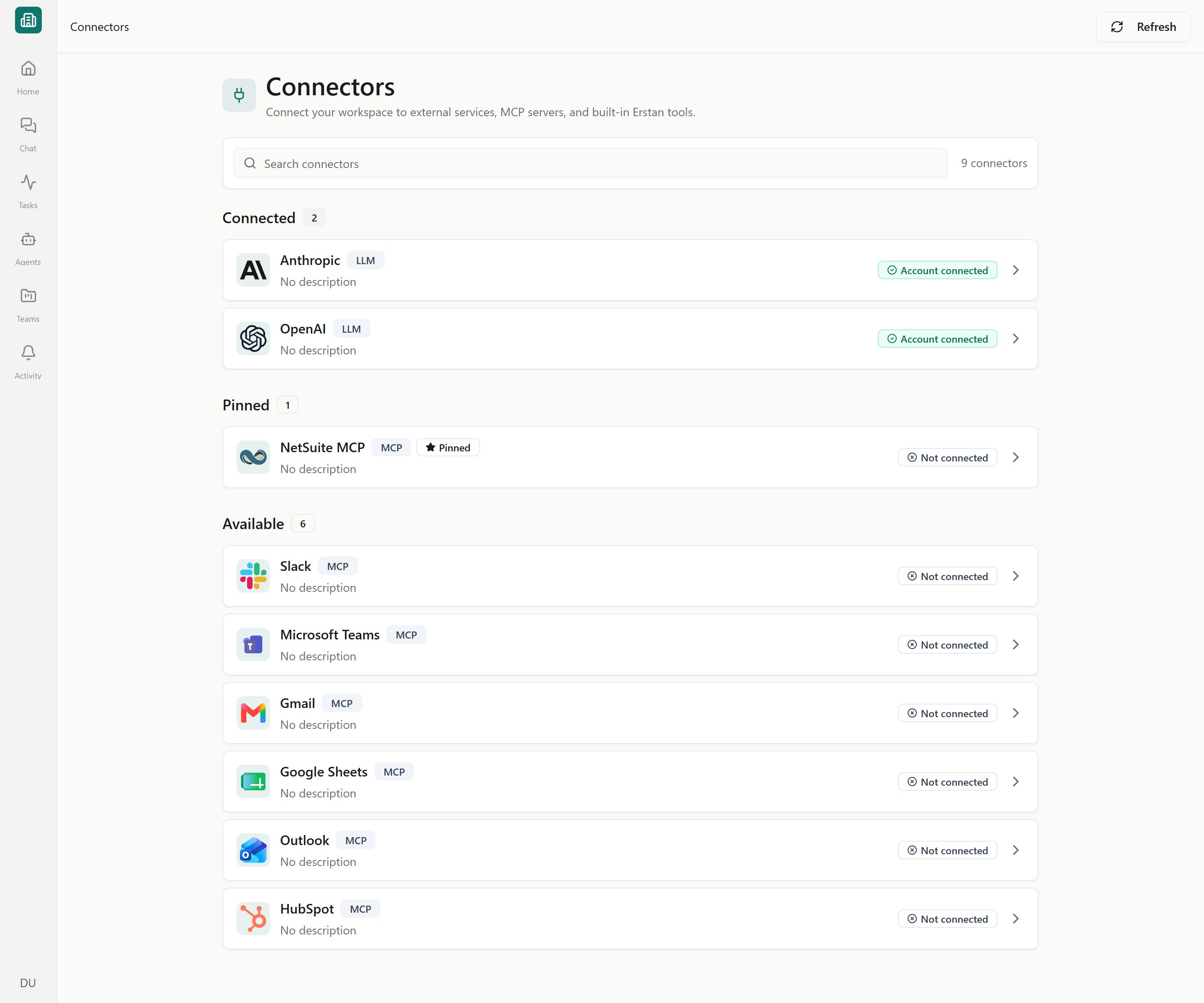
Open **Connectors** from the workspace sidebar to see everything available to you. Connectors are grouped into three sections:
* **Connected** — links that are set up and working.
* **Pinned** — connectors surfaced for quick access. NetSuite is pinned here until you connect it.
* **Available** — everything you can still add.
Each row shows a logo, name, description, a **type** badge, status tags (such as **Beta**), and a status badge like **Account connected** or **Not connected**. Use the **Search connectors** box to filter by name, type, status, or keyword, and **Refresh** to re-sync. Click any row to open its detail page, where you manage the connection, credentials, and the tools agents may run.
The sidebar and UI consistently say **Connectors**. An older `/integrations` link redirects here.
## Connector types
The flagship connector. Agents query and update your NetSuite records using your own NetSuite role and permissions.
OpenAI and Anthropic supply the models that power chat and agents. A connected provider is required before you can chat.
Connect Slack and popular apps like Gmail, Google Sheets, Microsoft Teams, Outlook, and HubSpot so agents act where your team already works.
Model Context Protocol endpoints expose additional tools that agents can call.
Ship with Erstan, marked **Built in** with **No setup required** — they have only a Tools tab. See [Tools by Erstan](/tools/by-erstan).
## Connection statuses
A connector's badge tells you whether agents can use it right now.
| Status | What it means |
| --------------------------------------- | ------------------------------------------------------------------------------------- |
| **Account connected** / **Connected** | The connection is set up and working. |
| **Not connected** | Nothing is linked yet — add it to start. |
| **Authorization required** | The workspace is connected, but you still need to authorize your own user (NetSuite). |
| **Authorization expired** / **Expired** | The link needs to be re-authenticated. |
| **Pending** / **Refreshing** | A connection or token refresh is in progress. |
| **Error** / **Endpoint unhealthy** | Something is wrong; open the connector and test or reconnect. |
| **Coming soon** | Not yet available to connect. |
Most NetSuite hiccups are an expired authorization or the brief **"NetSuite is busy"** queue, which resumes on its own. See [Connection troubleshooting](/connectors/troubleshooting).
## How a connection works
NetSuite uses a two-stage model that keeps each person acting under their own permissions:
This shared **Workspace OAuth connection** is configured once for the whole workspace.
Agents then call NetSuite tools **as you**, governed by your own NetSuite role. See [Authorizing your NetSuite user](/connectors/netsuite-authorize).
Other connectors are simpler: LLM providers take one workspace API key, and built-in tools need no setup at all. Managing the workspace connection, tools, and authorizations requires the **Owner** or **Admin** role.
Write-capable tools (anything that changes a NetSuite record) follow a per-tool **write policy** — **Allow**, **Require approval**, or **Deny**. By default, writes pause for your approval. Review these settings before letting agents act unattended. See [Managing NetSuite: tools & write policy](/connectors/netsuite-manage).
## Next steps
Link your NetSuite account with the Erstan app or your own integration record.
Connect OpenAI or Anthropic and choose which models agents can use.
Add Slack, business apps (Gmail, Sheets, Teams, Outlook, HubSpot), MCP servers, and built-in tools.
Resolve expired auth, unhealthy connections, and re-authentication.
## The Connectors page
Open **Connectors** from the workspace sidebar to see everything available to you. Connectors are grouped into three sections:
* **Connected** — links that are set up and working.
* **Pinned** — connectors surfaced for quick access. NetSuite is pinned here until you connect it.
* **Available** — everything you can still add.
Each row shows a logo, name, description, a **type** badge, status tags (such as **Beta**), and a status badge like **Account connected** or **Not connected**. Use the **Search connectors** box to filter by name, type, status, or keyword, and **Refresh** to re-sync. Click any row to open its detail page, where you manage the connection, credentials, and the tools agents may run.
The sidebar and UI consistently say **Connectors**. An older `/integrations` link redirects here.
## Connector types
The flagship connector. Agents query and update your NetSuite records using your own NetSuite role and permissions.
OpenAI and Anthropic supply the models that power chat and agents. A connected provider is required before you can chat.
Connect Slack and popular apps like Gmail, Google Sheets, Microsoft Teams, Outlook, and HubSpot so agents act where your team already works.
Model Context Protocol endpoints expose additional tools that agents can call.
Ship with Erstan, marked **Built in** with **No setup required** — they have only a Tools tab. See [Tools by Erstan](/tools/by-erstan).
## Connection statuses
A connector's badge tells you whether agents can use it right now.
| Status | What it means |
| --------------------------------------- | ------------------------------------------------------------------------------------- |
| **Account connected** / **Connected** | The connection is set up and working. |
| **Not connected** | Nothing is linked yet — add it to start. |
| **Authorization required** | The workspace is connected, but you still need to authorize your own user (NetSuite). |
| **Authorization expired** / **Expired** | The link needs to be re-authenticated. |
| **Pending** / **Refreshing** | A connection or token refresh is in progress. |
| **Error** / **Endpoint unhealthy** | Something is wrong; open the connector and test or reconnect. |
| **Coming soon** | Not yet available to connect. |
Most NetSuite hiccups are an expired authorization or the brief **"NetSuite is busy"** queue, which resumes on its own. See [Connection troubleshooting](/connectors/troubleshooting).
## How a connection works
NetSuite uses a two-stage model that keeps each person acting under their own permissions:
This shared **Workspace OAuth connection** is configured once for the whole workspace.
Agents then call NetSuite tools **as you**, governed by your own NetSuite role. See [Authorizing your NetSuite user](/connectors/netsuite-authorize).
Other connectors are simpler: LLM providers take one workspace API key, and built-in tools need no setup at all. Managing the workspace connection, tools, and authorizations requires the **Owner** or **Admin** role.
Write-capable tools (anything that changes a NetSuite record) follow a per-tool **write policy** — **Allow**, **Require approval**, or **Deny**. By default, writes pause for your approval. Review these settings before letting agents act unattended. See [Managing NetSuite: tools & write policy](/connectors/netsuite-manage).
## Next steps
Link your NetSuite account with the Erstan app or your own integration record.
Connect OpenAI or Anthropic and choose which models agents can use.
Add Slack, business apps (Gmail, Sheets, Teams, Outlook, HubSpot), MCP servers, and built-in tools.
Resolve expired auth, unhealthy connections, and re-authentication.