> ## Documentation Index
> Fetch the complete documentation index at: https://docs.erstan.com/llms.txt
> Use this file to discover all available pages before exploring further.
# Connection troubleshooting
> Resolve connection problems: expired auth, unhealthy connections, re-authenticating, and the NetSuite busy queue.
When an agent or chat can't reach NetSuite or another system, the problem is almost always the connection. This page explains what each connection status means and how to get back to a healthy **Connected** state.
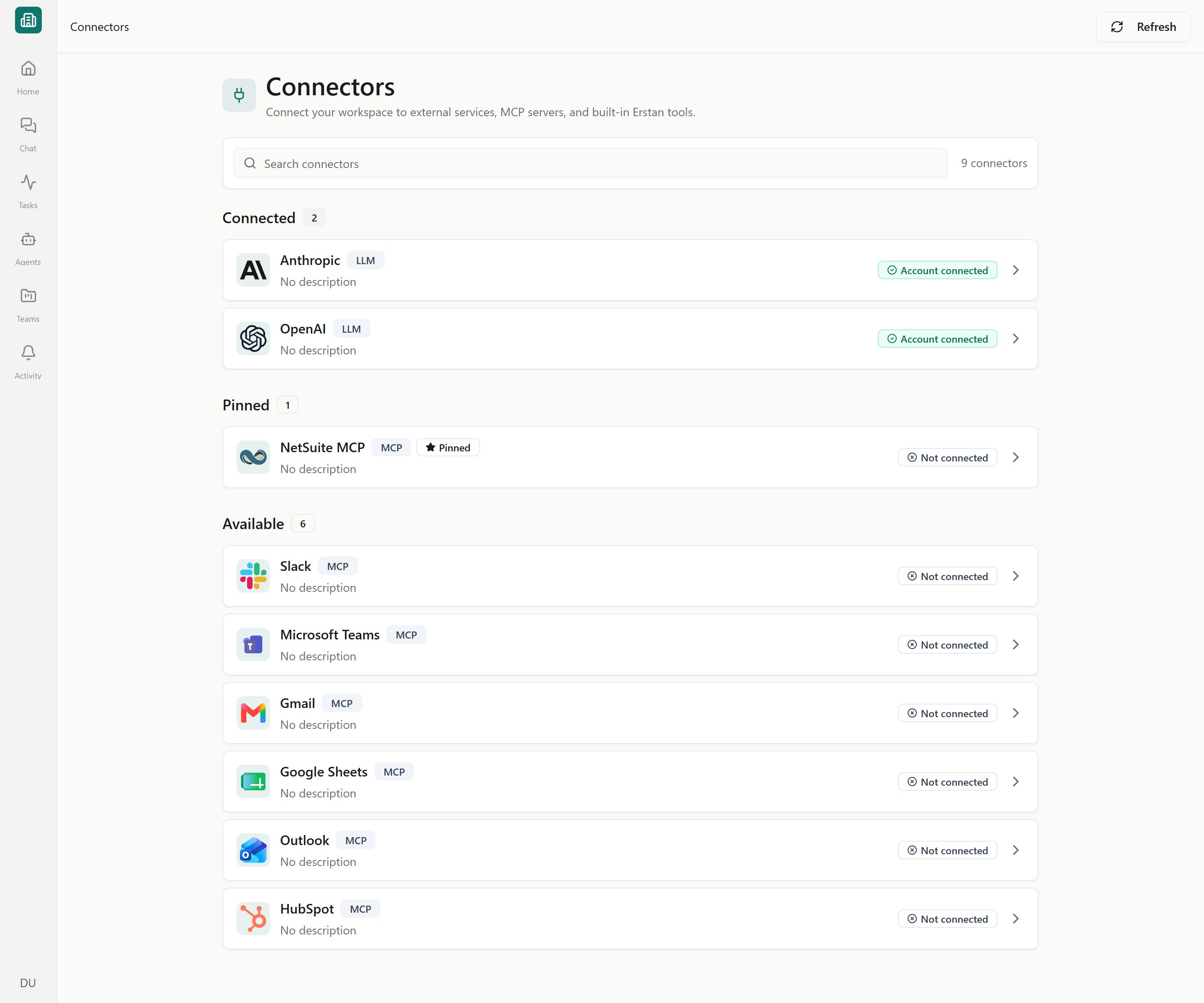
Most fixes happen on the [Connectors](/connectors/overview) page or the connector's detail tabs. Open **Connectors** from the sidebar, find the connector, and click it to open its **Setup**, **Authorizations**, and **Tools** tabs.
 ## Connection statuses
Every connector shows a status badge on the Connectors list and on its Setup tab. Use this table to map a badge to its cause and fix.
| Status | What it means | What to do |
| --------------------------------------- | ------------------------------------------------------------------------------------- | ------------------------------------------------------------------------------------------------------------------------------- |
| **Connected** / **Account connected** | The connection is healthy and agents can use it. | Nothing — you're set. |
| **Pending** / **Connecting…** | A connect or authorize is still finishing (a NetSuite popup is open or being polled). | Complete the sign-in in the popup. If it stalled, close it and try again. |
| **Authorization required** | The workspace connection exists, but *your* NetSuite user isn't authorized yet. | Open the **Authorizations** tab and click **Authorize** (see [Authorizing your NetSuite user](/connectors/netsuite-authorize)). |
| **Authorization expired** / **Expired** | Your access or token has aged out. | Click **Re-authorize** (NetSuite user) or **Re-authenticate** (OAuth connector). |
| **Error** | The connection or a recent call failed. | Open the Setup tab and run **Test connection** to see the cause, then re-authenticate. |
| **Endpoint unhealthy** | The connector's MCP endpoint isn't responding. | Use **Refresh** on the list, then **Test connection**. If it persists, the external system may be down. |
| **Disconnected** / **Not connected** | No connection has been established. | Connect it — for NetSuite, see [Connecting NetSuite](/connectors/netsuite). |
| **Coming Soon** | The connector isn't available to connect yet. | Nothing to do; the button is disabled. |
Click **Refresh** at the top of the Connectors list to re-sync statuses if a badge looks out of date after you fixed something in the external system.
## Re-authenticate or refresh a connection
NetSuite access uses short-lived tokens (roughly an hour), which Erstan refreshes for you in the background. You only need to step in when a status reads **Authorization expired**, **Error**, or **Endpoint unhealthy**.
Go to **Connectors** and click the affected connector (for example, NetSuite).
On the **Setup** tab, click **Test connection** to confirm whether the workspace connection is the problem.
On the **Authorizations** tab, find **Your NetSuite user** and click **Re-authorize**. Approve access in the NetSuite popup, choosing your usual non-Administrator role.
On the **Setup** or **Tokens** tab, use **Re-authenticate**, **Refresh token**, or **Test token refresh** to restore an OAuth connection.
**Allow popups.** Connecting and re-authorizing NetSuite open a popup window and poll for completion. If your browser blocks it you'll see "Please allow popups to connect NetSuite" — allow popups for Erstan and retry.
Re-authorizing your **own** NetSuite user only restores your personal access — it never changes the shared workspace connection or other members' authorizations. Owners and admins manage the shared **Workspace OAuth connection** separately; see [Managing NetSuite](/connectors/netsuite-manage).
## Workspace connection vs. your authorization
NetSuite uses two-stage access, so a "broken" connection can mean two different things:
* **Workspace OAuth connection** — set up once by an Owner or Admin. If this is missing or errored, *no one* can use NetSuite until an admin reconnects it.
* **Your NetSuite user** — each member authorizes their own NetSuite user and role. If only your card shows **Authorization required** or **Authorization expired** while the workspace connection is healthy, just re-authorize yourself.
Owners and admins can confirm who is affected from the **Workspace members** roster on the Authorizations tab, which shows each person's authorization status, role, expiry, and last-used time.
## The "NetSuite is busy" queue
If NetSuite is handling a lot of work at once, Erstan briefly holds new NetSuite actions in a queue and shows a **"NetSuite is busy"** notice (in chat it appears as a "Queued — NetSuite" card).
This is informational, not an error. The queue resumes on its own as soon as capacity frees up — you don't need to retry, re-authorize, or cancel anything. The card disappears when the work continues.
A queued notice is different from an [approval card](/chat/approvals): an approval card waits for *you* to decide before a write runs, while a queued notice waits for *NetSuite* and clears automatically.
## When a connection still won't work
The NetSuite sign-in may not have completed. Reopen the connector, click **Connect** or **Re-authorize**, and finish approving in the popup. Confirm popups are allowed for Erstan.
The agent needs a connector that isn't connected or authorized for you. Open the named connector and connect or authorize it, then re-run. For NetSuite, that usually means authorizing your own user.
Chat needs a connected AI provider. If you haven't connected one, see [Connecting an LLM provider](/connectors/llm-providers).
Your NetSuite role or permissions may have changed, or the role you picked lacks access. Re-authorize and choose a role with the permissions the agent needs (still non-Administrator). If it persists, an Owner or Admin should run **Test connection** on the workspace connection.
Managing the workspace connection, tools, and write policy needs the Owner or Admin role. Ask a workspace admin to make the change.
## Getting help
If a connection stays unhealthy after re-authenticating and running **Test connection**, contact your workspace Owner or Admin first — they can re-establish the shared NetSuite connection. For broader fixes across chat, approvals, and runs, see [Troubleshooting](/troubleshooting/common-issues).
## Next steps
Re-authorize your own NetSuite user and role.
Owners and admins: manage the workspace connection, tools, and write policy.
Tell a queued notice apart from a real approval card.
Fixes for chat, approvals, and stale runs.
## Connection statuses
Every connector shows a status badge on the Connectors list and on its Setup tab. Use this table to map a badge to its cause and fix.
| Status | What it means | What to do |
| --------------------------------------- | ------------------------------------------------------------------------------------- | ------------------------------------------------------------------------------------------------------------------------------- |
| **Connected** / **Account connected** | The connection is healthy and agents can use it. | Nothing — you're set. |
| **Pending** / **Connecting…** | A connect or authorize is still finishing (a NetSuite popup is open or being polled). | Complete the sign-in in the popup. If it stalled, close it and try again. |
| **Authorization required** | The workspace connection exists, but *your* NetSuite user isn't authorized yet. | Open the **Authorizations** tab and click **Authorize** (see [Authorizing your NetSuite user](/connectors/netsuite-authorize)). |
| **Authorization expired** / **Expired** | Your access or token has aged out. | Click **Re-authorize** (NetSuite user) or **Re-authenticate** (OAuth connector). |
| **Error** | The connection or a recent call failed. | Open the Setup tab and run **Test connection** to see the cause, then re-authenticate. |
| **Endpoint unhealthy** | The connector's MCP endpoint isn't responding. | Use **Refresh** on the list, then **Test connection**. If it persists, the external system may be down. |
| **Disconnected** / **Not connected** | No connection has been established. | Connect it — for NetSuite, see [Connecting NetSuite](/connectors/netsuite). |
| **Coming Soon** | The connector isn't available to connect yet. | Nothing to do; the button is disabled. |
Click **Refresh** at the top of the Connectors list to re-sync statuses if a badge looks out of date after you fixed something in the external system.
## Re-authenticate or refresh a connection
NetSuite access uses short-lived tokens (roughly an hour), which Erstan refreshes for you in the background. You only need to step in when a status reads **Authorization expired**, **Error**, or **Endpoint unhealthy**.
Go to **Connectors** and click the affected connector (for example, NetSuite).
On the **Setup** tab, click **Test connection** to confirm whether the workspace connection is the problem.
On the **Authorizations** tab, find **Your NetSuite user** and click **Re-authorize**. Approve access in the NetSuite popup, choosing your usual non-Administrator role.
On the **Setup** or **Tokens** tab, use **Re-authenticate**, **Refresh token**, or **Test token refresh** to restore an OAuth connection.
**Allow popups.** Connecting and re-authorizing NetSuite open a popup window and poll for completion. If your browser blocks it you'll see "Please allow popups to connect NetSuite" — allow popups for Erstan and retry.
Re-authorizing your **own** NetSuite user only restores your personal access — it never changes the shared workspace connection or other members' authorizations. Owners and admins manage the shared **Workspace OAuth connection** separately; see [Managing NetSuite](/connectors/netsuite-manage).
## Workspace connection vs. your authorization
NetSuite uses two-stage access, so a "broken" connection can mean two different things:
* **Workspace OAuth connection** — set up once by an Owner or Admin. If this is missing or errored, *no one* can use NetSuite until an admin reconnects it.
* **Your NetSuite user** — each member authorizes their own NetSuite user and role. If only your card shows **Authorization required** or **Authorization expired** while the workspace connection is healthy, just re-authorize yourself.
Owners and admins can confirm who is affected from the **Workspace members** roster on the Authorizations tab, which shows each person's authorization status, role, expiry, and last-used time.
## The "NetSuite is busy" queue
If NetSuite is handling a lot of work at once, Erstan briefly holds new NetSuite actions in a queue and shows a **"NetSuite is busy"** notice (in chat it appears as a "Queued — NetSuite" card).
This is informational, not an error. The queue resumes on its own as soon as capacity frees up — you don't need to retry, re-authorize, or cancel anything. The card disappears when the work continues.
A queued notice is different from an [approval card](/chat/approvals): an approval card waits for *you* to decide before a write runs, while a queued notice waits for *NetSuite* and clears automatically.
## When a connection still won't work
The NetSuite sign-in may not have completed. Reopen the connector, click **Connect** or **Re-authorize**, and finish approving in the popup. Confirm popups are allowed for Erstan.
The agent needs a connector that isn't connected or authorized for you. Open the named connector and connect or authorize it, then re-run. For NetSuite, that usually means authorizing your own user.
Chat needs a connected AI provider. If you haven't connected one, see [Connecting an LLM provider](/connectors/llm-providers).
Your NetSuite role or permissions may have changed, or the role you picked lacks access. Re-authorize and choose a role with the permissions the agent needs (still non-Administrator). If it persists, an Owner or Admin should run **Test connection** on the workspace connection.
Managing the workspace connection, tools, and write policy needs the Owner or Admin role. Ask a workspace admin to make the change.
## Getting help
If a connection stays unhealthy after re-authenticating and running **Test connection**, contact your workspace Owner or Admin first — they can re-establish the shared NetSuite connection. For broader fixes across chat, approvals, and runs, see [Troubleshooting](/troubleshooting/common-issues).
## Next steps
Re-authorize your own NetSuite user and role.
Owners and admins: manage the workspace connection, tools, and write policy.
Tell a queued notice apart from a real approval card.
Fixes for chat, approvals, and stale runs.