> ## Documentation Index
> Fetch the complete documentation index at: https://docs.erstan.com/llms.txt
> Use this file to discover all available pages before exploring further.
# Quickstart
> Connect NetSuite, open Chat, and run your first agent in a few minutes.
Erstan puts AI agents to work on your NetSuite finance operations — drafting, analyzing, and acting on your data, with you in control of every change. This guide takes you from a fresh workspace to your first agent result in about ten minutes.
 ## Before you start
You'll need three things:
* **An Erstan workspace.** Erstan is in **Beta** (waitlist-gated). Sign in with Google, Microsoft, Enterprise SSO, NetSuite, or email, then open or create a workspace. See [Setting up a workspace](/admin/setup).
* **A NetSuite account.** Production or sandbox — one workspace binds to one NetSuite environment.
* **An LLM provider.** An OpenAI or Anthropic API key for your workspace. Chat and agents both need a model to run.
## Run through the steps
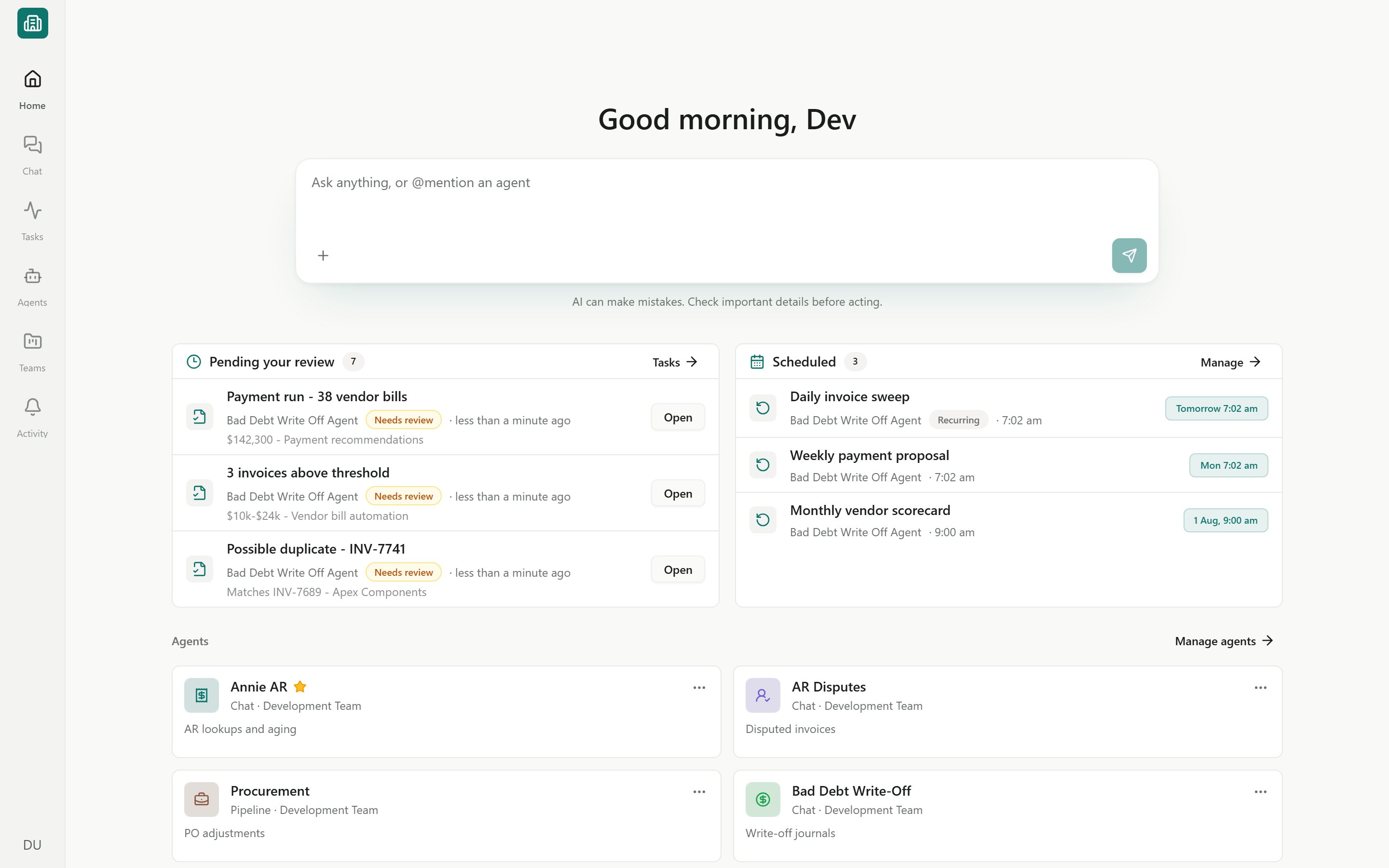
Sign in and land on **Home** — the launchpad with a greeting, a command box, and panels for **Pending your review**, **Scheduled** work, and your agents. If you belong to more than one workspace, switch from the [Workspaces](/admin/workspaces-people) page; each row shows its NetSuite account ID or **NetSuite not connected**.
New here? The guided setup wizard walks you through naming the workspace, connecting NetSuite, and adding a provider in one pass — see [Setting up a workspace](/admin/setup).
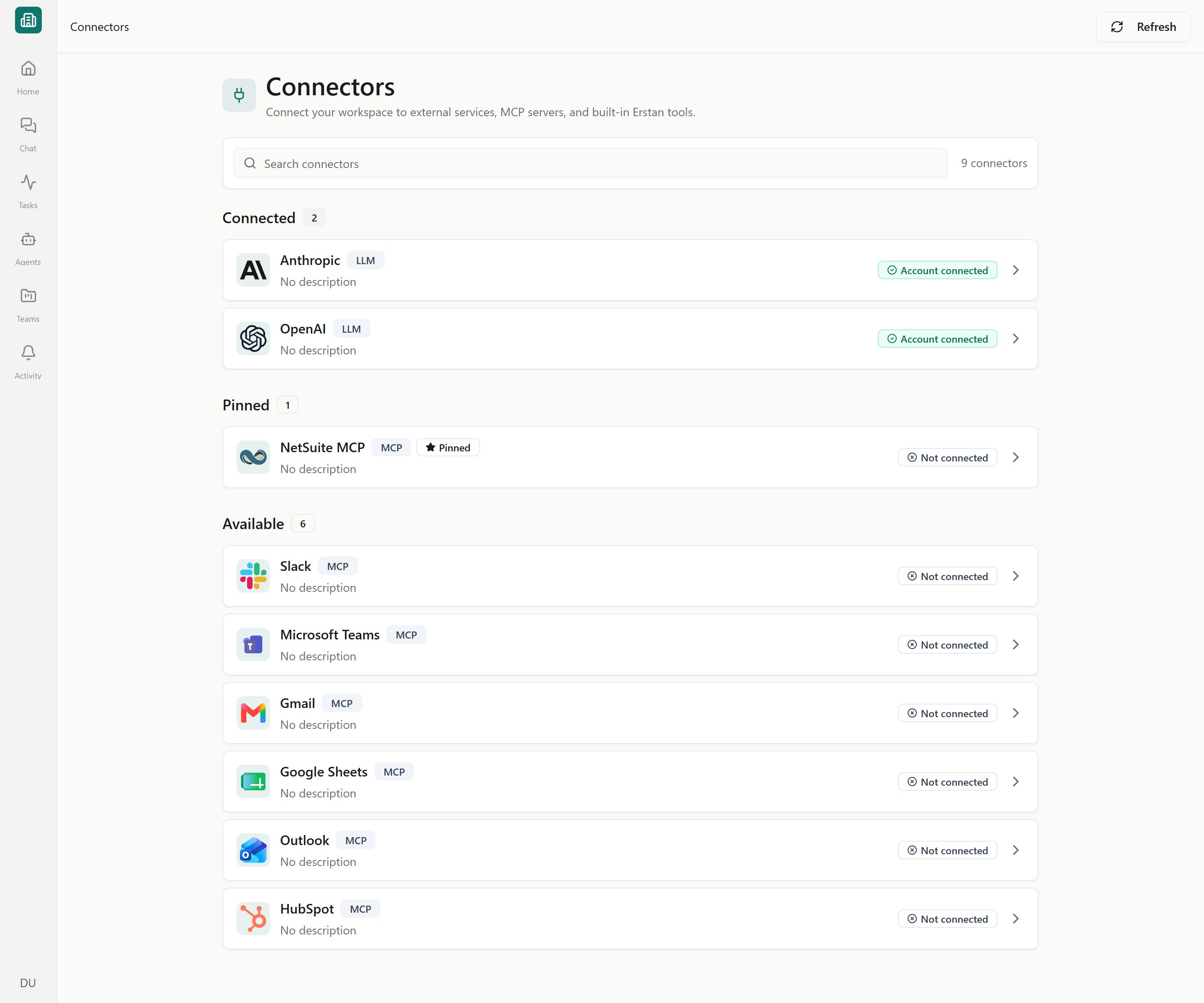
Open **Connectors** from the sidebar and pick **NetSuite**. Choose a connection method, enter your **NetSuite account ID**, then sign in and approve access in the NetSuite popup.
## Before you start
You'll need three things:
* **An Erstan workspace.** Erstan is in **Beta** (waitlist-gated). Sign in with Google, Microsoft, Enterprise SSO, NetSuite, or email, then open or create a workspace. See [Setting up a workspace](/admin/setup).
* **A NetSuite account.** Production or sandbox — one workspace binds to one NetSuite environment.
* **An LLM provider.** An OpenAI or Anthropic API key for your workspace. Chat and agents both need a model to run.
## Run through the steps
Sign in and land on **Home** — the launchpad with a greeting, a command box, and panels for **Pending your review**, **Scheduled** work, and your agents. If you belong to more than one workspace, switch from the [Workspaces](/admin/workspaces-people) page; each row shows its NetSuite account ID or **NetSuite not connected**.
New here? The guided setup wizard walks you through naming the workspace, connecting NetSuite, and adding a provider in one pass — see [Setting up a workspace](/admin/setup).
Open **Connectors** from the sidebar and pick **NetSuite**. Choose a connection method, enter your **NetSuite account ID**, then sign in and approve access in the NetSuite popup.
 Install the **Erstan NetSuite & MCP** bundle (Bundle ID 702722) in NetSuite under **Customization → SuiteBundler → Search & Install Bundles**, enter your account ID, then connect. No Client ID to paste. When prompted, choose a non-Administrator NetSuite role.
Copy the redirect URI Erstan shows and add it to your own NetSuite integration record, enter your account ID, then paste the **Client ID** from that record and connect.
An owner or admin sets up the shared workspace connection once. Then **each member authorizes their own NetSuite user** so agents act with that person's NetSuite role and permissions. See [Connecting NetSuite](/connectors/netsuite) and [Authorizing your NetSuite user](/connectors/netsuite-authorize).
Allow popups for the NetSuite sign-in window, or the connection can't complete.
Open the **OpenAI** or **Anthropic** connector, go to its **Tokens** tab, and paste your workspace API key. On the **Models** tab, choose which models agents can use and set a default. See [Connecting an LLM provider](/connectors/llm-providers).
Without a connected provider, the chat composer shows **Connect an LLM to start chatting** instead of an input box.
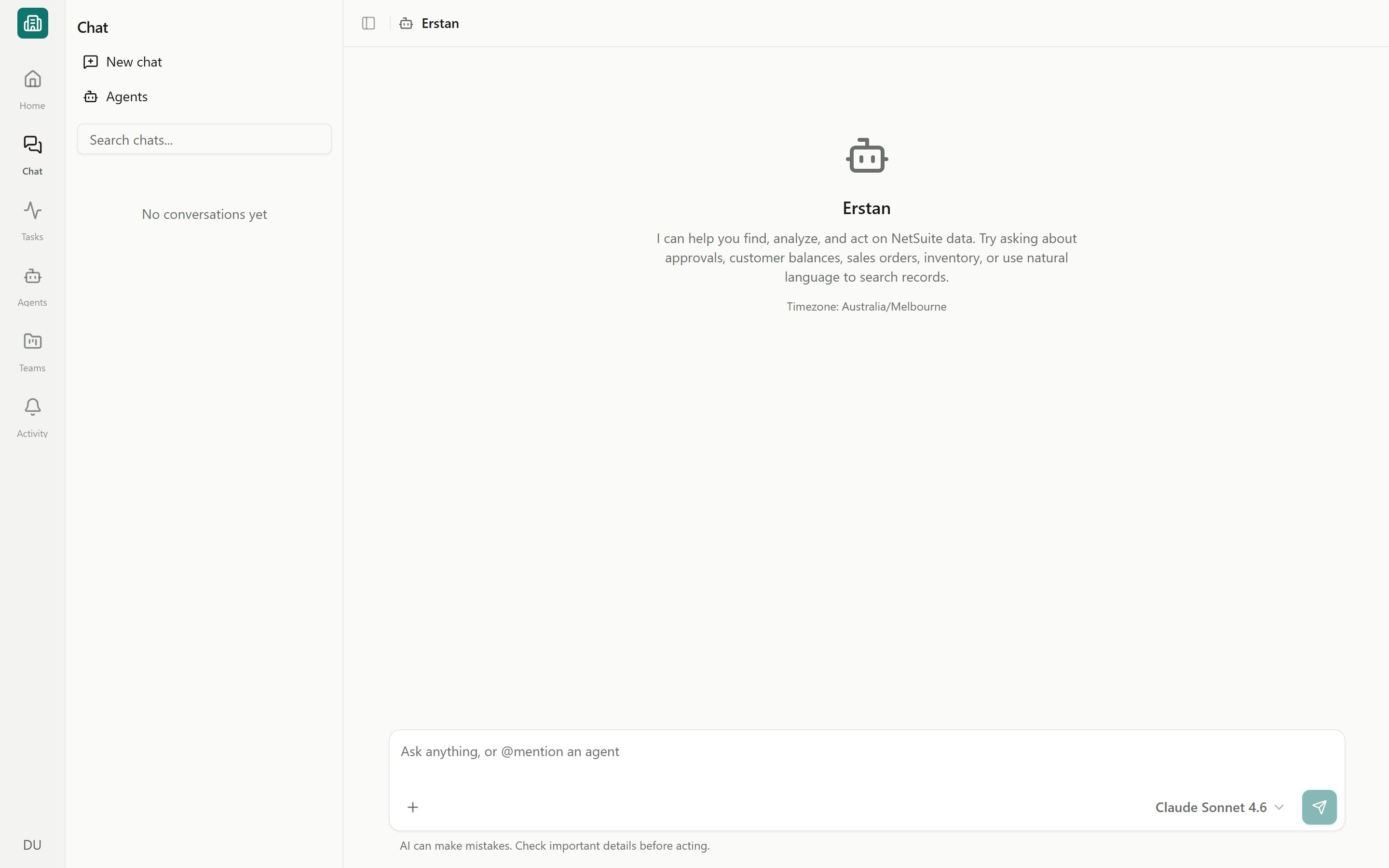
Open **Chat** and type a question in the composer (placeholder **Ask anything, or @mention an agent**). The default **Erstan** assistant can find, analyze, and act on your NetSuite data. Try:
> Show me overdue invoices
Erstan streams its reply in the transcript, running read-only tools — like a SuiteQL query — inline. Open a result in the [Canvas](/chat/canvas) panel to see the full record or query beside your chat.
Install the **Erstan NetSuite & MCP** bundle (Bundle ID 702722) in NetSuite under **Customization → SuiteBundler → Search & Install Bundles**, enter your account ID, then connect. No Client ID to paste. When prompted, choose a non-Administrator NetSuite role.
Copy the redirect URI Erstan shows and add it to your own NetSuite integration record, enter your account ID, then paste the **Client ID** from that record and connect.
An owner or admin sets up the shared workspace connection once. Then **each member authorizes their own NetSuite user** so agents act with that person's NetSuite role and permissions. See [Connecting NetSuite](/connectors/netsuite) and [Authorizing your NetSuite user](/connectors/netsuite-authorize).
Allow popups for the NetSuite sign-in window, or the connection can't complete.
Open the **OpenAI** or **Anthropic** connector, go to its **Tokens** tab, and paste your workspace API key. On the **Models** tab, choose which models agents can use and set a default. See [Connecting an LLM provider](/connectors/llm-providers).
Without a connected provider, the chat composer shows **Connect an LLM to start chatting** instead of an input box.
Open **Chat** and type a question in the composer (placeholder **Ask anything, or @mention an agent**). The default **Erstan** assistant can find, analyze, and act on your NetSuite data. Try:
> Show me overdue invoices
Erstan streams its reply in the transcript, running read-only tools — like a SuiteQL query — inline. Open a result in the [Canvas](/chat/canvas) panel to see the full record or query beside your chat.
 Use the composer **+** menu to control [knowledge, tools, and the model](/chat/knowledge-tools-models). The last model you used is remembered.
For repeatable work, use an **Agent** — an AI worker that combines instructions, skills, and tools. You have two paths:
* **Install a ready-made agent** from the [Marketplace](/marketplace/overview), organized by business-area desks (AP, AR, Close, Reporting). A guided setup connects the services it needs. See [Adding agents from the Marketplace](/marketplace/add-agents).
* **Build your own** from scratch — pick a shape (**Assistant**, **Workforce**, or **Automation**), add a trigger and steps, then publish. See [Create your first agent](/agents/create-first-agent).
Run an agent from its library card, its runs page, or by **@mentioning** it in chat. See [Agents overview](/agents/overview).
Every agent run becomes a trackable **Task** that moves through **Queued → In Progress → Needs Review → Complete**. Find work waiting on you in the **Needs review** queue on Home or under [Tasks](/tasks/overview), open it to read the output, then approve, send back, or mark it complete.
Before an agent **writes to NetSuite** — creating or updating a record, sending an email — it pauses for you. An approval card shows the action and a Before/After preview; click **Run action** or **Don't run**. **Auto-approve writes** skips this prompt; turn it on only when you fully trust what the agent will do. See [Approving and rejecting AI actions](/chat/approvals).
If you see a **NetSuite is busy** card, that's an informational queue notice, not an approval — work resumes automatically.
## Next steps
The mental model behind workspaces, agents, tasks, and approvals.
Full setup, methods, and required NetSuite permissions.
Meet Assistants, Workforces, and Automations.
Use the composer **+** menu to control [knowledge, tools, and the model](/chat/knowledge-tools-models). The last model you used is remembered.
For repeatable work, use an **Agent** — an AI worker that combines instructions, skills, and tools. You have two paths:
* **Install a ready-made agent** from the [Marketplace](/marketplace/overview), organized by business-area desks (AP, AR, Close, Reporting). A guided setup connects the services it needs. See [Adding agents from the Marketplace](/marketplace/add-agents).
* **Build your own** from scratch — pick a shape (**Assistant**, **Workforce**, or **Automation**), add a trigger and steps, then publish. See [Create your first agent](/agents/create-first-agent).
Run an agent from its library card, its runs page, or by **@mentioning** it in chat. See [Agents overview](/agents/overview).
Every agent run becomes a trackable **Task** that moves through **Queued → In Progress → Needs Review → Complete**. Find work waiting on you in the **Needs review** queue on Home or under [Tasks](/tasks/overview), open it to read the output, then approve, send back, or mark it complete.
Before an agent **writes to NetSuite** — creating or updating a record, sending an email — it pauses for you. An approval card shows the action and a Before/After preview; click **Run action** or **Don't run**. **Auto-approve writes** skips this prompt; turn it on only when you fully trust what the agent will do. See [Approving and rejecting AI actions](/chat/approvals).
If you see a **NetSuite is busy** card, that's an informational queue notice, not an approval — work resumes automatically.
## Next steps
The mental model behind workspaces, agents, tasks, and approvals.
Full setup, methods, and required NetSuite permissions.
Meet Assistants, Workforces, and Automations.