> ## Documentation Index
> Fetch the complete documentation index at: https://docs.erstan.com/llms.txt
> Use this file to discover all available pages before exploring further.
# A tour of Erstan
> Find your way around: the sidebar, the Home launchpad, and switching workspaces and teams.
This tour shows you where everything lives in Erstan, so you can move between chatting, your agents, and the work they produce without getting lost. If you are brand new, start with the [Quickstart](/get-started/quickstart); this page is the map.
 ## Primary navigation
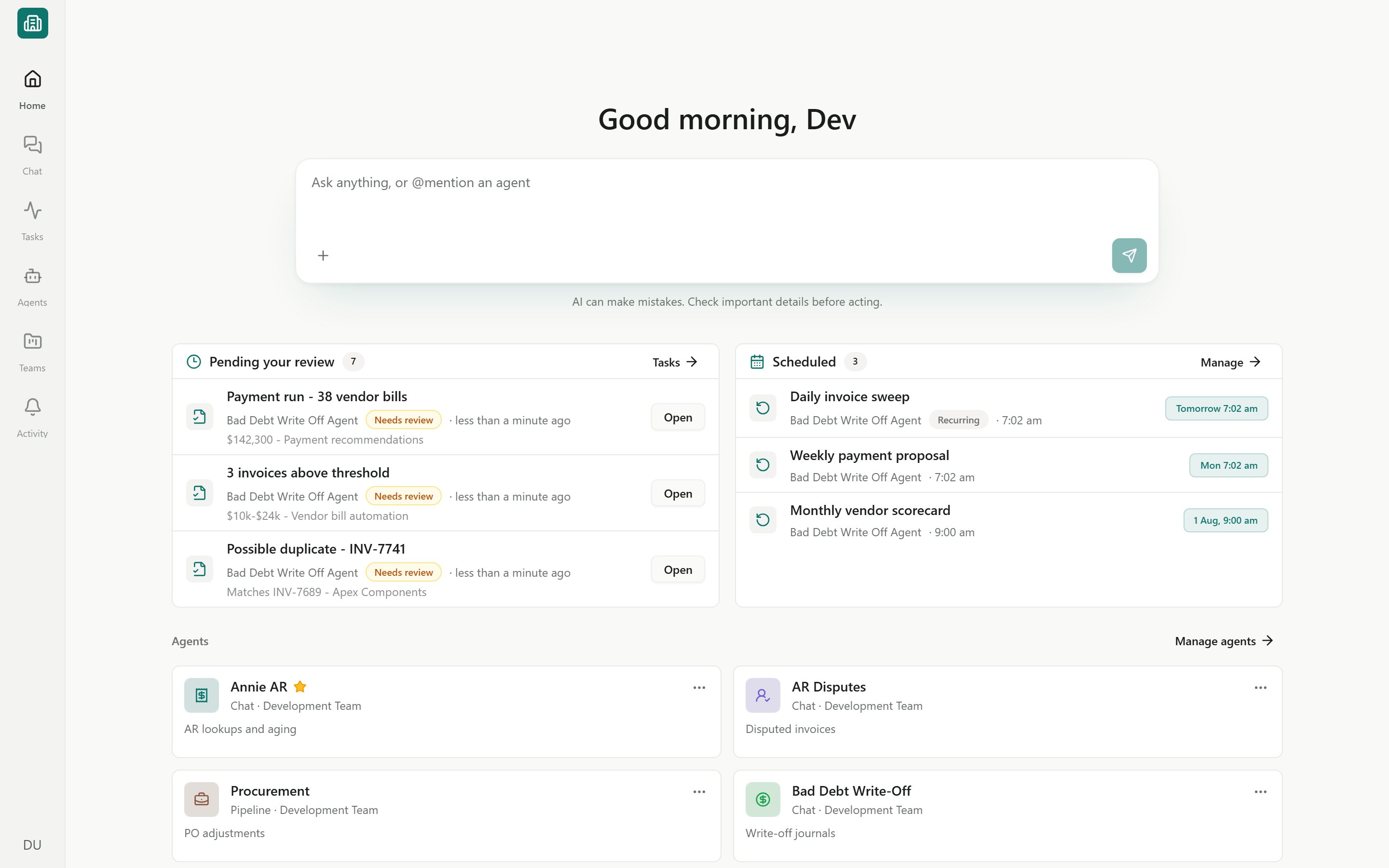
Erstan organizes everything under a single workspace — your company account, tied to one NetSuite environment. The main areas you move between are:
| Area | What you do there |
| ------------------------------ | --------------------------------------------------------------------------------------------------------------------------------- |
| **Home** | Land here after sign-in. A greeting, a command box, and panels for review, scheduled work, and your agents. |
| **[Chat](/chat/overview)** | Ask Erstan to find, analyze, and act on your NetSuite data, or [@mention an agent](/chat/agents-mentions). |
| **[Tasks](/tasks/overview)** | Track every piece of agent work as it moves through Queued → In Progress → Needs Review → Complete. |
| **[Agents](/agents/overview)** | The Agents library — browse, build, run, and publish your AI workers. |
| **[Teams](/teams/overview)** | Focused containers (Finance, Sales Ops, and a workspace-wide Company team) holding their own tasks, content, agents, and members. |
Alongside these areas you can reach your **pinned** items and recent **activity**, and the **workspace switcher** for moving between companies (covered below).
The Home command box and the Chat composer share the same input: **"Ask anything, or @mention an agent."** Anything you can type in one, you can type in the other.
## Primary navigation
Erstan organizes everything under a single workspace — your company account, tied to one NetSuite environment. The main areas you move between are:
| Area | What you do there |
| ------------------------------ | --------------------------------------------------------------------------------------------------------------------------------- |
| **Home** | Land here after sign-in. A greeting, a command box, and panels for review, scheduled work, and your agents. |
| **[Chat](/chat/overview)** | Ask Erstan to find, analyze, and act on your NetSuite data, or [@mention an agent](/chat/agents-mentions). |
| **[Tasks](/tasks/overview)** | Track every piece of agent work as it moves through Queued → In Progress → Needs Review → Complete. |
| **[Agents](/agents/overview)** | The Agents library — browse, build, run, and publish your AI workers. |
| **[Teams](/teams/overview)** | Focused containers (Finance, Sales Ops, and a workspace-wide Company team) holding their own tasks, content, agents, and members. |
Alongside these areas you can reach your **pinned** items and recent **activity**, and the **workspace switcher** for moving between companies (covered below).
The Home command box and the Chat composer share the same input: **"Ask anything, or @mention an agent."** Anything you can type in one, you can type in the other.
 ## The Home launchpad
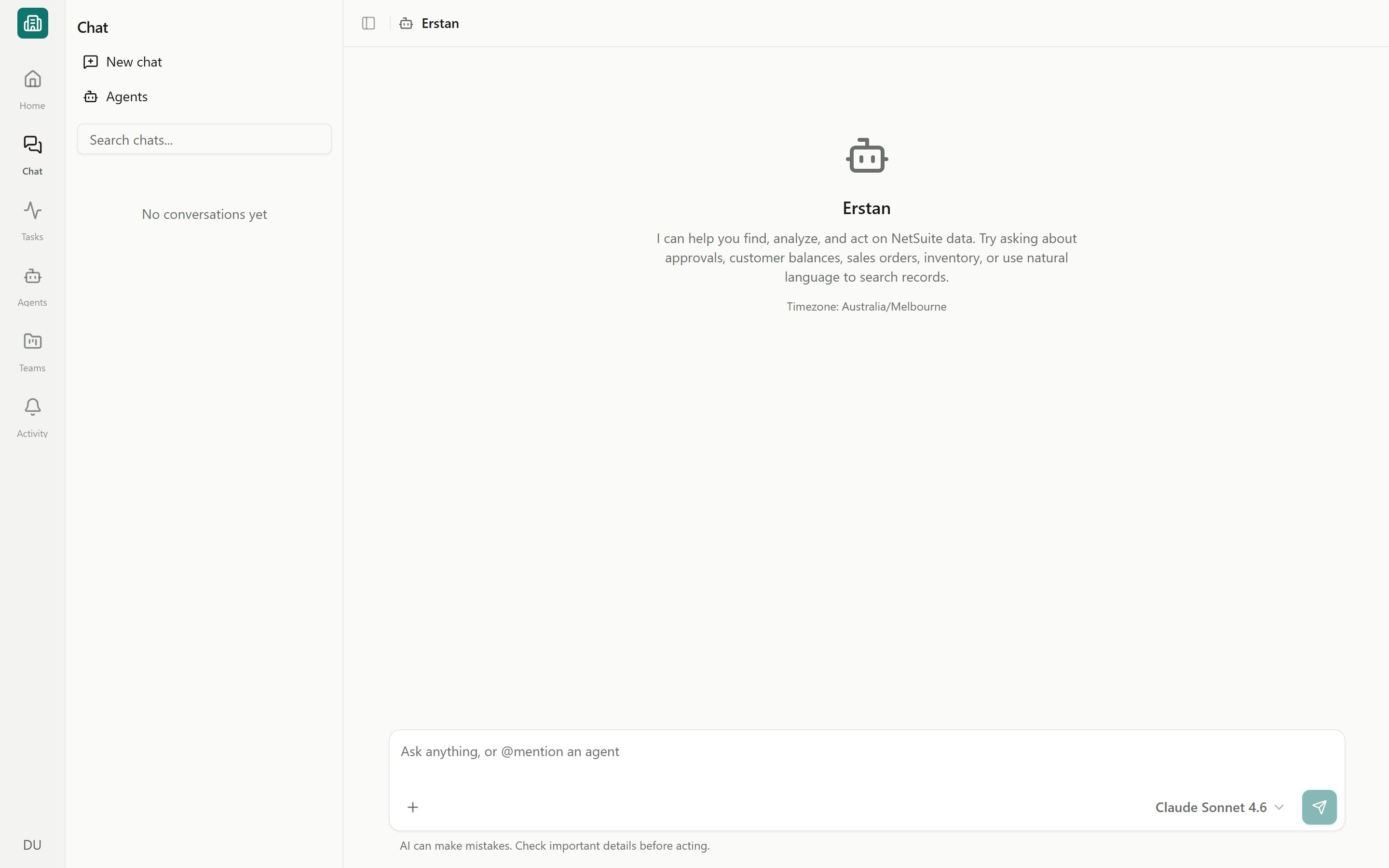
Home is your starting point each day. It opens with a time-based greeting and a unified command box, then surfaces the work that needs your attention.
Type a question to start a chat with Erstan, **@mention** an agent or teammate, use **/slash commands**, or attach a file. With an agent selected you can **Run Agent** or **Assign task** instead of starting a chat.
A panel listing the agent outputs waiting for your sign-off — the work that has reached **Needs Review**. Open an item to review and approve it. See [Reviewing and approving agent work](/tasks/review-approve).
Shows the agent runs set to fire automatically on a schedule, so you can see what is coming up. Learn more in [Scheduling recurring runs](/agents/schedules).
Agent cards give you one-click access to the workers you use most. Cards mark whether an agent opens a **chat** (interactive) or a **run dialog**, and an agent missing a required connection shows a **Connection required** prompt that links to setup.
Home also offers shortcuts to create a new agent and open the [Marketplace](/marketplace/overview).
An agent that needs NetSuite or another service will not run until its connection is in place. Follow the **Connection required** link to fix it — see [Connectors overview](/connectors/overview).
## Switching workspaces and teams
A **workspace** is a company account bound to one NetSuite environment (production or sandbox). You can belong to several and switch between them at any time.
Go to **Workspaces**. It lists your companies in **Current**, **Default**, and **Other** sections, with status badges such as **Pending setup**, **Sub-workspace**, and **Has sandbox**.
Click a row to **Open** the current one or **Switch** to another. A workspace that still needs onboarding shows **Continue setup** and routes you to the [setup wizard](/admin/setup).
Owners and admins see **Create workspace**, which opens a guided dialog and then the setup wizard. Regular members do not see this option. See [Workspaces and people](/admin/workspaces-people).
A sandbox workspace appears nested under its production workspace with a **Sub-workspace** badge. Each workspace maps to a single NetSuite account — if an account is already bound elsewhere, you request access to join rather than reconnect.
**Teams** live inside a workspace. The **Company** team is workspace-wide; you can also create focused teams like Finance or Sales Ops, each with its own tasks, content, agents, and members. Open **Teams** to switch between them or see a team's Overview dashboard. See [Teams overview](/teams/overview).
## Where to find everything else
Several surfaces sit under the main areas or the workspace menus rather than the top-level navigation.
Reusable instruction packages agents load to do a task the same way every time. Browse, create, and publish them from the Skills library.
Add ready-made agents, skills, and bundles for AP, AR, Close, and Reporting. Starter prompts live here too.
Link NetSuite, your AI provider, Slack, and more. This is where you connect and authorize the services agents act in.
A team's **Content** holds rich documents and uploaded files — including files you make searchable as [Agent knowledge](/content/agent-knowledge).
**People** management (inviting members, editing roles, removing members) is available to owners and admins from the **People** page. See [Workspaces and people](/admin/workspaces-people).
## Next steps
Connect NetSuite, open Chat, and run your first agent.
The mental model behind workspaces, agents, skills, tasks, and approvals.
Ask Erstan to find, analyze, and act on your NetSuite data.
Meet the three agent shapes and how they work.
## The Home launchpad
Home is your starting point each day. It opens with a time-based greeting and a unified command box, then surfaces the work that needs your attention.
Type a question to start a chat with Erstan, **@mention** an agent or teammate, use **/slash commands**, or attach a file. With an agent selected you can **Run Agent** or **Assign task** instead of starting a chat.
A panel listing the agent outputs waiting for your sign-off — the work that has reached **Needs Review**. Open an item to review and approve it. See [Reviewing and approving agent work](/tasks/review-approve).
Shows the agent runs set to fire automatically on a schedule, so you can see what is coming up. Learn more in [Scheduling recurring runs](/agents/schedules).
Agent cards give you one-click access to the workers you use most. Cards mark whether an agent opens a **chat** (interactive) or a **run dialog**, and an agent missing a required connection shows a **Connection required** prompt that links to setup.
Home also offers shortcuts to create a new agent and open the [Marketplace](/marketplace/overview).
An agent that needs NetSuite or another service will not run until its connection is in place. Follow the **Connection required** link to fix it — see [Connectors overview](/connectors/overview).
## Switching workspaces and teams
A **workspace** is a company account bound to one NetSuite environment (production or sandbox). You can belong to several and switch between them at any time.
Go to **Workspaces**. It lists your companies in **Current**, **Default**, and **Other** sections, with status badges such as **Pending setup**, **Sub-workspace**, and **Has sandbox**.
Click a row to **Open** the current one or **Switch** to another. A workspace that still needs onboarding shows **Continue setup** and routes you to the [setup wizard](/admin/setup).
Owners and admins see **Create workspace**, which opens a guided dialog and then the setup wizard. Regular members do not see this option. See [Workspaces and people](/admin/workspaces-people).
A sandbox workspace appears nested under its production workspace with a **Sub-workspace** badge. Each workspace maps to a single NetSuite account — if an account is already bound elsewhere, you request access to join rather than reconnect.
**Teams** live inside a workspace. The **Company** team is workspace-wide; you can also create focused teams like Finance or Sales Ops, each with its own tasks, content, agents, and members. Open **Teams** to switch between them or see a team's Overview dashboard. See [Teams overview](/teams/overview).
## Where to find everything else
Several surfaces sit under the main areas or the workspace menus rather than the top-level navigation.
Reusable instruction packages agents load to do a task the same way every time. Browse, create, and publish them from the Skills library.
Add ready-made agents, skills, and bundles for AP, AR, Close, and Reporting. Starter prompts live here too.
Link NetSuite, your AI provider, Slack, and more. This is where you connect and authorize the services agents act in.
A team's **Content** holds rich documents and uploaded files — including files you make searchable as [Agent knowledge](/content/agent-knowledge).
**People** management (inviting members, editing roles, removing members) is available to owners and admins from the **People** page. See [Workspaces and people](/admin/workspaces-people).
## Next steps
Connect NetSuite, open Chat, and run your first agent.
The mental model behind workspaces, agents, skills, tasks, and approvals.
Ask Erstan to find, analyze, and act on your NetSuite data.
Meet the three agent shapes and how they work.