> ## Documentation Index
> Fetch the complete documentation index at: https://docs.erstan.com/llms.txt
> Use this file to discover all available pages before exploring further.
# Publishing with Erstan Builders
> Admins can publish Agents through the feature-gated Builder workflow and manage the review lifecycle.
Erstan Builders is the feature-gated admin workflow for publishing your own [Agents](/agents/overview) to the [Marketplace](/marketplace/overview). You turn a saved Agent into a listing, submit it for review, and, as a reviewer, approve or reject what others submit.
 Erstan Builders requires **workspace admin** access and must be enabled for the workspace. It is an authoring and review tool, not a public builder or partner directory. Non-admins who open it are shown the required access.
## Open Erstan Builders
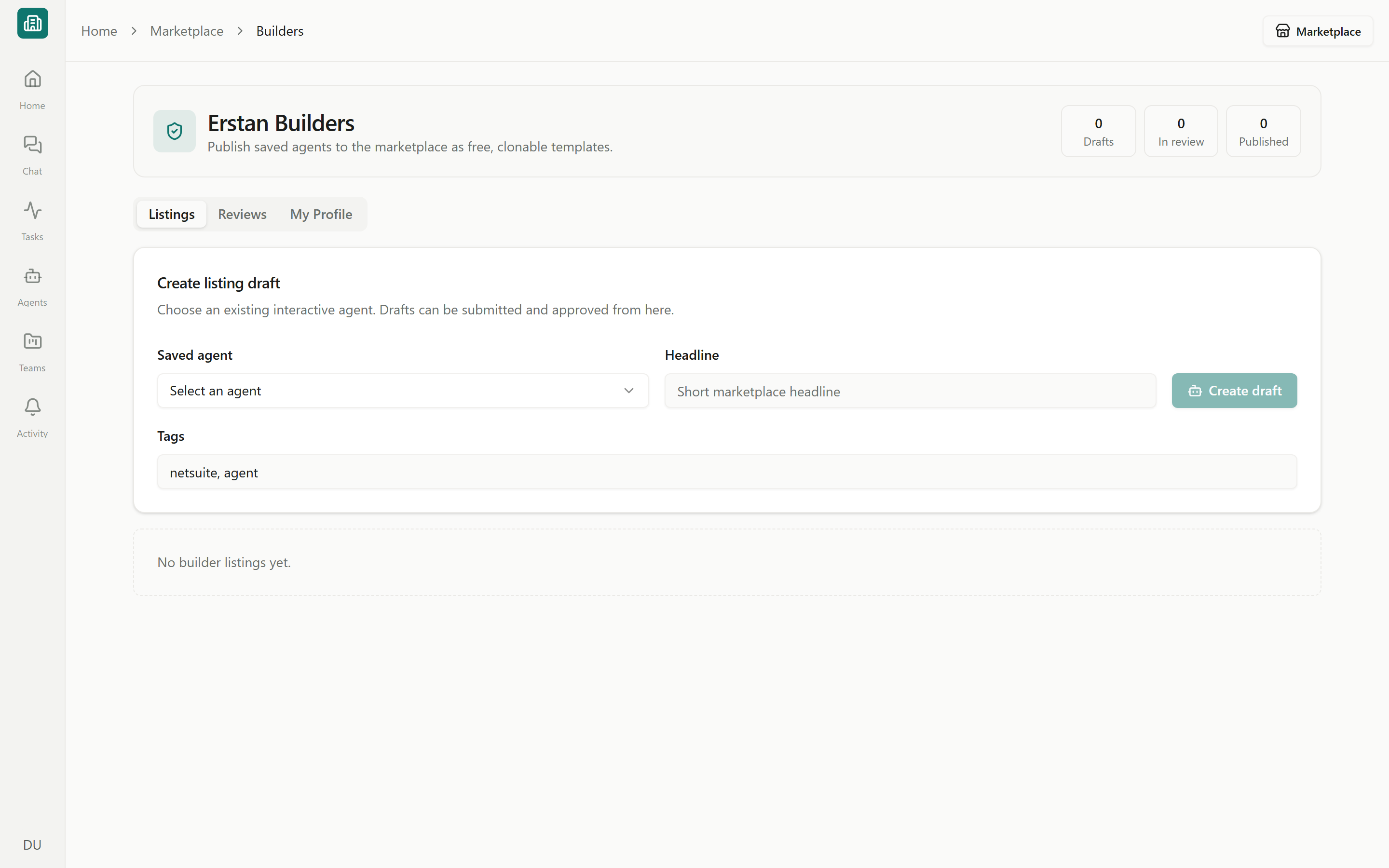
Open **Erstan Builders** from the enabled admin authoring controls. The page shows counts for **Drafts**, **In review**, and **Published** listings, with **Listings**, **Reviews**, and **My Profile** tabs.
## Create and submit a listing
In **Listings**, choose an eligible saved conversational Agent or workforce. Automations that are not supported by the publishing workflow are omitted from the picker.
Add a concise headline and relevant tags that help people find the Agent by task or business category.
Select **Create draft**. The listing remains private while its status is **Draft**.
Submit a draft or rejected listing. Its status changes to **In review** until a reviewer approves or rejects it.
Once approved, the listing becomes **Published** and can appear in the combined Agent and Team catalog when community publishing is enabled for the workspace.
### Listing statuses
| Status | Meaning |
| ------------- | -------------------------------------------------------------------- |
| **Draft** | Created but not submitted. |
| **In review** | Submitted and waiting for review. |
| **Published** | Approved and available under the current marketplace feature policy. |
| **Rejected** | Returned to the Builder for revision and resubmission. |
| **Archived** | Retired from active marketplace results. |
Use **View** to open a published listing and **Archive** to retire one you no longer want available.
A published template carries its instructions, capabilities, and declared tools, but never a Builder's NetSuite authorization. Each person authorizes their own NetSuite user and keeps workspace approval policies in place. Review write-capable access before submission.
## Review submitted listings
Reviewers use the **Reviews** tab to inspect listings with an **In review** status.
Confirm its outcome, attribution, capabilities, access, and safety description are accurate.
**Approve** publishes the listing. **Reject** returns it to the Builder for revision and resubmission.
## Builder identity and attribution
The **My Profile** tab sets the truthful builder identity shown on published listings. Complete the supported profile fields and select **Save profile**.
The Marketplace is intentionally Erstan-led: official content is labeled **Built by Erstan** and Erstan is featured as the primary builder. If community publishing is enabled, an approved listing keeps the builder name from its reviewed profile and displays a non-clicking **Built by \** byline. The storefront does not create a partner directory entry.
## Next steps
Browse the combined Agent and Team catalog.
See how people review and add a published Agent.
Prepare an Agent before creating a listing.
Understand approvals and per-user authorization.
Erstan Builders requires **workspace admin** access and must be enabled for the workspace. It is an authoring and review tool, not a public builder or partner directory. Non-admins who open it are shown the required access.
## Open Erstan Builders
Open **Erstan Builders** from the enabled admin authoring controls. The page shows counts for **Drafts**, **In review**, and **Published** listings, with **Listings**, **Reviews**, and **My Profile** tabs.
## Create and submit a listing
In **Listings**, choose an eligible saved conversational Agent or workforce. Automations that are not supported by the publishing workflow are omitted from the picker.
Add a concise headline and relevant tags that help people find the Agent by task or business category.
Select **Create draft**. The listing remains private while its status is **Draft**.
Submit a draft or rejected listing. Its status changes to **In review** until a reviewer approves or rejects it.
Once approved, the listing becomes **Published** and can appear in the combined Agent and Team catalog when community publishing is enabled for the workspace.
### Listing statuses
| Status | Meaning |
| ------------- | -------------------------------------------------------------------- |
| **Draft** | Created but not submitted. |
| **In review** | Submitted and waiting for review. |
| **Published** | Approved and available under the current marketplace feature policy. |
| **Rejected** | Returned to the Builder for revision and resubmission. |
| **Archived** | Retired from active marketplace results. |
Use **View** to open a published listing and **Archive** to retire one you no longer want available.
A published template carries its instructions, capabilities, and declared tools, but never a Builder's NetSuite authorization. Each person authorizes their own NetSuite user and keeps workspace approval policies in place. Review write-capable access before submission.
## Review submitted listings
Reviewers use the **Reviews** tab to inspect listings with an **In review** status.
Confirm its outcome, attribution, capabilities, access, and safety description are accurate.
**Approve** publishes the listing. **Reject** returns it to the Builder for revision and resubmission.
## Builder identity and attribution
The **My Profile** tab sets the truthful builder identity shown on published listings. Complete the supported profile fields and select **Save profile**.
The Marketplace is intentionally Erstan-led: official content is labeled **Built by Erstan** and Erstan is featured as the primary builder. If community publishing is enabled, an approved listing keeps the builder name from its reviewed profile and displays a non-clicking **Built by \** byline. The storefront does not create a partner directory entry.
## Next steps
Browse the combined Agent and Team catalog.
See how people review and add a published Agent.
Prepare an Agent before creating a listing.
Understand approvals and per-user authorization.