> ## Documentation Index
> Fetch the complete documentation index at: https://docs.erstan.com/llms.txt
> Use this file to discover all available pages before exploring further.
# Reporting with SuiteQL
> Ask Erstan to query NetSuite with SuiteQL, view results in Canvas, and turn them into a document or workbook.
SuiteQL is NetSuite's SQL-style query language for reading data — invoices, transactions, customers, balances, and more. In Erstan you never have to write it by hand: describe the report you want in plain language, and the assistant composes the query, runs it against your NetSuite account, and shows the results inline.
 SuiteQL runs as **you**. Erstan calls NetSuite through your own [per-user authorization](/connectors/netsuite-authorize), so a query only returns records your NetSuite role is allowed to see.
## How Erstan writes and runs SuiteQL for you
You ask a question; the assistant turns it into a SuiteQL query and runs it. The same flow works in any [chat](/chat/overview), whether you are talking to the default Erstan assistant or an analytics-focused [agent](/agents/overview).
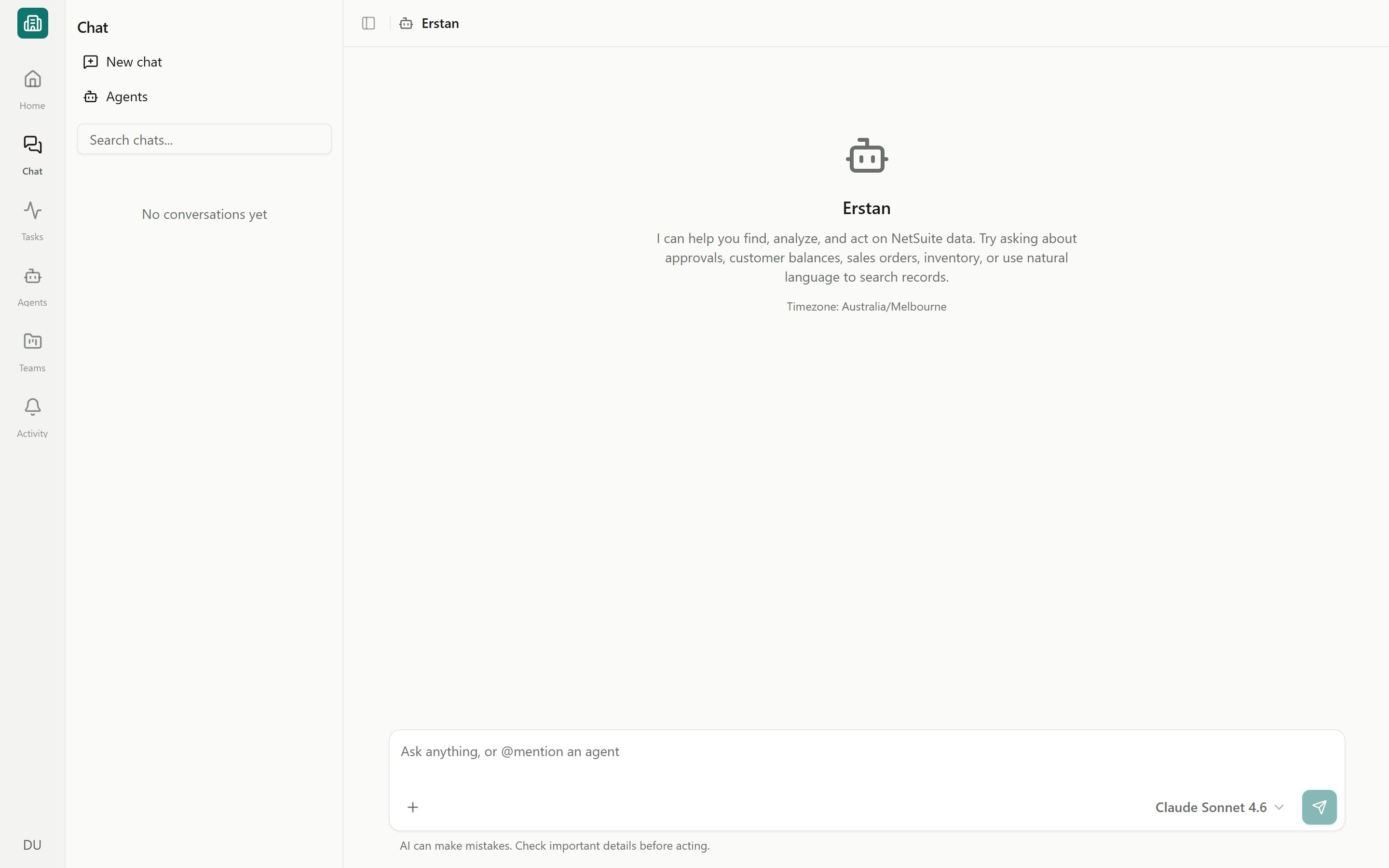
Type what you want in the composer — for example, *"List our 20 largest open invoices with customer, amount, and due date."* You can name fields, filters, sorting, and limits in plain English.
The assistant writes the SuiteQL, calls NetSuite, and streams back a summary. The generated query and its result table appear as an artifact in the transcript.
Click the SuiteQL reference in the assistant's reply to open the **Canvas** side panel. There you can read the full query and scroll the result rows next to the conversation.
Ask a follow-up — *"Only show invoices over 60 days overdue"* or *"group the total by customer"* — and Erstan rewrites and re-runs the query in the same thread.
If you want to be sure NetSuite is in scope, open the composer **+** menu and check **Connections**. Leave it on **Auto** so the Connection Hub picks the NetSuite tools per message, or switch to Expert mode to confirm them.
### Viewing results in Canvas
[Canvas](/chat/canvas) is the panel that opens to the right of the chat. For a SuiteQL result it shows two things together: the exact query Erstan ran and the rows it returned. From the panel menu you can:
* **Open full** — expand the artifact to full width for wide tables.
* **Open in Documents** — save the result into your team's [Content](/content/documents) as a document you can keep and share.
* **Download file** — pull the result down to your computer.
* **Close canvas** — collapse the panel and return to the conversation.
## Turning results into a document or workbook
Once a result looks right, you can hand it off as a reusable artifact instead of a one-off chat message.
In the Canvas panel choose **Open in Documents**. The query output becomes a rich-text [document](/content/documents) under your team's Content, with the table preserved.
Open the document, then use the options (⋯) menu and choose **Export**. Available formats are **Tables (.xlsx)** for a workbook, **Word (.docx)**, **PDF (.pdf)**, or **Markdown (.md)**. See [Publish & export](/content/publish-export) for details.
Ask Erstan to shape the output before you export — *"Add a total row and sort by amount descending"* — so the workbook arrives ready to send to a controller or stakeholder.
## SuiteQL is read-only
SuiteQL in Erstan is **read-only**: it runs `SELECT` queries that read NetSuite data and never create, change, or delete records. A reporting ask will not trigger a write approval.
When an agent needs to *act* on what a report surfaces — emailing a customer, updating an invoice, posting a record — that is a separate write step, and it pauses for your [approval](/chat/approvals) (or follows the connector's write policy) before anything changes in NetSuite. Reading and writing stay clearly separated.
For programmatic SuiteQL — running queries from your own code or scheduling data pulls — use the Developer API instead of chat. See the [developer quickstart](/developers/quickstart) and [run agents](/developers/run-agents).
## Example asks
*"Show me all open customer invoices, with customer name, invoice number, amount, days overdue, and due date, sorted by days overdue."* Then: *"Open this in Documents and add a total row."*
*"List our top 15 vendors by total bill amount this fiscal year, with vendor name and total."* Then export to **Tables (.xlsx)** for a quick workbook.
*"List sales orders created in the last 30 days with order number, customer, status, and total, newest first."*
*"Sum the open balance per customer for invoices more than 60 days overdue, and show the 10 highest."*
Erstan grounds queries in your real NetSuite schema, but field names and saved searches vary by account. If a result looks off, tell the assistant which field or filter to change and it will adjust the query.
## Next steps
See how the side panel opens queries, documents, and NetSuite records inline.
Turn a saved result into a workbook, Word doc, or PDF.
Make sure your per-user authorization is in place so queries can run.
Move from reporting to acting on AR with a collections playbook.
SuiteQL runs as **you**. Erstan calls NetSuite through your own [per-user authorization](/connectors/netsuite-authorize), so a query only returns records your NetSuite role is allowed to see.
## How Erstan writes and runs SuiteQL for you
You ask a question; the assistant turns it into a SuiteQL query and runs it. The same flow works in any [chat](/chat/overview), whether you are talking to the default Erstan assistant or an analytics-focused [agent](/agents/overview).
Type what you want in the composer — for example, *"List our 20 largest open invoices with customer, amount, and due date."* You can name fields, filters, sorting, and limits in plain English.
The assistant writes the SuiteQL, calls NetSuite, and streams back a summary. The generated query and its result table appear as an artifact in the transcript.
Click the SuiteQL reference in the assistant's reply to open the **Canvas** side panel. There you can read the full query and scroll the result rows next to the conversation.
Ask a follow-up — *"Only show invoices over 60 days overdue"* or *"group the total by customer"* — and Erstan rewrites and re-runs the query in the same thread.
If you want to be sure NetSuite is in scope, open the composer **+** menu and check **Connections**. Leave it on **Auto** so the Connection Hub picks the NetSuite tools per message, or switch to Expert mode to confirm them.
### Viewing results in Canvas
[Canvas](/chat/canvas) is the panel that opens to the right of the chat. For a SuiteQL result it shows two things together: the exact query Erstan ran and the rows it returned. From the panel menu you can:
* **Open full** — expand the artifact to full width for wide tables.
* **Open in Documents** — save the result into your team's [Content](/content/documents) as a document you can keep and share.
* **Download file** — pull the result down to your computer.
* **Close canvas** — collapse the panel and return to the conversation.
## Turning results into a document or workbook
Once a result looks right, you can hand it off as a reusable artifact instead of a one-off chat message.
In the Canvas panel choose **Open in Documents**. The query output becomes a rich-text [document](/content/documents) under your team's Content, with the table preserved.
Open the document, then use the options (⋯) menu and choose **Export**. Available formats are **Tables (.xlsx)** for a workbook, **Word (.docx)**, **PDF (.pdf)**, or **Markdown (.md)**. See [Publish & export](/content/publish-export) for details.
Ask Erstan to shape the output before you export — *"Add a total row and sort by amount descending"* — so the workbook arrives ready to send to a controller or stakeholder.
## SuiteQL is read-only
SuiteQL in Erstan is **read-only**: it runs `SELECT` queries that read NetSuite data and never create, change, or delete records. A reporting ask will not trigger a write approval.
When an agent needs to *act* on what a report surfaces — emailing a customer, updating an invoice, posting a record — that is a separate write step, and it pauses for your [approval](/chat/approvals) (or follows the connector's write policy) before anything changes in NetSuite. Reading and writing stay clearly separated.
For programmatic SuiteQL — running queries from your own code or scheduling data pulls — use the Developer API instead of chat. See the [developer quickstart](/developers/quickstart) and [run agents](/developers/run-agents).
## Example asks
*"Show me all open customer invoices, with customer name, invoice number, amount, days overdue, and due date, sorted by days overdue."* Then: *"Open this in Documents and add a total row."*
*"List our top 15 vendors by total bill amount this fiscal year, with vendor name and total."* Then export to **Tables (.xlsx)** for a quick workbook.
*"List sales orders created in the last 30 days with order number, customer, status, and total, newest first."*
*"Sum the open balance per customer for invoices more than 60 days overdue, and show the 10 highest."*
Erstan grounds queries in your real NetSuite schema, but field names and saved searches vary by account. If a result looks off, tell the assistant which field or filter to change and it will adjust the query.
## Next steps
See how the side panel opens queries, documents, and NetSuite records inline.
Turn a saved result into a workbook, Word doc, or PDF.
Make sure your per-user authorization is in place so queries can run.
Move from reporting to acting on AR with a collections playbook.