> ## Documentation Index
> Fetch the complete documentation index at: https://docs.erstan.com/llms.txt
> Use this file to discover all available pages before exploring further.
# Skills overview
> Reusable instruction packages that make agents do a task the same expert way every time.
A skill is a reusable package of instructions that you give to Erstan's [Agents](/agents/overview) so they handle a task a consistent, expert way. Instead of re-explaining how to age receivables or format a vendor-bill summary in every chat, you capture the know-how once as a skill and any agent can load it.
 ## What a skill contains
Every skill is a small file package authored in the [skill editor](/skills/create-edit):
* **SKILL.md** — the required instructions file. Its YAML `name` is the immutable lowercase package identity, and `description` tells agents when to use it. The friendly Display name is stored separately in Erstan; Agent Skills packages do not define a `slug`. Step-by-step guidance and optional **Examples** and **Gotchas** follow the frontmatter.
* **Supporting files** — optional reference material the agent can pull in (templates, lookups, notes).
* **Actions** — optional executable code attached to the skill. A skill with no actions is labeled **Prompt-only**; one with actions shows a count like **2 actions**.
Prompt-only skills are pure guidance — the most common kind and the easiest to author. Skills with actions can run code, and their entry file can be test-run in a console inside the editor.
## Workspace vs Built-in skills
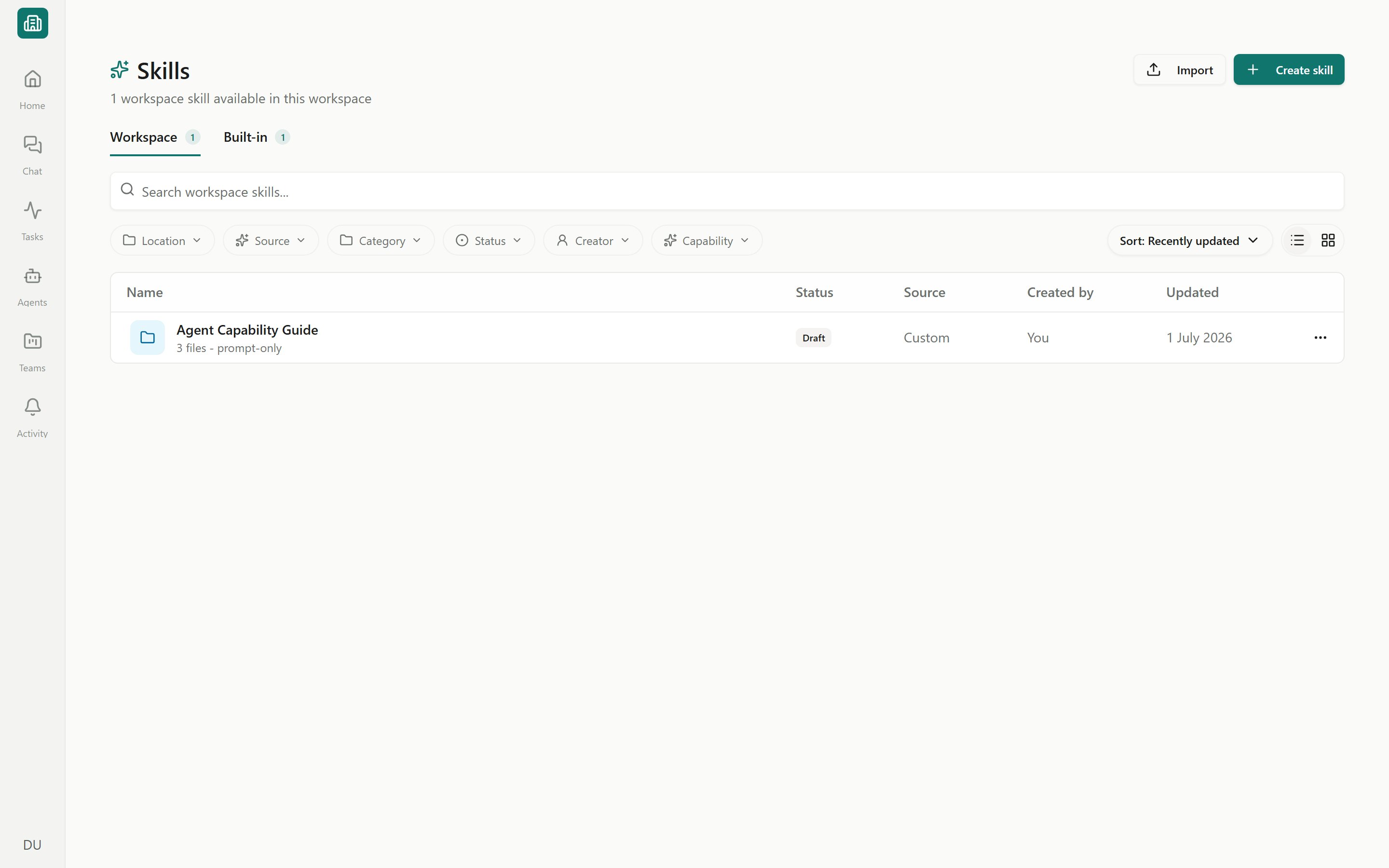
The Skills page (open **Skills** from the sidebar) has two tabs, each with a count badge.
Skills created by you or your teammates (**Custom**) or installed from Erstan and partners. These are the skills you can edit, publish, share, and organize. Each has a status, a folder, and a visibility setting.
Skills Erstan ships out of the box, labeled **Built-in**. They are read-only — you can inspect their files, About, and usage, but only owners and admins can prioritize, disable, or replace them. See [Built-in skills](/skills/built-in).
The Skills surface exists both workspace-wide and inside a [team](/teams/overview). The team version scopes to that team and hides the Built-in tab and the Location filter.
## How a skill is classified
When you browse, three properties tell you what a skill is and whether agents can use it.
| Property | Values | What it means |
| -------------- | -------------------------------------- | ----------------------------------------------------------------------------------------------------------------- |
| **Source** | By Erstan, Partner, Custom | Where the skill came from: an official Erstan template, a partner/community skill, or one made in your workspace. |
| **Status** | Draft, Published, Deprecated, Archived | The lifecycle state of a workspace skill. **Published** is what makes a skill usable by agents. |
| **Capability** | Prompt-only, Has actions | Whether the skill includes executable actions or is instructions only. |
On skill tiles and badges, **Published** status appears as **"Agent ready."** The editor and filters call it **Published** — it is the same state, two labels.
## How agents use a skill
Only **Published** skills are usable by agents. A skill stays a **Draft** until you publish it, and publishing is blocked until any package validation errors are resolved. Add a skill to an agent on the agent's setup — see [Giving agents tools, skills & connections](/agents/tools-skills-connections).
When an agent runs a task that matches a skill it has been given, it loads the skill's SKILL.md and follows those instructions — so the same job is done the same way every time, whether the agent runs from chat, a form, or a schedule. Skills carry guidance only; the ability to read or write NetSuite still comes from the agent's [connectors and write policy](/connectors/netsuite-manage), and writes still pause for [approval](/chat/approvals).
## Browsing, searching, and filtering
Choose **Skills** in the sidebar, then pick the **Workspace** or **Built-in** tab.
Type in the search box to find skills by name or description.
Narrow by **Location** (Company, Personal, Shared with me, a specific team), **Source**, **Category**, **Status**, **Creator**, and **Capability** (Prompt-only / Has actions). The Built-in tab offers a **Category** filter.
Change **Sort** (Recently updated, Name, Usage 30d) and toggle **List** or **Card** view. Use **Clear filters** to reset.
Your filter, sort, and view choices are saved in your browser per workspace and team, so they persist between visits on the same device.
## Next steps
Author a skill by hand or with Skill Chat in the package editor.
Publish so agents can use it, set visibility, and manage versions.
Review the skills Erstan ships and prioritize, disable, or replace them.
Ready-made prompts you can copy, run, or send to the best-fit agent.
## What a skill contains
Every skill is a small file package authored in the [skill editor](/skills/create-edit):
* **SKILL.md** — the required instructions file. Its YAML `name` is the immutable lowercase package identity, and `description` tells agents when to use it. The friendly Display name is stored separately in Erstan; Agent Skills packages do not define a `slug`. Step-by-step guidance and optional **Examples** and **Gotchas** follow the frontmatter.
* **Supporting files** — optional reference material the agent can pull in (templates, lookups, notes).
* **Actions** — optional executable code attached to the skill. A skill with no actions is labeled **Prompt-only**; one with actions shows a count like **2 actions**.
Prompt-only skills are pure guidance — the most common kind and the easiest to author. Skills with actions can run code, and their entry file can be test-run in a console inside the editor.
## Workspace vs Built-in skills
The Skills page (open **Skills** from the sidebar) has two tabs, each with a count badge.
Skills created by you or your teammates (**Custom**) or installed from Erstan and partners. These are the skills you can edit, publish, share, and organize. Each has a status, a folder, and a visibility setting.
Skills Erstan ships out of the box, labeled **Built-in**. They are read-only — you can inspect their files, About, and usage, but only owners and admins can prioritize, disable, or replace them. See [Built-in skills](/skills/built-in).
The Skills surface exists both workspace-wide and inside a [team](/teams/overview). The team version scopes to that team and hides the Built-in tab and the Location filter.
## How a skill is classified
When you browse, three properties tell you what a skill is and whether agents can use it.
| Property | Values | What it means |
| -------------- | -------------------------------------- | ----------------------------------------------------------------------------------------------------------------- |
| **Source** | By Erstan, Partner, Custom | Where the skill came from: an official Erstan template, a partner/community skill, or one made in your workspace. |
| **Status** | Draft, Published, Deprecated, Archived | The lifecycle state of a workspace skill. **Published** is what makes a skill usable by agents. |
| **Capability** | Prompt-only, Has actions | Whether the skill includes executable actions or is instructions only. |
On skill tiles and badges, **Published** status appears as **"Agent ready."** The editor and filters call it **Published** — it is the same state, two labels.
## How agents use a skill
Only **Published** skills are usable by agents. A skill stays a **Draft** until you publish it, and publishing is blocked until any package validation errors are resolved. Add a skill to an agent on the agent's setup — see [Giving agents tools, skills & connections](/agents/tools-skills-connections).
When an agent runs a task that matches a skill it has been given, it loads the skill's SKILL.md and follows those instructions — so the same job is done the same way every time, whether the agent runs from chat, a form, or a schedule. Skills carry guidance only; the ability to read or write NetSuite still comes from the agent's [connectors and write policy](/connectors/netsuite-manage), and writes still pause for [approval](/chat/approvals).
## Browsing, searching, and filtering
Choose **Skills** in the sidebar, then pick the **Workspace** or **Built-in** tab.
Type in the search box to find skills by name or description.
Narrow by **Location** (Company, Personal, Shared with me, a specific team), **Source**, **Category**, **Status**, **Creator**, and **Capability** (Prompt-only / Has actions). The Built-in tab offers a **Category** filter.
Change **Sort** (Recently updated, Name, Usage 30d) and toggle **List** or **Card** view. Use **Clear filters** to reset.
Your filter, sort, and view choices are saved in your browser per workspace and team, so they persist between visits on the same device.
## Next steps
Author a skill by hand or with Skill Chat in the package editor.
Publish so agents can use it, set visibility, and manage versions.
Review the skills Erstan ships and prioritize, disable, or replace them.
Ready-made prompts you can copy, run, or send to the best-fit agent.