> ## Documentation Index
> Fetch the complete documentation index at: https://docs.erstan.com/llms.txt
> Use this file to discover all available pages before exploring further.
# Tasks overview
> See and manage the work your agents do — every agent run becomes a trackable task.
Tasks is where you track and manage the background work your [agents](/agents/overview) do for you. Every time an agent runs, it produces a task you can watch, open, review, and act on — so nothing an agent does happens out of sight.
 ## How agent work becomes a task
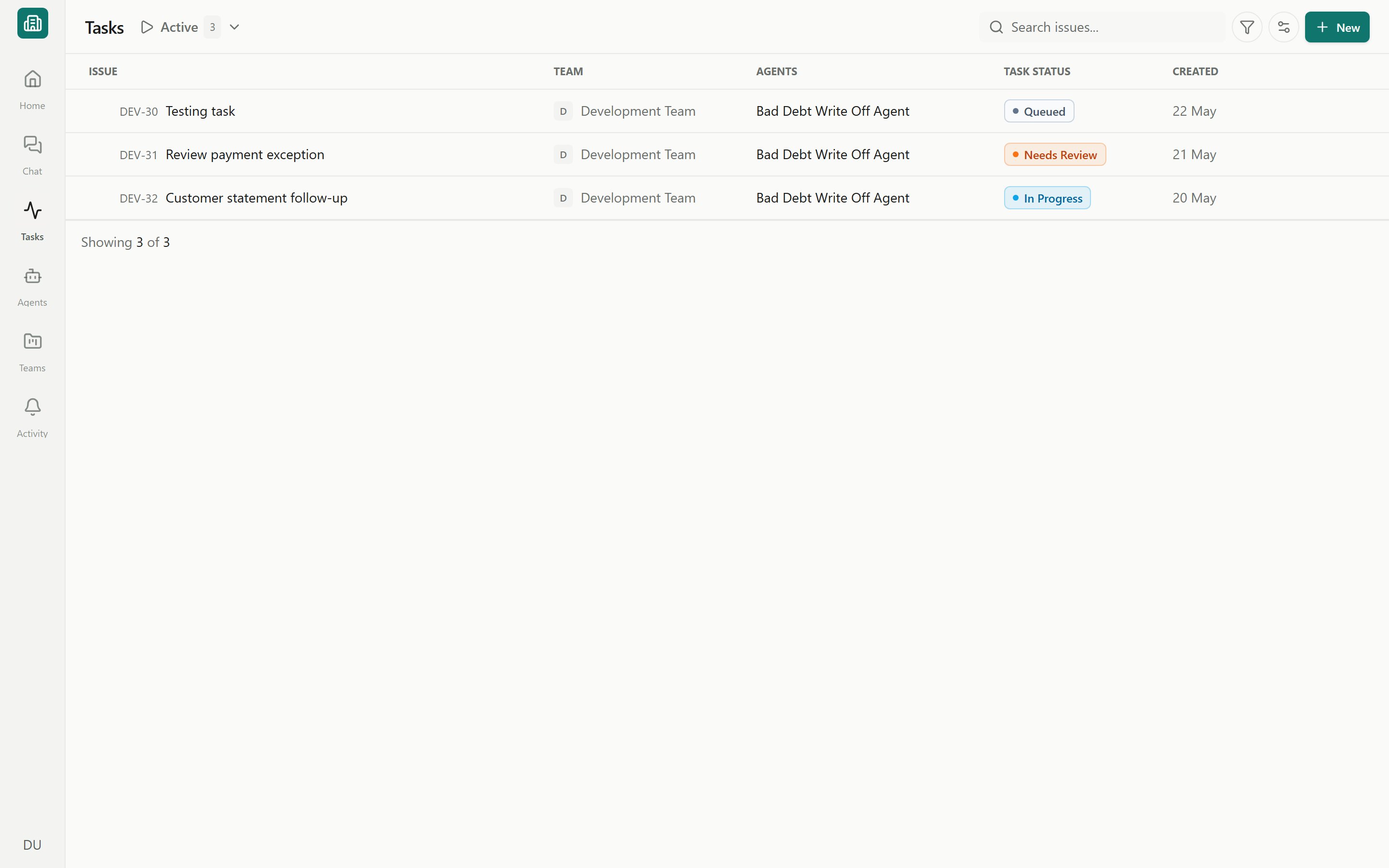
When an agent starts working, Erstan creates a task to represent that piece of work. Open a task to read the agent's output, chat with the agent, review and approve what it produced, and set its properties (priority, due date, assignee, reviewer, and labels).
Tasks come from a few places:
Asking an agent to do real work in [Chat](/chat/overview) spins up a task you can follow.
Running an agent on demand — or assigning a run as a task — lands here.
Scheduled and recurring runs produce tasks automatically on their cadence.
You can also create a task by hand with **New task**: pick the agent, give it a name and a short description of what it should produce or monitor, and optionally set a schedule, priority, assignee, and labels.
## Task statuses
Every task carries a colored status badge that tells you where it stands in its lifecycle.
| Status | What it means |
| ---------------- | ---------------------------------------------------- |
| **Queued** | Accepted and waiting to start. |
| **In Progress** | The agent is actively working. |
| **Needs Review** | Work is done but waiting for a person to confirm it. |
| **Complete** | Finished and confirmed. |
| **Error** | The run failed and needs attention. |
| **Cancelled** | Stopped before it finished. |
| **Archived** | Tucked away out of the active lists. |
The normal happy path is **Queued → In Progress → Needs Review → Complete**.
Whether finished work lands in **Needs Review** or jumps straight to **Complete** depends on a team's completion policy: **Human confirms** sends work to review, while **Agent can complete** lets agents mark their own work done. This is set per team in [Team Settings](/teams/managing) and applies to new tasks only.
When an agent needs to write to NetSuite or another connected system, it pauses for your sign-off — those approvals surface on the task and in the **Approvals** tab. Review them before the change runs. See [Approving and rejecting AI actions](/chat/approvals).
## List and Board views
Switch how the task list renders from the display menu.
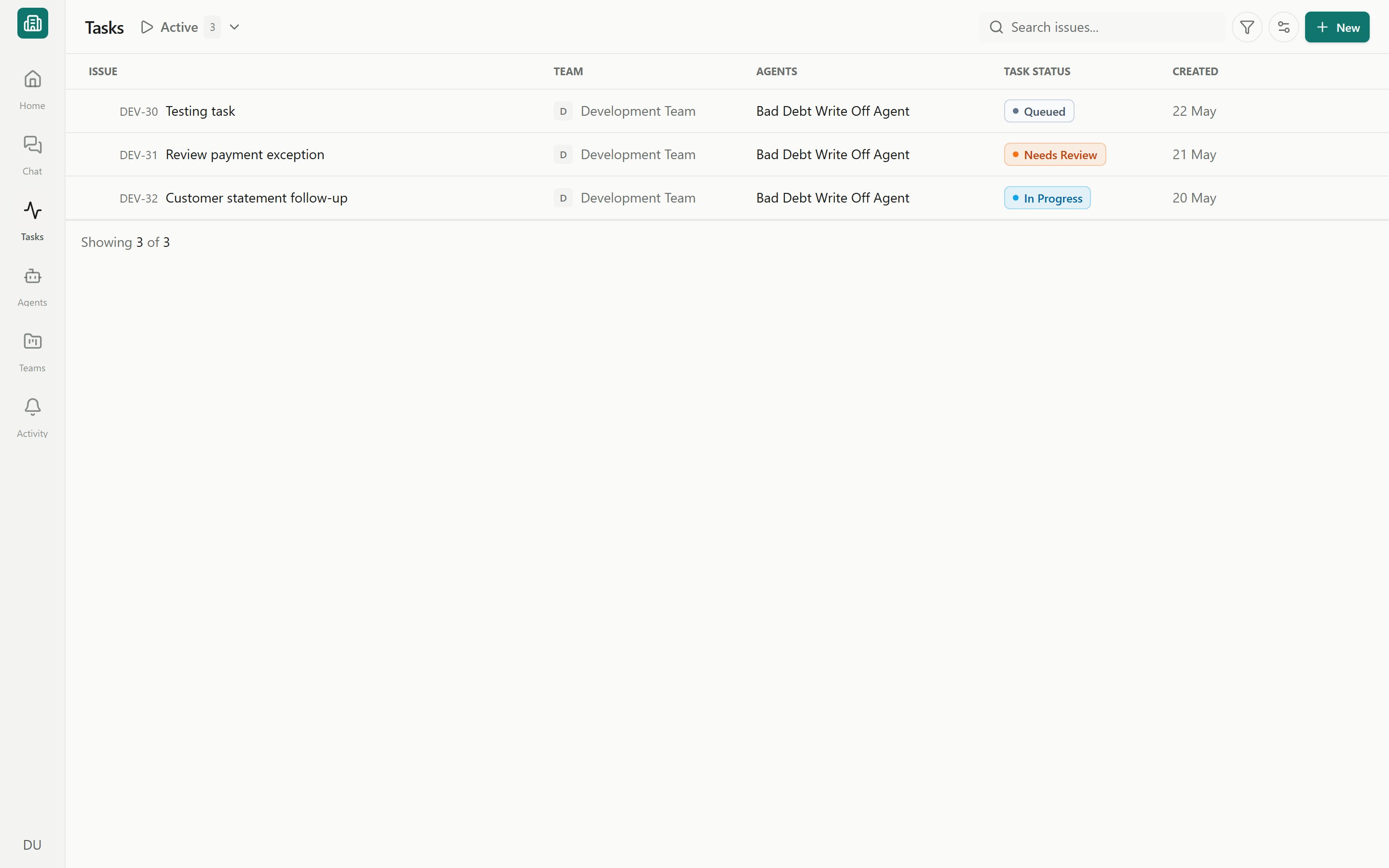
A table of tasks with status, priority, and source badges per row, selection checkboxes for bulk actions, and "load more" paging. Best for scanning and triaging a long queue.
Drag-and-drop columns you can group by status, agent, assignee, reviewer, team, or schedule. Move a task between columns to change its status, or quick-create within a column.
## How agent work becomes a task
When an agent starts working, Erstan creates a task to represent that piece of work. Open a task to read the agent's output, chat with the agent, review and approve what it produced, and set its properties (priority, due date, assignee, reviewer, and labels).
Tasks come from a few places:
Asking an agent to do real work in [Chat](/chat/overview) spins up a task you can follow.
Running an agent on demand — or assigning a run as a task — lands here.
Scheduled and recurring runs produce tasks automatically on their cadence.
You can also create a task by hand with **New task**: pick the agent, give it a name and a short description of what it should produce or monitor, and optionally set a schedule, priority, assignee, and labels.
## Task statuses
Every task carries a colored status badge that tells you where it stands in its lifecycle.
| Status | What it means |
| ---------------- | ---------------------------------------------------- |
| **Queued** | Accepted and waiting to start. |
| **In Progress** | The agent is actively working. |
| **Needs Review** | Work is done but waiting for a person to confirm it. |
| **Complete** | Finished and confirmed. |
| **Error** | The run failed and needs attention. |
| **Cancelled** | Stopped before it finished. |
| **Archived** | Tucked away out of the active lists. |
The normal happy path is **Queued → In Progress → Needs Review → Complete**.
Whether finished work lands in **Needs Review** or jumps straight to **Complete** depends on a team's completion policy: **Human confirms** sends work to review, while **Agent can complete** lets agents mark their own work done. This is set per team in [Team Settings](/teams/managing) and applies to new tasks only.
When an agent needs to write to NetSuite or another connected system, it pauses for your sign-off — those approvals surface on the task and in the **Approvals** tab. Review them before the change runs. See [Approving and rejecting AI actions](/chat/approvals).
## List and Board views
Switch how the task list renders from the display menu.
A table of tasks with status, priority, and source badges per row, selection checkboxes for bulk actions, and "load more" paging. Best for scanning and triaging a long queue.
Drag-and-drop columns you can group by status, agent, assignee, reviewer, team, or schedule. Move a task between columns to change its status, or quick-create within a column.
 ## Built-in tabs
The tab bar slices your tasks into focused queues so you can jump straight to what matters.
| Tab | Shows |
| ------------- | ------------------------------------------------------------ |
| **Inbox** | New and incoming work that needs your attention. |
| **Review** | Tasks sitting in **Needs Review**, waiting for confirmation. |
| **Active** | Tasks currently queued or in progress. |
| **Scheduled** | Upcoming one-time runs. |
| **Recurring** | Saved schedules that produce tasks on a cadence. |
| **Approvals** | Mid-run approval requests an agent has raised. |
| **Errors** | Tasks that failed and need attention. |
| **All tasks** | Everything, unfiltered. |
| **My tasks** | A personal view scoped to work assigned to you. |
Tasks can be scoped to a single team or viewed across the whole workspace. Open a [team's](/teams/overview) own Tasks surface to see just that team's work, and use the team **Overview** dashboard's Pending Review panel to jump straight to its review queue.
## Find your work fast
Beyond the tabs, the **Filter** popover narrows the list by agent, project, labels, team, assignee, reviewer, status, source, dates, and more. Active filters appear as removable chips, and a free-text search box filters by name. Save any combination of tab, filters, and display options as a **saved view** — personal or shared — so you can return to it in one click.
## Next steps
Open a task, chat with the agent, set properties, and use sub-tasks.
Check and sign off on what agents produce in Needs Review and Approvals.
Group related tasks and recurring work under a team or company-wide workstream.
Run agents on demand and assign runs as tasks.
Organize people, agents, content, and tasks into focused teams.
## Built-in tabs
The tab bar slices your tasks into focused queues so you can jump straight to what matters.
| Tab | Shows |
| ------------- | ------------------------------------------------------------ |
| **Inbox** | New and incoming work that needs your attention. |
| **Review** | Tasks sitting in **Needs Review**, waiting for confirmation. |
| **Active** | Tasks currently queued or in progress. |
| **Scheduled** | Upcoming one-time runs. |
| **Recurring** | Saved schedules that produce tasks on a cadence. |
| **Approvals** | Mid-run approval requests an agent has raised. |
| **Errors** | Tasks that failed and need attention. |
| **All tasks** | Everything, unfiltered. |
| **My tasks** | A personal view scoped to work assigned to you. |
Tasks can be scoped to a single team or viewed across the whole workspace. Open a [team's](/teams/overview) own Tasks surface to see just that team's work, and use the team **Overview** dashboard's Pending Review panel to jump straight to its review queue.
## Find your work fast
Beyond the tabs, the **Filter** popover narrows the list by agent, project, labels, team, assignee, reviewer, status, source, dates, and more. Active filters appear as removable chips, and a free-text search box filters by name. Save any combination of tab, filters, and display options as a **saved view** — personal or shared — so you can return to it in one click.
## Next steps
Open a task, chat with the agent, set properties, and use sub-tasks.
Check and sign off on what agents produce in Needs Review and Approvals.
Group related tasks and recurring work under a team or company-wide workstream.
Run agents on demand and assign runs as tasks.
Organize people, agents, content, and tasks into focused teams.