> ## Documentation Index
> Fetch the complete documentation index at: https://docs.erstan.com/llms.txt
> Use this file to discover all available pages before exploring further.
# Working with tasks
> Filter and save task views, open a task to chat with its agent, set properties and sub-tasks, and run bulk actions.
Once agent work lands in [Tasks](/tasks/overview), this is where you do something with it: narrow the list to what matters, open a task to follow and direct its agent, set priority and ownership, break work into sub-tasks, and clear out finished items in bulk.
 ## Find tasks: search, filters, and views
The Tasks page opens on the **Inbox** tab. Built-in tabs (**Inbox**, **Review**, **Active**, **Scheduled**, **Recurring**, **Approvals**, **Errors**, **All tasks**, plus your personal **My tasks** view) give you a fast starting slice; from there you refine with search and filters.
Type in the search box to match task names and descriptions. Search combines with the active tab and filters.
Click **Filter** to narrow by any of: Agent, Labels, Team, Assignee, Reviewer, Task Status, Source, Created by, Date created, Last updated, Due date, Errors, Archive state, and Schedule state. Active filters appear as removable chips above the list — click a chip to drop it, or **Clear filters** to reset.
Use the display menu to switch between **List** and **Board**, set **Ordering**, choose board grouping, and toggle **Show empty columns**. (See [List vs Board grouping](#list-vs-board-grouping) below.)
When you have a tab, filters, search, and display options you want to keep, save them as a **Saved view** with a name and icon. A view can be personal or shared with the team, and you can mark one as your default.
Your last tab, filters, display options, and saved views are remembered per workspace (and per team scope), so the Tasks page reopens the way you left it.
### List vs Board grouping
Both views show the same tasks; pick whichever fits the job.
| View | Best for | Grouping |
| ------------------ | --------------------------------------------------------------------------------------- | --------------------------------------------------------------------------------------------- |
| **List** | Scanning many tasks with status, priority, and source badges in a table; bulk selection | Sorted by your chosen ordering |
| **Board (Kanban)** | Seeing flow and dragging tasks between stages | Group columns by **status**, **agent**, **assignee**, **reviewer**, **team**, or **schedule** |
On the board you can quick-create a task in a column, hide or show empty columns, and reveal the **Archived** column.
## Open a task
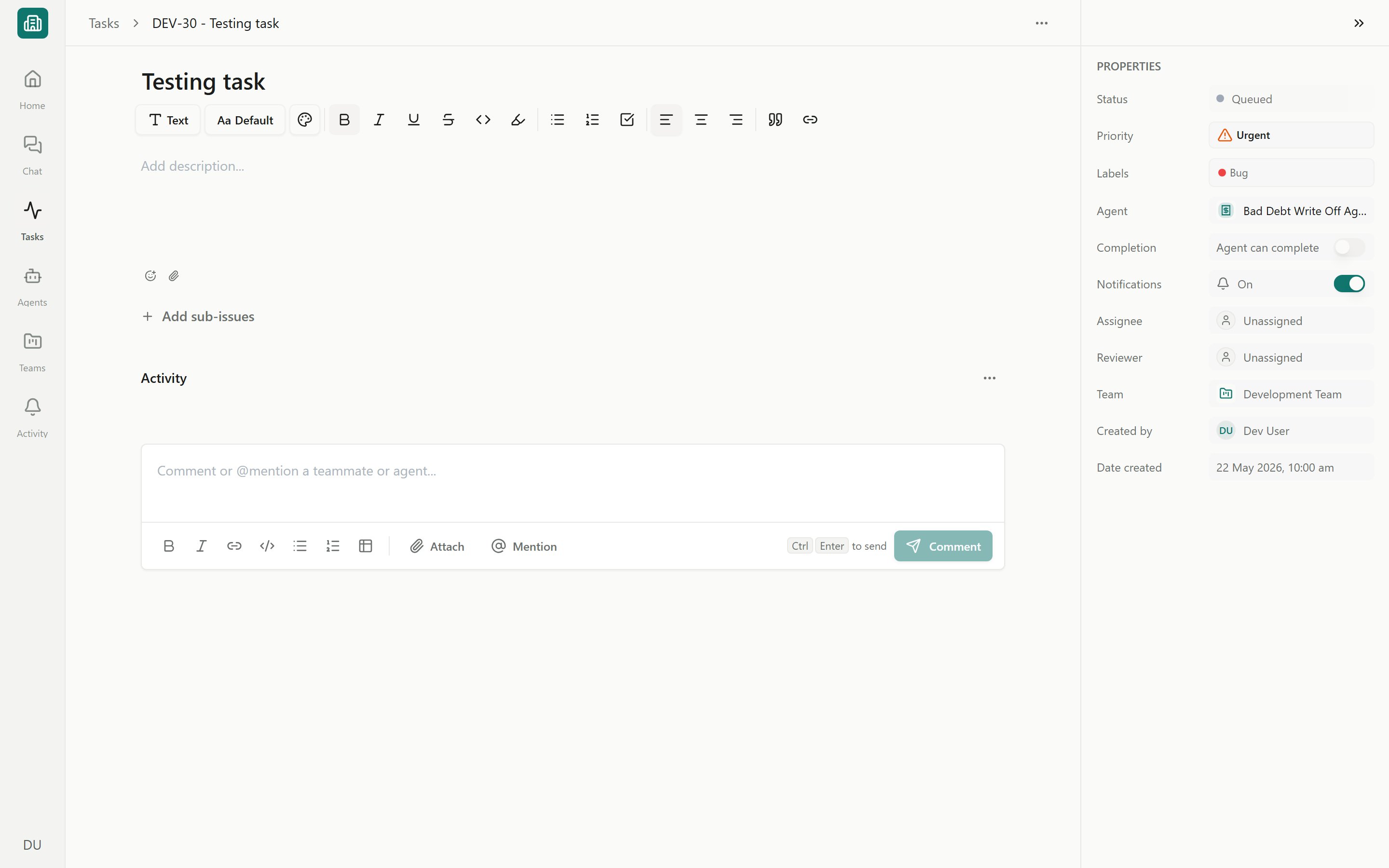
Click any task to open its detail view. It has two parts: a conversation panel on the left and a properties rail on the right.
### The conversation panel
This is a chat-style thread with the agent doing the work. Use it to:
* **Read the outcome.** The agent posts its output and an activity feed grouped by day; a task in an active state refreshes on its own while you watch.
* **Reply or comment.** The rich-text composer supports a slash menu and **@-mentions** of teammates and agents. Press **Ctrl+Enter** to send.
* **Open run threads.** Each agent execution opens as a **run thread** in a side rail, with its conversation and action count, so you can inspect exactly what the agent did. See [run history and traces](/agents/run-history-traces).
* **Act on approval cards.** If the agent paused for a write, an approval card appears here — see [Approving and rejecting AI actions](/chat/approvals).
Approval cards in a task pause real writes to NetSuite (and other connected systems) until you choose **Run action** or **Don't run**. Read the before/after change before approving — agents act with your own [per-user NetSuite permissions](/connectors/netsuite-authorize).
### The properties rail
The rail on the right sets everything about the task itself:
| Property | Options |
| ------------------------------ | ----------------------------------------------------------------------------------- |
| **Priority** | No priority, Urgent, High, Medium, Low |
| **Due date** | A date, or the quick options Tomorrow / In one week / Custom |
| **Labels** | Color-coded tags managed per team (and shared workspace labels) |
| **Assignee** | The workspace member responsible (default **Unassigned**) |
| **Reviewer** | The person who signs off on the result (default **Unassigned**) |
| **Require human confirmation** | When on, the agent sends finished work to **Needs Review** instead of completing it |
The rail also shows the parent task, the run that created it, participants, and a Needs Review section, plus controls for task update notifications.
**Assignee** owns the work; **Reviewer** approves it. Pairing the two routes a task to **Needs Review** for the right person — see [Reviewing and approving agent work](/tasks/review-approve).
## Manage a running task
The task options menu (the ⋯ menu) controls the run and its schedule without leaving the task:
* **Run now**, **Pause run**, **Resume run** — control the current execution.
* **Add resource** — attach context the agent can use.
* **Due date** — set or remove (Tomorrow, In one week, Custom).
* **Start** — Active now or Schedule later.
* **Recurrence** — turn it into a **Recurring task** or **Set recurrence**. See [Scheduling recurring runs](/agents/schedules).
* **Notifications** and **Lifecycle** (Archive / Restore / Delete).
## Sub-tasks
Break a larger task into smaller pieces with **Sub-tasks** — child tasks nested under a parent, shown with completion progress and checkboxes. Each can have its own owner.
If you try to complete a parent while sub-tasks are still open, Erstan warns you first so nothing is closed prematurely.
## Bulk actions
Select multiple tasks (the checkboxes in List view, or by selecting cards) to reveal the selection action bar. From it you can:
* **Move to status**
* **Assign** an assignee
* **Set priority**
* **Add label** / **Remove label**
* **Archive**
* **Delete**
Each action respects your permissions, and some support undo.
## Archive or delete
To clear finished or unwanted work, use **Archive** (reversible — restore it later from the Archived column or the lifecycle menu) or **Delete** (permanent). Both can run on a single task from its options menu or across a selection from the bulk bar.
Archiving or deleting shows an impact check first when a task has open sub-tasks, an active run, or other dependents. Review it before confirming — archiving stops a recurring task from producing new work, and deleting cannot be undone.
## Next steps
How agent work becomes tasks, the statuses, and the built-in tabs.
Use Needs Review and Approvals to sign off on what agents produce.
Set agents to run hourly, daily, weekly, or monthly.
Read a run's step-by-step trace and review usage.
## Find tasks: search, filters, and views
The Tasks page opens on the **Inbox** tab. Built-in tabs (**Inbox**, **Review**, **Active**, **Scheduled**, **Recurring**, **Approvals**, **Errors**, **All tasks**, plus your personal **My tasks** view) give you a fast starting slice; from there you refine with search and filters.
Type in the search box to match task names and descriptions. Search combines with the active tab and filters.
Click **Filter** to narrow by any of: Agent, Labels, Team, Assignee, Reviewer, Task Status, Source, Created by, Date created, Last updated, Due date, Errors, Archive state, and Schedule state. Active filters appear as removable chips above the list — click a chip to drop it, or **Clear filters** to reset.
Use the display menu to switch between **List** and **Board**, set **Ordering**, choose board grouping, and toggle **Show empty columns**. (See [List vs Board grouping](#list-vs-board-grouping) below.)
When you have a tab, filters, search, and display options you want to keep, save them as a **Saved view** with a name and icon. A view can be personal or shared with the team, and you can mark one as your default.
Your last tab, filters, display options, and saved views are remembered per workspace (and per team scope), so the Tasks page reopens the way you left it.
### List vs Board grouping
Both views show the same tasks; pick whichever fits the job.
| View | Best for | Grouping |
| ------------------ | --------------------------------------------------------------------------------------- | --------------------------------------------------------------------------------------------- |
| **List** | Scanning many tasks with status, priority, and source badges in a table; bulk selection | Sorted by your chosen ordering |
| **Board (Kanban)** | Seeing flow and dragging tasks between stages | Group columns by **status**, **agent**, **assignee**, **reviewer**, **team**, or **schedule** |
On the board you can quick-create a task in a column, hide or show empty columns, and reveal the **Archived** column.
## Open a task
Click any task to open its detail view. It has two parts: a conversation panel on the left and a properties rail on the right.
### The conversation panel
This is a chat-style thread with the agent doing the work. Use it to:
* **Read the outcome.** The agent posts its output and an activity feed grouped by day; a task in an active state refreshes on its own while you watch.
* **Reply or comment.** The rich-text composer supports a slash menu and **@-mentions** of teammates and agents. Press **Ctrl+Enter** to send.
* **Open run threads.** Each agent execution opens as a **run thread** in a side rail, with its conversation and action count, so you can inspect exactly what the agent did. See [run history and traces](/agents/run-history-traces).
* **Act on approval cards.** If the agent paused for a write, an approval card appears here — see [Approving and rejecting AI actions](/chat/approvals).
Approval cards in a task pause real writes to NetSuite (and other connected systems) until you choose **Run action** or **Don't run**. Read the before/after change before approving — agents act with your own [per-user NetSuite permissions](/connectors/netsuite-authorize).
### The properties rail
The rail on the right sets everything about the task itself:
| Property | Options |
| ------------------------------ | ----------------------------------------------------------------------------------- |
| **Priority** | No priority, Urgent, High, Medium, Low |
| **Due date** | A date, or the quick options Tomorrow / In one week / Custom |
| **Labels** | Color-coded tags managed per team (and shared workspace labels) |
| **Assignee** | The workspace member responsible (default **Unassigned**) |
| **Reviewer** | The person who signs off on the result (default **Unassigned**) |
| **Require human confirmation** | When on, the agent sends finished work to **Needs Review** instead of completing it |
The rail also shows the parent task, the run that created it, participants, and a Needs Review section, plus controls for task update notifications.
**Assignee** owns the work; **Reviewer** approves it. Pairing the two routes a task to **Needs Review** for the right person — see [Reviewing and approving agent work](/tasks/review-approve).
## Manage a running task
The task options menu (the ⋯ menu) controls the run and its schedule without leaving the task:
* **Run now**, **Pause run**, **Resume run** — control the current execution.
* **Add resource** — attach context the agent can use.
* **Due date** — set or remove (Tomorrow, In one week, Custom).
* **Start** — Active now or Schedule later.
* **Recurrence** — turn it into a **Recurring task** or **Set recurrence**. See [Scheduling recurring runs](/agents/schedules).
* **Notifications** and **Lifecycle** (Archive / Restore / Delete).
## Sub-tasks
Break a larger task into smaller pieces with **Sub-tasks** — child tasks nested under a parent, shown with completion progress and checkboxes. Each can have its own owner.
If you try to complete a parent while sub-tasks are still open, Erstan warns you first so nothing is closed prematurely.
## Bulk actions
Select multiple tasks (the checkboxes in List view, or by selecting cards) to reveal the selection action bar. From it you can:
* **Move to status**
* **Assign** an assignee
* **Set priority**
* **Add label** / **Remove label**
* **Archive**
* **Delete**
Each action respects your permissions, and some support undo.
## Archive or delete
To clear finished or unwanted work, use **Archive** (reversible — restore it later from the Archived column or the lifecycle menu) or **Delete** (permanent). Both can run on a single task from its options menu or across a selection from the bulk bar.
Archiving or deleting shows an impact check first when a task has open sub-tasks, an active run, or other dependents. Review it before confirming — archiving stops a recurring task from producing new work, and deleting cannot be undone.
## Next steps
How agent work becomes tasks, the statuses, and the built-in tabs.
Use Needs Review and Approvals to sign off on what agents produce.
Set agents to run hourly, daily, weekly, or monthly.
Read a run's step-by-step trace and review usage.