

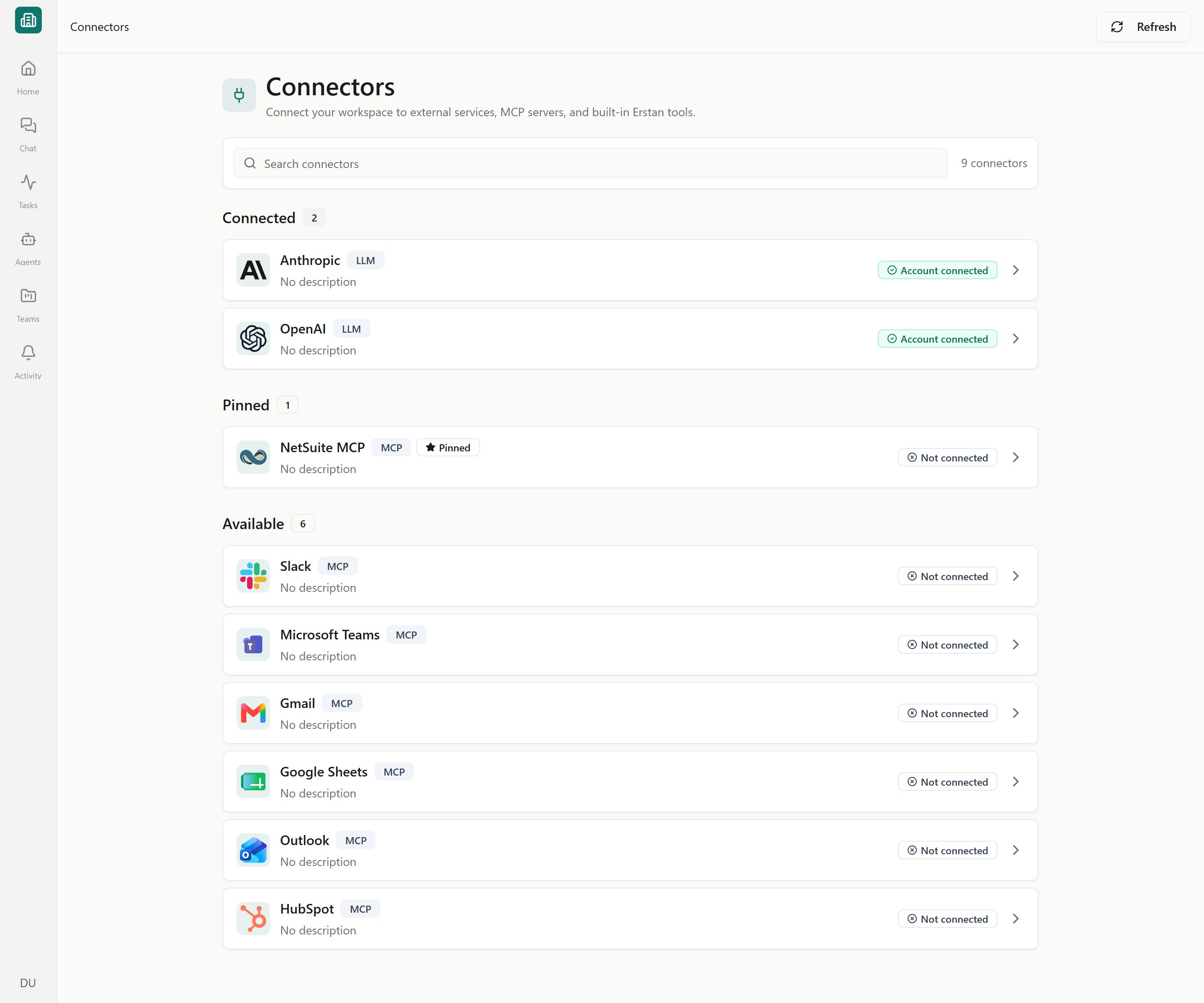
Connectors
Open the NetSuite connector from Connectors in the sidebar and click the NetSuite row. Managing tools, authorizations, and the workspace connection requires the Owner or Admin role; Members see the tools and policies in a read-only view and cannot change them.
The connector detail tabs
The NetSuite connector page is organized into tabs. Each one manages a different part of the connection.Setup and authorization are covered in their own pages: Connecting NetSuite and Authorizing your NetSuite user. This page focuses on the Tools and Knowledge tabs.
The Tools tab
The Tools tab lists every NetSuite tool agents can call — both the static built-ins and the ones discovered from the NetSuite MCP endpoint. Each tool shows a short description, a risk hint, and its current write policy.Write policy per tool
Every tool can be set to one of three policies. This is how you control whether an agent can change NetSuite data on its own or must wait for a person.
Read-only tools (looking up records, running SuiteQL queries) are safe to leave on Allow. Anything that creates, edits, or deletes NetSuite records is a write and should stay on Require approval unless you have a deliberate reason to change it.
1
Open the Tools tab
On the NetSuite connector page, select Tools to see the Available Tools list.
2
Find the tool
Locate the tool whose behavior you want to change. The risk hint and description tell you whether it reads or writes.
3
Set its write policy
Choose Allow, Require approval, or Deny for that tool. The change applies to how agents in this workspace call it.
4
Test it (optional)
Use the tool’s test action to run it once yourself and confirm it returns what you expect before agents rely on it.
The Erstan NetSuite Add-on Skill
NetSuite MCP is the default whenever it offers an equivalent tool. The Add-on extends it with missing operations and can be deliberately chosen for automations that need longer-lived service authorization. Erstan uses an equivalent Add-on tool only when you explicitly choose it, request conversion, or configure that provider in an automation. A failed or disconnected MCP connection does not cause a silent switch. When the executing user has an authorized NetSuite Add-on connection and its tools are enabled, Erstan can use the built-in Erstan NetSuite Add-on Skill. It explains capability discovery, account and role identity, queries and searches, record operations, files and email, script tasks, and Suitelet/Portlet publishing. Erstan reads the detailed procedure relevant to the task. No marketplace installation is required. The NetSuite Intelligence Library supplies shared business, accounting and query knowledge. The Add-on Skill supplies connector procedures; the discovered tools and current policy determine what can actually run. An Agent using only attached Skills must include the Add-on Skill to read it, and relevant Agent templates already recommend it. Connecting only the Oracle NetSuite MCP connector does not enable the Add-on Skill. Live App and dashboard SuiteQL or saved-search sources also default to MCP. An explicit Add-on conversion preserves the query/search, parameters and displayed results, with any required result mapping checked before publication. Each viewer needs their own valid Add-on authorization; the creator’s credentials are not shared. Automations use the configured Run As user’s authorization. Grants and certificates can expire, be revoked or require renewal.Publishing pages and Portlets
With the compatible Erstan bundle installed, the existing file and deployment tools can publish reviewed Suitelet pages and HTML dashboard Portlets through reusable hosts. Upload and deployment approvals use the same tool cards and policies described above. See Suitelet pages and dashboard Portlets for account prerequisites, viewer access, verification and rollback.Knowledge sources
Add selected NetSuite product updates from Knowledge > Sources. Erstan manages the offered release notes and feature references centrally; users choose the specific files for each source. Connecting NetSuite does not subscribe a workspace, and new catalog material does not expand an existing selection. Clear product-update questions can retrieve from selected enabled workspace references. See Agent knowledge for source ownership, selection, and retrieval controls.How this fits write safety
Per-user authorization decides who an agent acts as in NetSuite; write policy decides what it can do without asking. Together they are the core of Erstan’s write safety model.Who can change write policy?
Who can change write policy?
Only Owners and Admins. Members can see the tools and their current policies but cannot change them.
Does write policy override an agent's own approval settings?
Does write policy override an agent's own approval settings?
The connector’s write policy is the workspace default for each tool. Agent configuration and chat-level Auto-approve writes build on top of it. When in doubt, leave writes on Require approval so a person always sees the change first.
What if a tool isn't listed?
What if a tool isn't listed?
The list combines static tools with ones discovered from the NetSuite MCP endpoint. If a tool is missing, re-sync the connector from the Connectors list (Refresh) and confirm the connection is healthy on the Setup tab.
Next steps
Security & write safety
How per-user authorization, write policy, and approvals keep your NetSuite data safe.
Approving AI actions
What an approval card looks like and how to run or decline a write.
Authorizing your NetSuite user
Each member authorizes their own NetSuite user and role.
Connection troubleshooting
Fix expired auth, unhealthy connections, and the busy queue.