

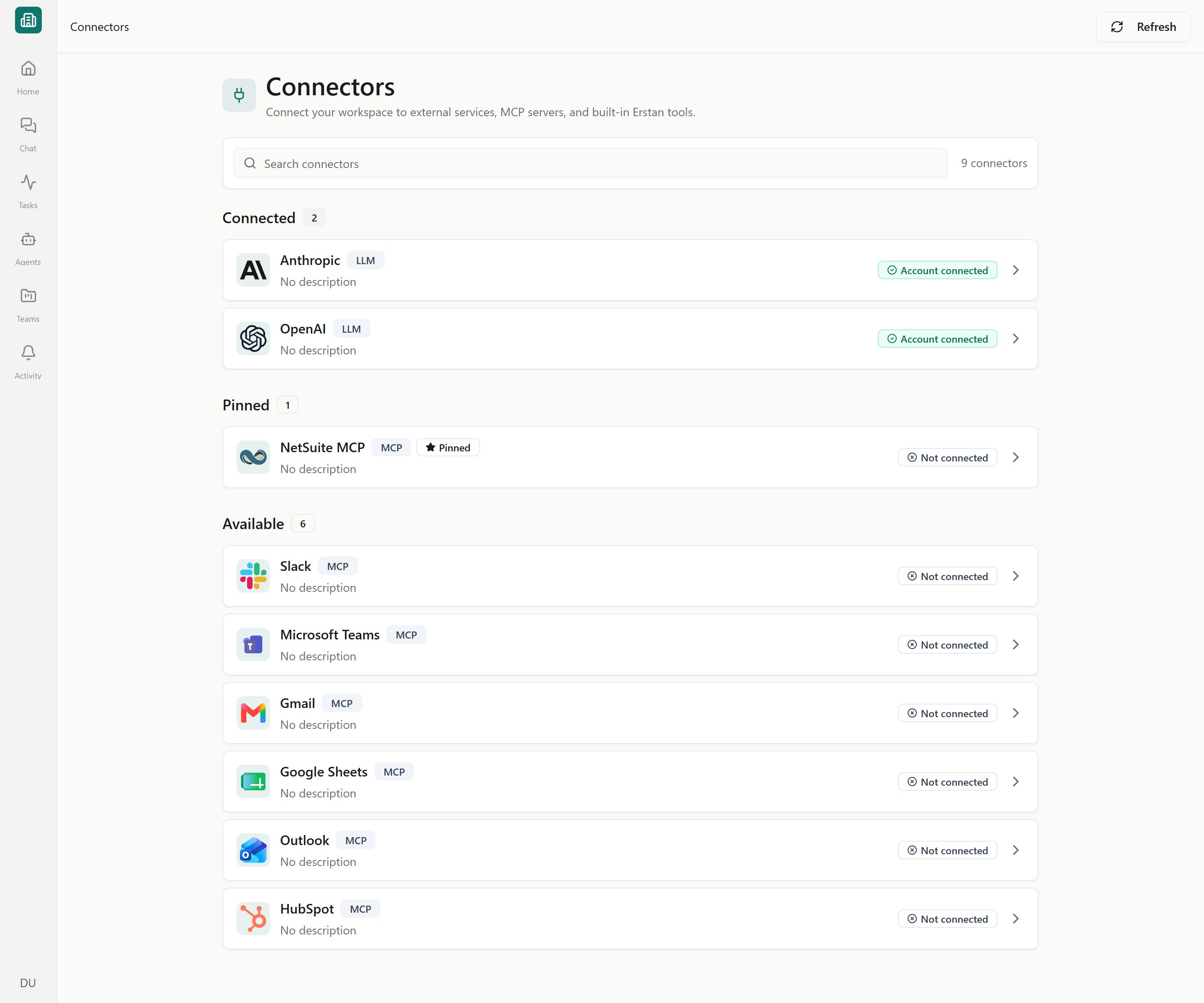
Connectors
Connection statuses
Every connector shows a status badge on the Connectors list and on its Setup tab. Use this table to map a badge to its cause and fix.Re-authenticate or refresh a connection
NetSuite access uses short-lived tokens (roughly an hour), which Erstan refreshes for you in the background. You only need to step in when a status reads Authorization expired, Error, or Endpoint unhealthy.1
Open the connector
Go to Connectors and click the affected connector (for example, NetSuite).
2
Test the connection
On the Setup tab, click Test connection to confirm whether the workspace connection is the problem.
3
Re-authorize your user (NetSuite)
On the Authorizations tab, find Your NetSuite user and click Re-authorize. Approve access in the NetSuite popup, choosing your usual non-Administrator role.
4
Re-authenticate or refresh the token (OAuth connectors)
On the Setup or Tokens tab, use Re-authenticate, Refresh token, or Test token refresh to restore an OAuth connection.
Allow popups. Connecting and re-authorizing NetSuite open a popup window and poll for completion. If your browser blocks it you’ll see “Please allow popups to connect NetSuite” — allow popups for Erstan and retry.
Workspace connection vs. your authorization
NetSuite uses two-stage access, so a “broken” connection can mean two different things:- Workspace OAuth connection — set up once by an Owner or Admin. If this is missing or errored, no one can use NetSuite until an admin reconnects it.
- Your NetSuite user — each member authorizes their own NetSuite user and role. If only your card shows Authorization required or Authorization expired while the workspace connection is healthy, just re-authorize yourself.
The “NetSuite is busy” queue
If NetSuite is handling a lot of work at once, Erstan briefly holds new NetSuite actions in a queue and shows a “NetSuite is busy” notice (in chat it appears as a “Queued — NetSuite” card).This is informational, not an error. The queue resumes on its own as soon as capacity frees up — you don’t need to retry, re-authorize, or cancel anything. The card disappears when the work continues.
When a connection still won’t work
Test connection fails right after connecting
Test connection fails right after connecting
The NetSuite sign-in may not have completed. Reopen the connector, click Connect or Re-authorize, and finish approving in the popup. Confirm popups are allowed for Erstan.
An agent run says 'Connection required'
An agent run says 'Connection required'
The agent needs a connector that isn’t connected or authorized for you. Open the named connector and connect or authorize it, then re-run. For NetSuite, that usually means authorizing your own user.
Chat won't respond at all
Chat won't respond at all
Chat needs a connected AI provider. If you haven’t connected one, see Connecting an LLM provider.
A control is greyed out with 'Requires Admin permission to change'
A control is greyed out with 'Requires Admin permission to change'
Managing the workspace connection, tools, and write policy needs the Owner or Admin role. Ask a workspace admin to make the change.
Getting help
If a connection stays unhealthy after re-authenticating and running Test connection, contact your workspace Owner or Admin first — they can re-establish the shared NetSuite connection. For broader fixes across chat, approvals, and runs, see Troubleshooting.Next steps
Authorizing your NetSuite user
Re-authorize your own NetSuite user and role.
Managing NetSuite
Owners and admins: manage the workspace connection, tools, and write policy.
Approving AI actions
Tell a queued notice apart from a real approval card.
Troubleshooting
Fixes for chat, approvals, and stale runs.