

Why approvals exist
Creating a vendor bill, updating a customer record, or applying a payment changes your NetSuite account. Approval controls let you review those changes before they run. By default, write actions are gated by an approval. The agent does its research, drafts the change, and then stops at an approval card above the composer until you decide. This is the human-in-the-loop model: the AI proposes, you dispose.Each tool’s behavior is set by a write policy — Allow, Require approval, or Deny. Tools set to Require approval produce the card described below. Owners and admins manage these policies on the NetSuite connector and per agent.
The approval card
When the agent reaches a write step, an Approval required card appears just above the message composer.1
Read the action
The card names the action the agent wants to run (for example, creating a record or updating a field) and explains why it needs approval.
2
Expand the change preview
Click View details to open the Before / After preview. It shows the current values next to the proposed values so you can confirm the change is correct. Click Hide details to collapse it.
3
Approve or reject
Click Run action (or Run actions when several are bundled) to let it proceed, or Don’t run to reject it. The agent continues based on your choice.
Auto-approve writes
Open + → Write actions to choose the conversation’s write mode:
The composer shows the active approval mode. Auto-approval does not grant missing permissions or override a denied tool.
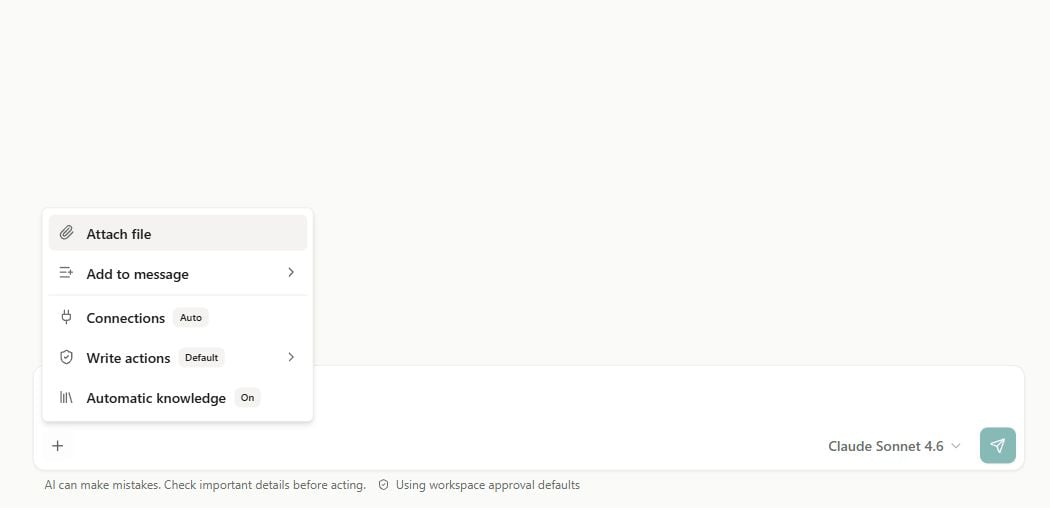
The composer + menu
Other cards you may see
Not every card above the composer is an approval. Two look similar but mean different things.- Queued
A read-only Queued card — for example, Queued — NetSuite — appears when downstream work is briefly held, usually when the “NetSuite is busy” queue is throttling requests. It shows how many items are ahead and reads This continues automatically — no action needed. There are no buttons; the run resumes on its own once capacity frees up. This is informational, not an approval.
Quick way to tell them apart: an approval card has Run action / Don’t run buttons and a Before / After preview; a Queued card has no buttons and clears itself; an Authorization Required card has an Authorize account button.
FAQ
What happens after I click Don't run?
What happens after I click Don't run?
The write is skipped and the agent continues with that action rejected. You can tell it what to do instead, or ask it to revise the change and try again.
Why did an action run without asking me?
Why did an action run without asking me?
Either Auto-approve writes is on (check for the disclaimer under the composer), or the tool’s write policy is set to Allow. Owners and admins can review policies on the NetSuite connector.
Can I see what was approved later?
Can I see what was approved later?
Yes. Agent runs keep a trace of every step, including approved writes. See run history and traces.
A card appeared then disappeared on its own. Was that an approval?
A card appeared then disappeared on its own. Was that an approval?
A Queued card clears automatically, but disappearance alone does not prove what happened. Check the conversation or run history for the action status and any recorded decision. Cards with Run action / Don’t run controls request an approval decision.
Next steps
Chat overview
How chatting with Erstan works end to end.
Knowledge, tools & models
Control which connections and tools the AI can use.
Authorize NetSuite
Set up your per-user NetSuite access.
Review and approve tasks
Approve agent work that lands in the task board.