

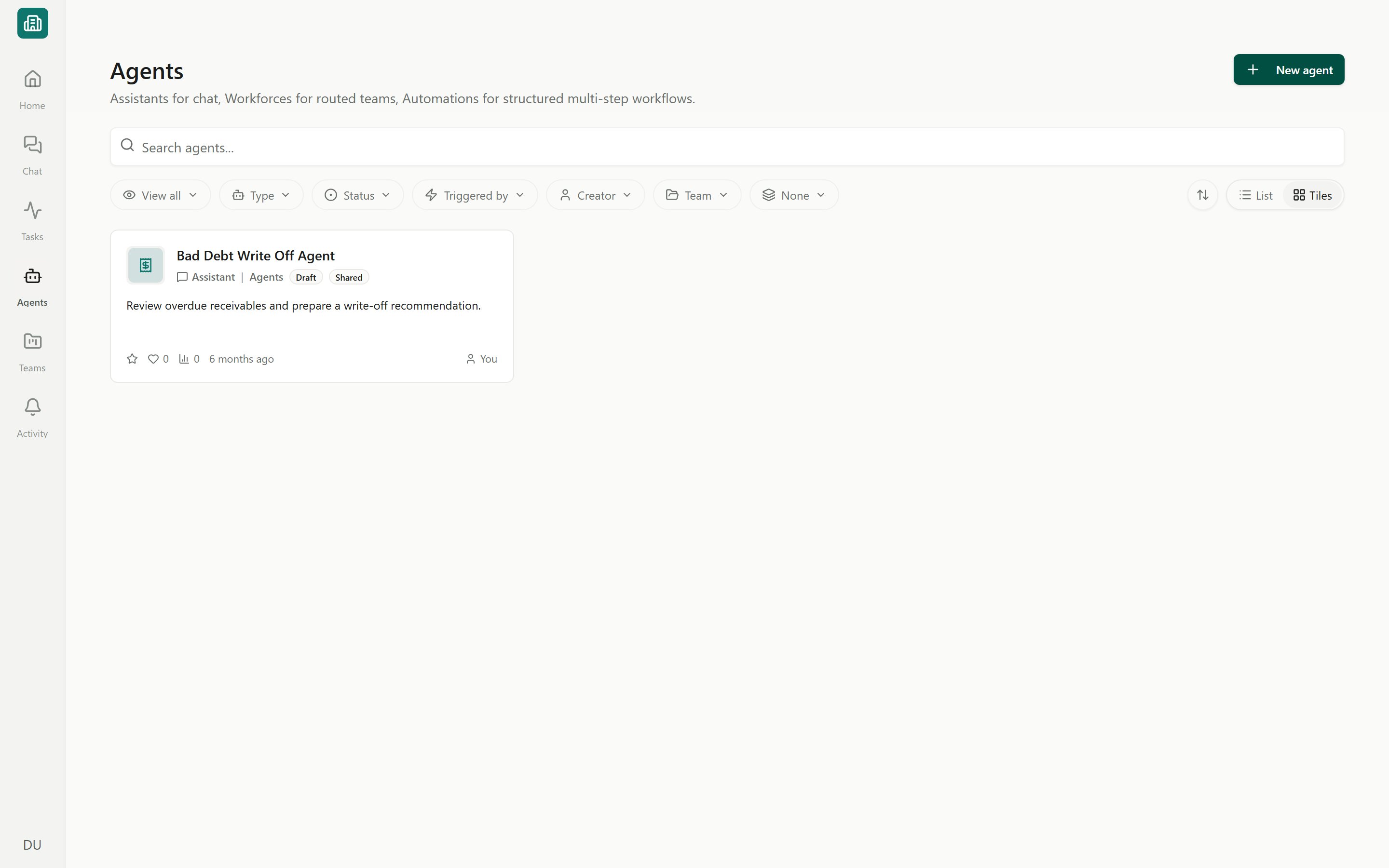
The Agents library
The Agents library
The library at Agents lists the Agents you can access in your workspace. Use it to find an agent, check its status, and open it to run, edit, or review its history.- Search and view presets — search by name, or switch presets: View all, Shared with me, Popular, Favourites, Recently updated, and Disabled.
- Filters — narrow by Status (Live, Draft, Archived), Trigger, Creator, Team, and Type (Assistant, Workforce, Automation).
- Layout — view agents as a List, Tiles, or a Board; group by team and sort to taste.
- Favourite and organise — mark agents with the heart, or use an agent’s menu to open, edit, view runs, archive, or delete it.
Your filter, layout, and sort choices are remembered per workspace, so deep links keep the view you set.
The three agent shapes
Every agent is one of three shapes. Pick the shape that matches how the work should start and how much structure it needs. You choose the shape when you create an agent.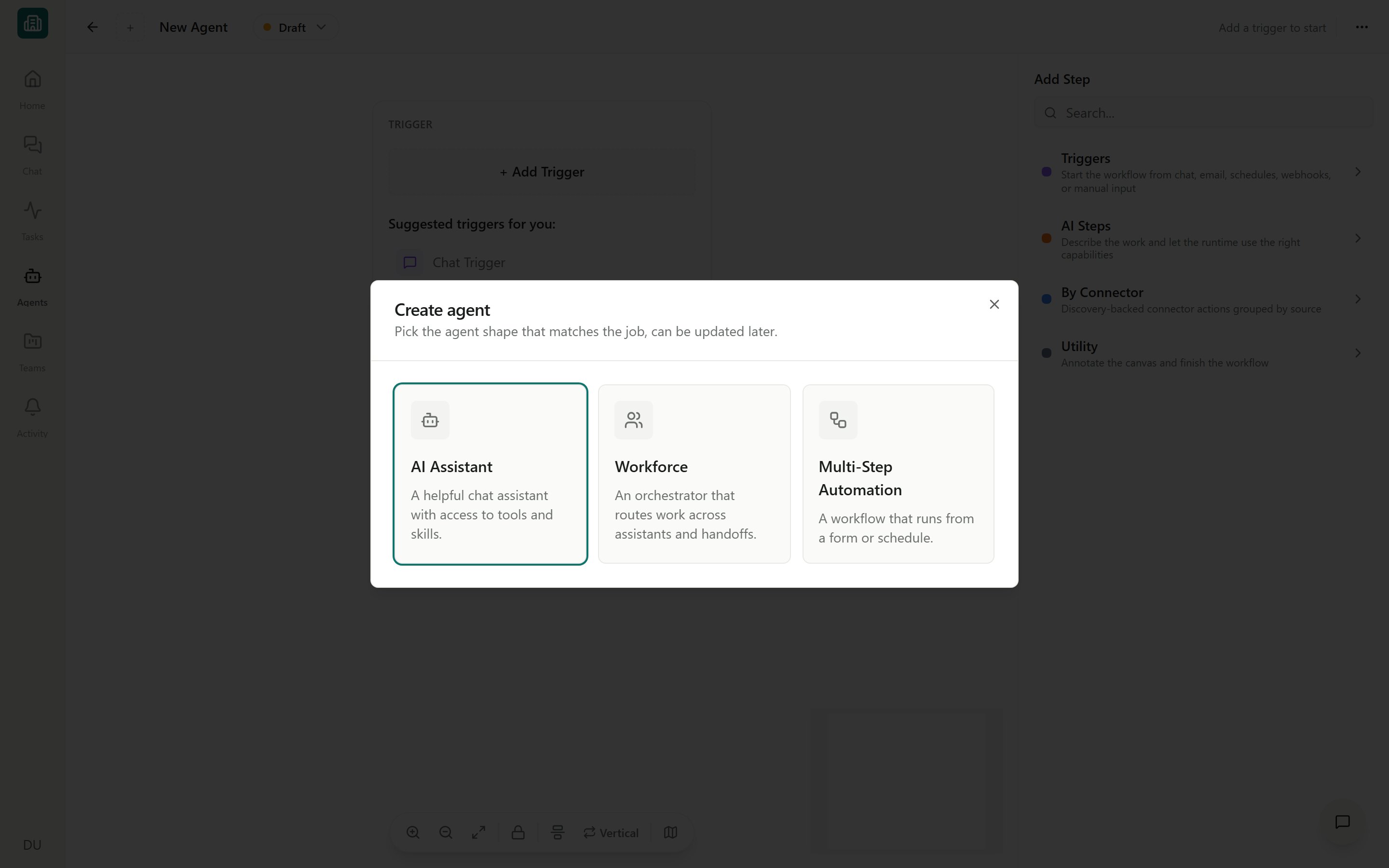
Choosing an agent shape
- Assistant
- Workforce
- Automation
An Assistant is a chat-first agent — a domain expert you talk to. Ask it to find overdue invoices, summarize AR aging, or draft outreach, and it plans the steps, pulls from NetSuite, and requests approval when a write requires it under the configured policy. This is the simplest shape and the best place to start.
What makes up an agent
Whatever its shape, an agent is assembled from a few building blocks:- Trigger — how the agent starts: Chat, Form, Schedule, Webhook, Email, or Manual. See Triggers.
- Steps — units of work on the builder canvas, grouped into Triggers, AI Steps, By Connector (actions), and Utility. See the Step reference.
- Instructions — the guidance that tells the agent how to behave and what good output looks like.
- Skills — reusable instruction packages that make the agent do a task the expert way every time. See Skills overview.
- Tools & connectors — the systems the agent can act in, such as your NetSuite connection. See Giving agents tools, skills & connections.
Lifecycle at a glance
Agents move through a simple lifecycle, shown as a badge in the library and builder.1
Draft
A new or edited version. Owners and editors can run it normally in Chat or choose Preview in the builder. Wider use and enabled triggers use the published version.
2
Live
A published agent. Publishing checks that any automated trigger has its Run As identity configured. A Live agent can run on demand, on a schedule, or from a form, webhook, or email.
3
Archived
A retired agent. Archived agents stay in the library for reference but cannot be run.
An agent cannot run when it is Archived, has no runnable start step, is missing a required connection (shown as a Connection required banner), or already has a run in progress.
Running and tracking agents
Once an agent is Live, you can run it from a library card, its runs page, or a published builder. Every run produces a tracked execution with a live, step-by-step trace, and runs can be assigned as tasks that move through Queued → In Progress → Needs Review → Complete. See Running agents and Run history, traces & analytics.Next steps
Create your first agent
Build, preview, and publish a working Assistant from scratch.
Triggers
Choose how an agent starts: chat, form, schedule, webhook, email, or manual.
The visual builder
Design an agent on the canvas with nodes, the inspector, and the AI builder.
Explore the Solution Library
Add ready-made agents for AP, AR, Close, and Reporting instead of building.