

Team Settings
Most actions on this page are limited to Owners and Admins of the team (or workspace admins). Members can use the team but not change its membership or settings.
Members and roles
Each team member has a role that sets what they can do inside the team.Add a member
You add people who are already in your workspace. To bring a new person into the workspace first, see Workspaces and people.1
Open the team's Members surface
From the team header, open Members (or go to Settings → Access → Manage members).
2
Add a member
Click Add member, pick an existing Workspace member, and choose a Role (Owner / Admin / Member).
3
Adjust later
Change a member’s role inline, or remove them from the team.
Personal teams and the Company team don’t add members here — everyone in the workspace is already in the Company team, and personal teams belong to one person. Manage workspace-wide membership from Workspaces and people.
Team settings
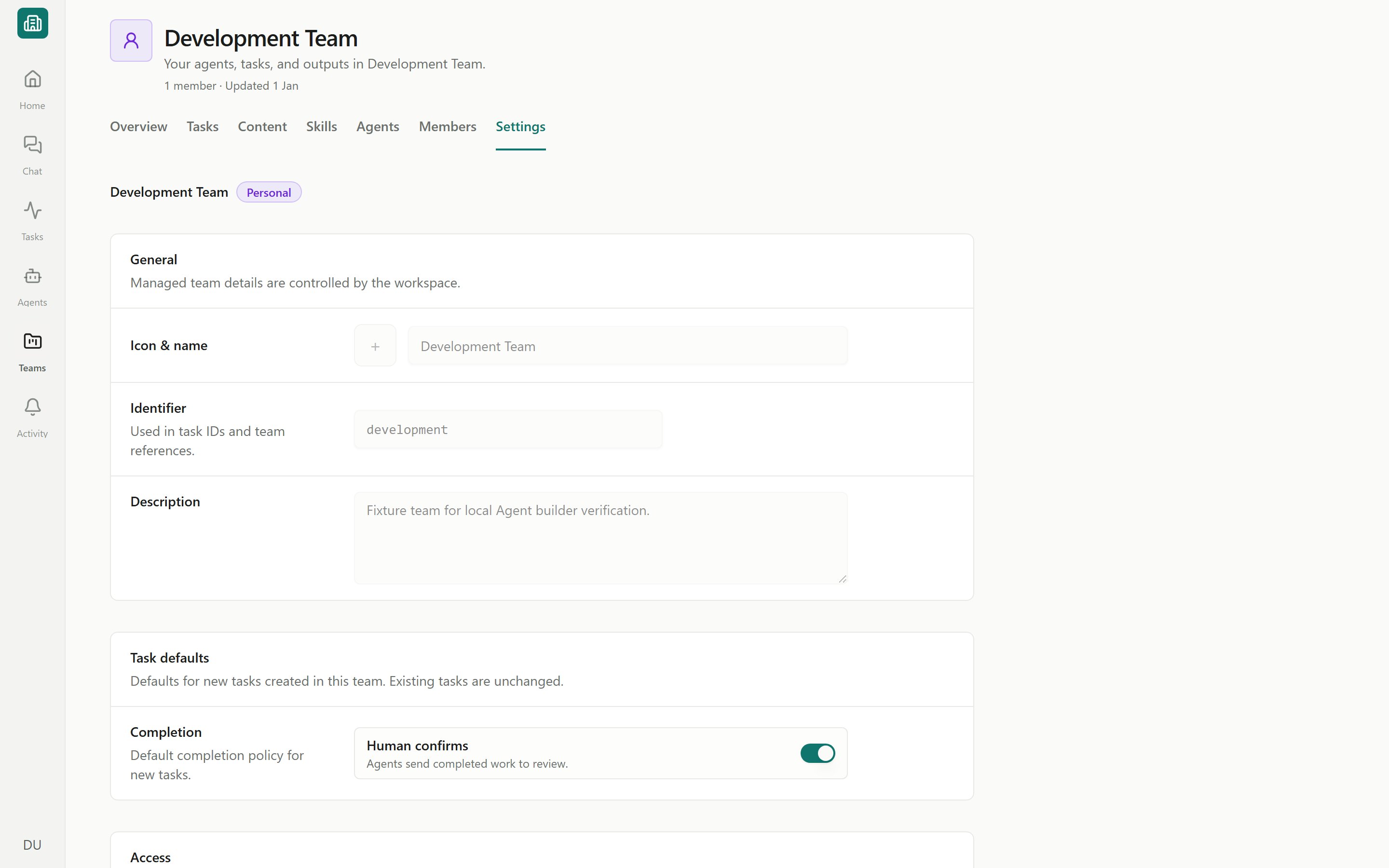
Open Settings from the team header to manage how the team behaves.General
General
Edit the team’s icon, name, identifier, and description, then Save. The identifier (Team ID) appears in metadata.
Task defaults
Task defaults
Set the completion policy that new tasks in this team inherit:
- Human confirms — agents send finished work to Needs Review instead of marking it done. A person approves before the task moves to Complete.
- Agent can complete — agents may mark their own work done.
Access
Access
Review the team’s access scope and Manage members (see Members and roles above).
Email
Enable Team email to obtain an address. The Inbox uses the Team’s name; no separate mailbox name is needed. An existing address is preserved, and renaming the Team does not change it. You can copy the address or deliberately change its alias.Configure processing on an Agent’s Inbox Event, or through an App’s optional Team Inbox setup, then authorize its Run As identity. Team settings do not select a processing Agent. Messages are also readable through the Inbox tools and Data Sources with the reader’s current Team access. See Triggers and Data Sources.
Labels
Labels
Manage the labels used to tag this team’s tasks, plus shared workspace labels, in the label manager. Labels are color-coded and filterable on the Tasks views.
Workspace usage
Workspace usage
See how much the team is using: number of documents, files, and storage used.
Danger zone
Danger zone
Archive or Delete the team. Both run an impact check first.
Managed teams — your personal team and the workspace Company team — show read-only notices in places. They can’t be renamed, archived, deleted, or have members added through these screens.
Team defaults in practice
The Human confirms vs Agent can complete choice is the main lever for how cautious a team is. A Finance team that drafts collections emails or vendor-bill recommendations usually keeps Human confirms on, so every output lands in Needs Review before anyone acts on it. A reporting team that only runs read-only SuiteQL might allow agents to complete on their own.Team content
Each team has its own Content — the documents, files, folders, and knowledge its agents can read and write alongside you.- Browse and filter with the All / Documents / Files / Knowledge filter, and toggle List or Grid.
- Create with New document, New folder, or Upload (drag-and-drop).
- Organize by opening, pinning, or moving items into folders, and bulk download or delete.
Documents
Create rich documents agents can read and write.
Files
Upload, preview, and edit files in a team.
Agent knowledge
Make files searchable for agents and automations.
Next steps
Teams overview
What a team is and the team Overview dashboard.
Tasks overview
See and manage the work a team’s agents do.
Reviewing and approving work
How Needs Review and approvals fit together.
Workspaces and people
Invite and manage people across the workspace.