

Built-in skills
What built-in skills are
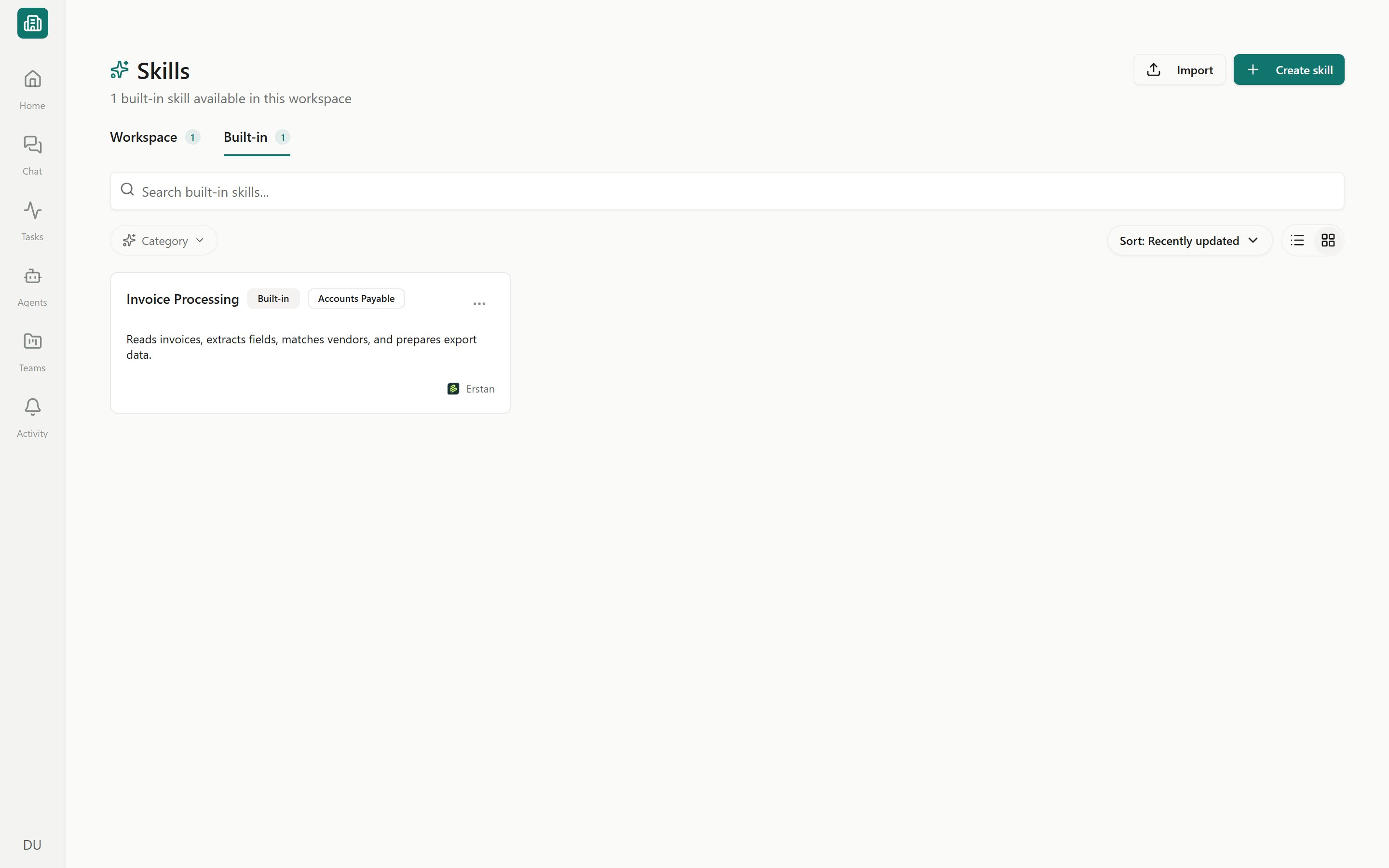
Open Skills from the sidebar and switch to the Built-in tab to see the skills Erstan provides. Each row carries a Built-in badge and shows its Category and Source (the publisher’s logo and name). Built-in skills are read-only. You can inspect everything about them, but you can’t edit the files directly — to change one, you replace it with a custom copy (below). Everyone can browse the Built-in tab; the management actions are limited to workspace Owners and Admins.Built-in skills appear only on the workspace-wide Skills page (
/skills). The per-team Skills view hides the Built-in tab and shows just that team’s workspace skills. For the bigger picture of how skills work, see Skills overview.Inspecting a built-in skill
Click any built-in skill to open its detail view:- Files — the
SKILL.mdand any supporting files, shown read-only. - About and Capabilities — what the skill does and what it can act on.
- Recent usage — where it has been used lately.
- Version details — inspect the skill’s versions.
Built-in skill states
Every built-in skill is in one of four states. Owners and Admins change the state from the row’s actions menu or the skill detail header.Owner and admin actions
1
Open the Built-in tab
Go to Skills in the sidebar and select the Built-in tab. Use the search box and Category filter to find a skill.
2
Prioritize or remove priority
Choose Prioritize to mark a skill as preferred when agents load skills, or Remove priority to return it to the default pool. Use this to nudge agents toward the version of a task you trust most.
3
Disable or enable
Choose Disable to take a skill out of circulation for the whole workspace, or Enable to bring it back. Disabling runs an impact check first (see below).
4
Replace with a custom copy
To tailor a built-in skill, duplicate it into an editable Custom workspace skill, change it, and publish. While your copy is published, the built-in shows Custom copy active and agents use your version. See Creating and editing skills and Publishing, sharing & lifecycle.
5
Revert a replacement
To go back to the original, choose Use built-in skill again. Agents return to the shipped version and the state goes back to Active.
The impact check
Before you disable a built-in skill or activate a custom replacement, Erstan runs a lifecycle impact check. It scans where the skill is in use and shows you the impact so nothing breaks silently. It looks across:- Agents that include the skill.
- Chat threads that have used it.
- Channel bindings that depend on it.
Frequently asked
Can I edit a built-in skill directly?
Can I edit a built-in skill directly?
No. Built-in skills are read-only. To change one, replace it with a custom copy: duplicate it into a workspace skill, edit, and publish. The built-in then shows Custom copy active.
Who can prioritize, disable, or replace built-in skills?
Who can prioritize, disable, or replace built-in skills?
Only workspace Owners and Admins. Members can view a built-in skill’s details and version history but can’t change its state. See Workspaces and people for roles.
What's the difference between Prioritize and Replace?
What's the difference between Prioritize and Replace?
Prioritize keeps the original skill but tells Erstan to favor it when loading skills for a task. Replace swaps in your own custom version of the skill entirely.
How do I undo a replacement?
How do I undo a replacement?
Open the built-in skill and choose Use built-in skill again. Agents go back to the shipped version and the state returns to Active. Your custom copy stays in the workspace library.
Next steps
Skills overview
How skills work and how agents use them.
Creating and editing skills
Author a custom copy of a built-in skill.
Publishing, sharing & lifecycle
Publish a skill so agents can use it.
Agent tools & skills
Attach skills to the agents that need them.