

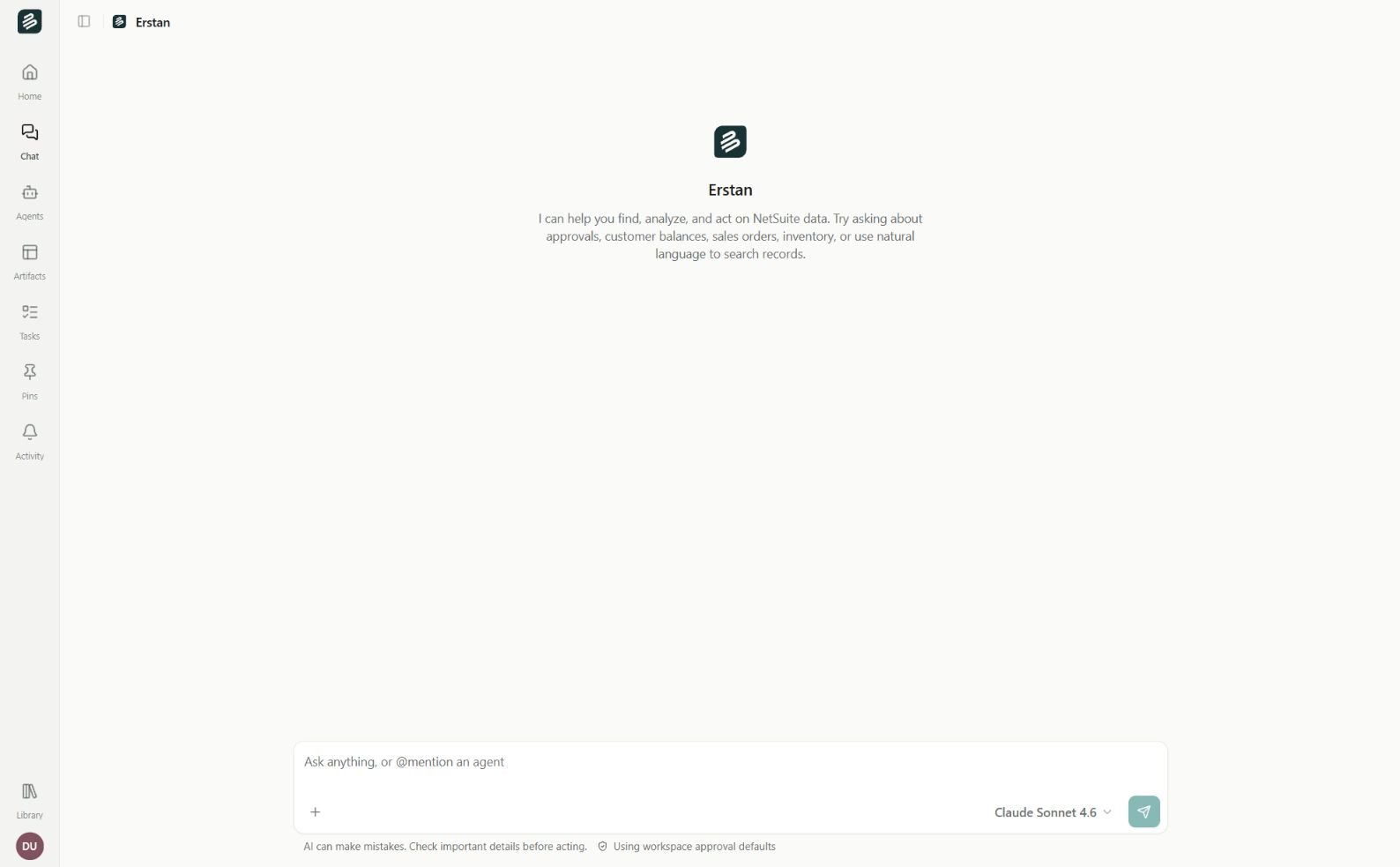
Chatting with Erstan
SuiteQL runs as you. Erstan calls NetSuite through your own per-user authorization, so a query only returns records your NetSuite role is allowed to see.
How Erstan writes and runs SuiteQL for you
You ask a question; the assistant turns it into a SuiteQL query and runs it. The same flow works in any chat, whether you are talking to the default Erstan assistant or an analytics-focused agent.1
Ask for the data
Type what you want in the composer — for example, “List our 20 largest open invoices with customer, amount, and due date.” You can name fields, filters, sorting, and limits in plain English.
2
Erstan composes and runs the query
The assistant writes the SuiteQL, calls NetSuite, and streams back a summary. The generated query and its result table appear as an artifact in the transcript.
3
Open the results in Canvas
Click the SuiteQL reference in the assistant’s reply to open the Canvas side panel. There you can read the full query and scroll the result rows next to the conversation.
4
Refine in place
Ask a follow-up — “Only show invoices over 60 days overdue” or “group the total by customer” — and Erstan rewrites and re-runs the query in the same thread.
Viewing results in Canvas
Canvas is the panel that opens to the right of the chat. For a SuiteQL result it shows two things together: the exact query Erstan ran and the rows it returned. From the panel menu you can:- Open full — expand the artifact to full width for wide tables.
- Open in Documents — save the result into your team’s Content as a document you can keep and share.
- Download file — pull the result down to your computer.
- Close canvas — collapse the panel and return to the conversation.
Turning results into a document or workbook
Once a result looks right, you can hand it off as a reusable artifact instead of a one-off chat message.1
Save the result to Documents
In the Canvas panel choose Open in Documents. The query output becomes a rich-text document under your team’s Content, with the table preserved.
2
Export to the format you need
Open the document, then use the options (⋯) menu and choose Export. Available formats are Tables (.xlsx) for a workbook, Word (.docx), PDF (.pdf), or Markdown (.md). See Publish & export for details.
SuiteQL is read-only
When an agent needs to act on what a report surfaces — emailing a customer, updating an invoice, posting a record — that is a separate write step, and it pauses for your approval (or follows the connector’s write policy) before anything changes in NetSuite. Reading and writing stay clearly separated. For programmatic SuiteQL — running queries from your own code or scheduling data pulls — use the Developer API instead of chat. See the developer quickstart and run agents.Example asks
AR aging snapshot
AR aging snapshot
“Show me all open customer invoices, with customer name, invoice number, amount, days overdue, and due date, sorted by days overdue.” Then: “Open this in Documents and add a total row.”
Top vendors by spend
Top vendors by spend
“List our top 15 vendors by total bill amount this fiscal year, with vendor name and total.” Then export to Tables (.xlsx) for a quick workbook.
Recent sales orders
Recent sales orders
“List sales orders created in the last 30 days with order number, customer, status, and total, newest first.”
Overdue balance by customer
Overdue balance by customer
“Sum the open balance per customer for invoices more than 60 days overdue, and show the 10 highest.”
Erstan grounds queries in your real NetSuite schema, but field names and saved searches vary by account. If a result looks off, tell the assistant which field or filter to change and it will adjust the query.
Next steps
Working with Canvas
See how the side panel opens queries, documents, and NetSuite records inline.
Publish & export
Turn a saved result into a workbook, Word doc, or PDF.
Authorize NetSuite
Make sure your per-user authorization is in place so queries can run.
Flag overdue invoices
Move from reporting to acting on AR with a collections playbook.