

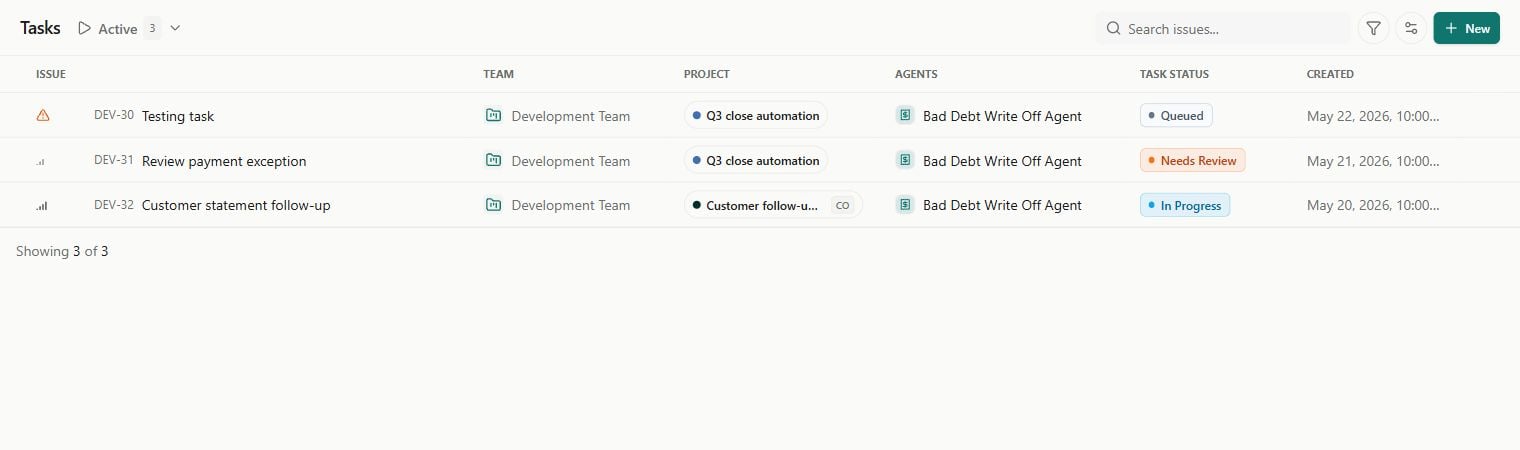
Tasks as a list. Sample data shown.
How agent work becomes a task
A Task represents an assigned piece of work and can carry the Agent run that performs it. Open a task to read the agent’s output, chat with the agent, review and approve what it produced, and set its properties (priority, due date, assignee, reviewer, and labels). Tasks come from a few places:From chat
Ask an Agent to create or take on a Task from Chat, then follow its linked work.
From a run
Running an agent on demand — or assigning a run as a task — lands here.
From a schedule
Scheduled and recurring runs produce tasks automatically on their cadence.
Task statuses
Every task carries a colored status badge that tells you where it stands in its lifecycle.
The normal happy path is Queued → In Progress → Needs Review → Complete.
Whether finished work lands in Needs Review or jumps straight to Complete depends on a team’s completion policy: Human confirms sends work to review, while Agent can complete lets agents mark their own work done. This is set per team in Team Settings and applies to new tasks only.
List and Board views
Switch how the task list renders from the display menu.- List
- Board (Kanban)
A table of tasks with status, priority, and source badges per row, selection checkboxes for bulk actions, and “load more” paging. Best for scanning and triaging a long queue.
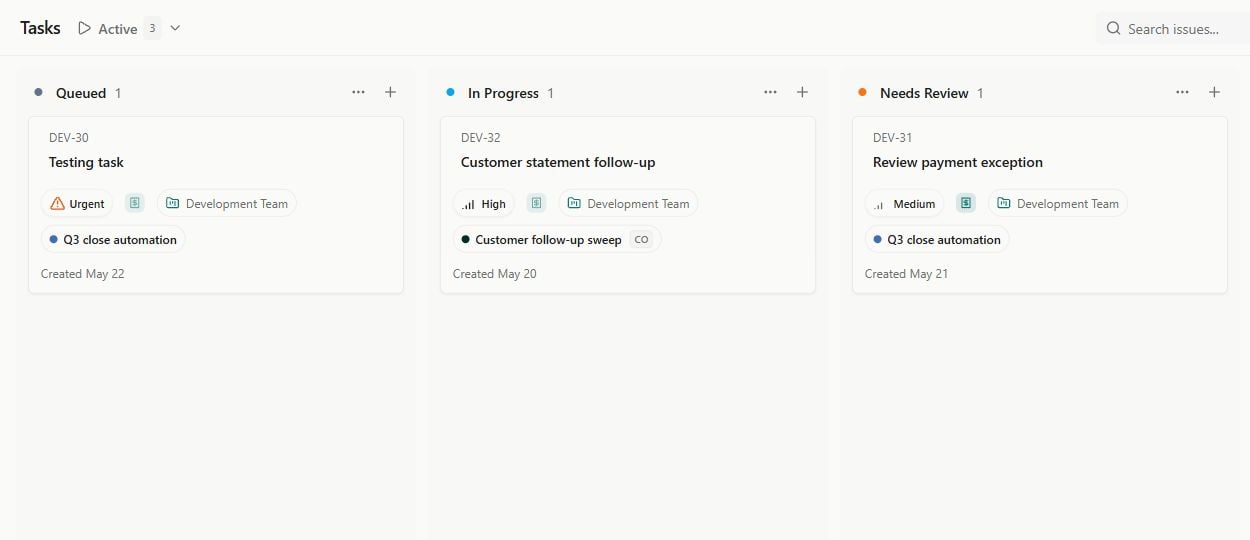
Built-in views
Use the view selector to choose a focused queue. Your default or saved view determines where you start.
Recurring schedules live on the separate Scheduled page in your profile menu. The Tasks Scheduled view shows upcoming one-time task starts. See Scheduling recurring runs.
Find your work fast
Beyond the tabs, the Filter popover narrows the list by agent, project, labels, team, assignee, reviewer, status, source, dates, and more. Active filters appear as removable chips, and a free-text search box filters by name. Save any combination of tab, filters, and display options as a saved view — personal or shared — so you can return to it in one click.Next steps
Working with tasks
Open a task, chat with the agent, set properties, and use sub-tasks.
Reviewing and approving
Check and sign off on what agents produce in Needs Review and Approvals.
Projects
Group related tasks and recurring work under a team or company-wide workstream.
Running agents
Run agents on demand and assign runs as tasks.
Teams overview
Organize people, agents, content, and tasks into focused teams.