

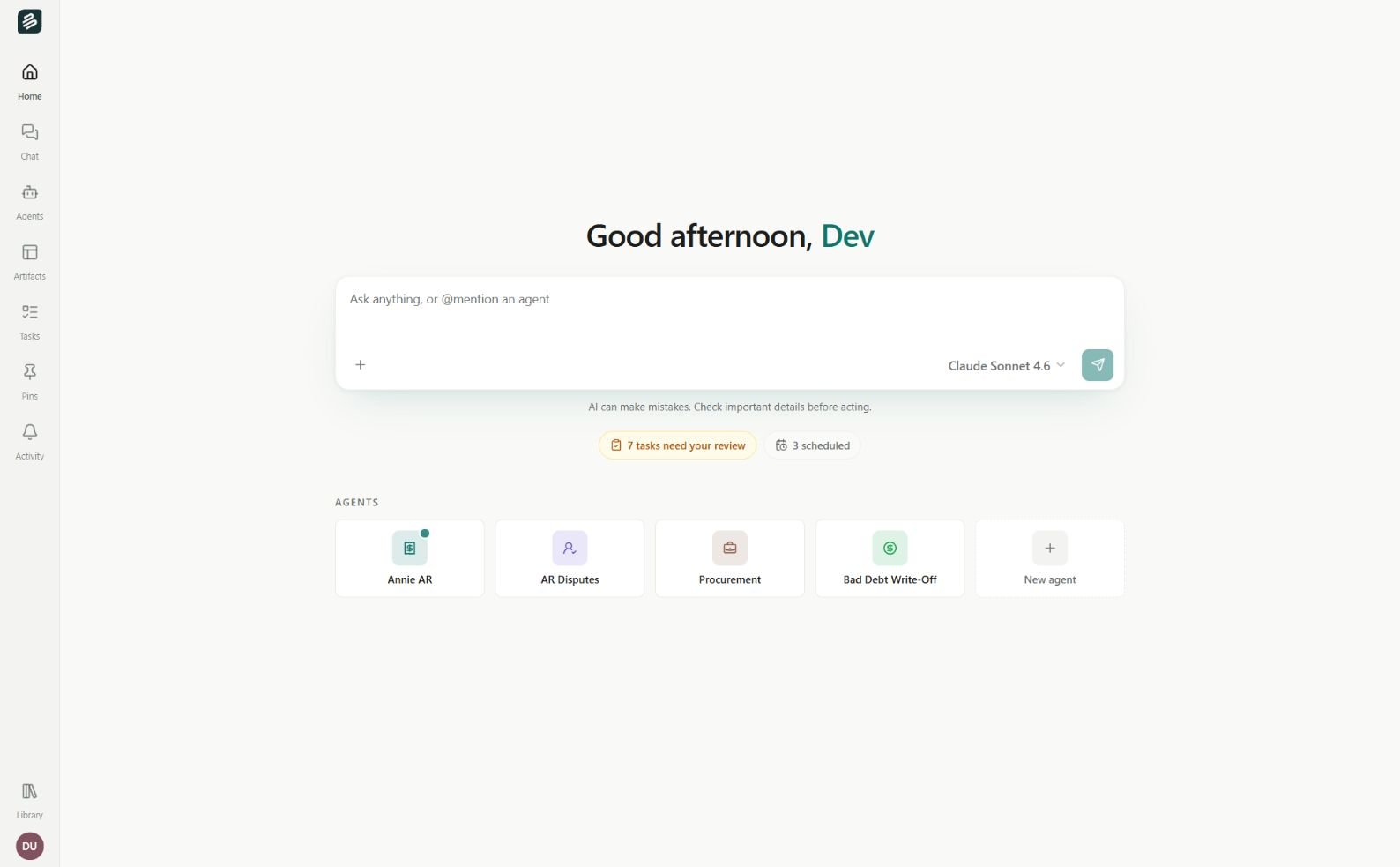
Start from Home. Sample workspace shown.
Before you start
You need an Erstan account and access to a workspace. For NetSuite work, you also need an authorized NetSuite connection. Chat and Agents need an available AI model; your workspace may provide Erstan Managed access, so a separate provider API key is not always required.Run through the steps
1
Sign in and open your workspace
Open Erstan and sign in. Choose an existing workspace or start Personal, Pro or Team onboarding. Personal provides private work without company setup. Review the plan and trial in Stripe before starting a new subscription. Use the workspace switcher if you belong to more than one. See Setting up a workspace and Subscription management.
2
Check AI access
Open Connectors → AI from the profile menu. Check that a model is available through Erstan Managed or, where permitted, Your API key. An owner or admin can manage access and defaults. See AI providers and models.
3
Connect the data you need
For NetSuite work, open Connectors, choose the relevant NetSuite connection, and follow its setup. An owner or admin sets up the workspace connection; each member authorizes their own NetSuite user and role. See Connect NetSuite and Authorize your NetSuite user.You can also work with uploaded Files, Documents, Sheets, and other available connectors. NetSuite is required for NetSuite operations, not for every conversation.
4
Ask a question
Type in the Home composer or open Chat. Try:
Show me overdue invoices, grouped by customer, and explain which accounts need attention first.Erstan shows its response and tool activity in the conversation. Open referenced results in Canvas to inspect them. Use the + menu for attachments and conversation controls, and the model selector for model choice.
5
Reuse the work
Browse Library for a ready-made Agent, Skill package, prompt, or App template. Or create an Agent or App for your own process.Find saved outputs in Artifacts. Use Content to organise their folders and resource details.
6
Review actions and results
When an action requires approval, inspect the request and choose whether to run it. Write-capable actions require approval by default, but tool policies and auto-approval settings can change this behavior. See Approving AI actions.Follow assigned and scheduled work in Tasks and Scheduled. An ordinary chat conversation does not need to be treated as a separate task; use the linked Task or run when one is created.
A tour of Erstan
Find the main screens and workspace tools.
Apps overview
Build a dashboard or tool for your team.
Core concepts
Understand Agents, Apps, and data.
Troubleshooting
Resolve common access and connection problems.