

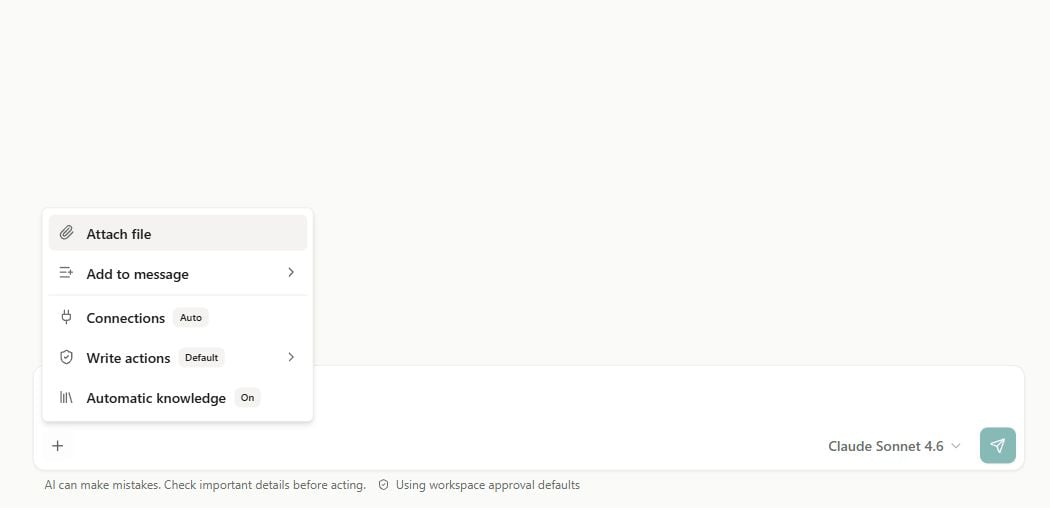
The current composer menu. Sample workspace shown.
The composer + menu
Other controls, including web search and Agent progress, depend on the conversation and selected model’s capabilities.
Connections (tools)
Connections are the external tools the assistant may use to do real work — querying NetSuite, calling other connectors, and Erstan’s built-in tools. Open Connections from the + menu to choose how tools are selected.- Auto (recommended)
- Expert
In Auto mode, Erstan discovers and picks the right tools for each message on its own — the panel describes this as “Connection Hub discovers tools per message.” This is the default and the best choice for everyday chat: you ask a question, and Erstan reaches for the NetSuite or connector tools it needs to answer it.
Knowledge
Knowledge grounds answers in content selected by enabled sources. Open Knowledge from your user menu, click Add source, and choose the content an Agent should search. Use Continue to review it before adding the source, then attach the named source to the Agent. Team scope controls narrow retrieval within those selections; indexing alone never makes content available.Native sources
Native sources
Select files, documents, or bounded folders, such as a vendor policy or a chart of accounts mapping. Results require both source access and access to the original content. See Agent knowledge.
NetSuite product updates
NetSuite product updates
Workspace owners can add a source with specific Erstan-managed NetSuite references. Clear release, version, feature, or product-update questions can use those selected references. There is no automatic subscription, and future catalog additions remain unselected.
Source controls
Source controls
In the source menu, use Pause sync to stop updates while keeping current content searchable when search is enabled. Disable search stops searches through the source independently of sync. Remove source removes the selection while keeping original content. Another enabled source can still include the same material.
Web search
The Web search toggle lets the model look up information on the public web during a reply, which is useful for general context that isn’t in your NetSuite account or your team files. It appears in the + menu only when the selected provider and model support web search; if you don’t see it, choose an eligible model from the model selector and check the workspace tool settings.Web search reaches outside your workspace. It does not read your NetSuite data — that always flows through Connections and Knowledge — and it has no bearing on approvals for write actions.
Image generation
With an OpenAI model selected, Image Generation appears under the OpenAI connection alongside Web Search and Code Interpreter. It is enabled by default and managed in the workspace’s OpenAI connector settings. Ask Erstan to generate an image; the result appears as an image attachment you can preview or download. Availability also depends on the selected model’s tool policy and OpenAI account access.Model settings
Open the model selector beside the composer. Search the available models or group them By provider or By purpose. Choose the workspace default, a specific model, or Auto when offered.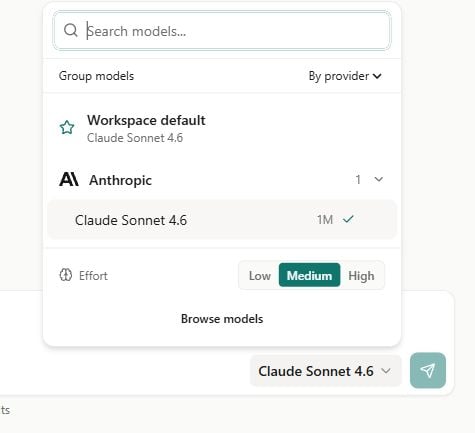
Model selection and reasoning effort. Your catalog may differ.
Next steps
Chatting with Erstan
The basics of starting a chat and reading replies.
Approving AI actions
Review write actions before they run, and when to auto-approve.
Connect an LLM provider
Review managed access, customer keys, Auto, and available models.
Agent knowledge
Make team files searchable so chat and agents can use them.