

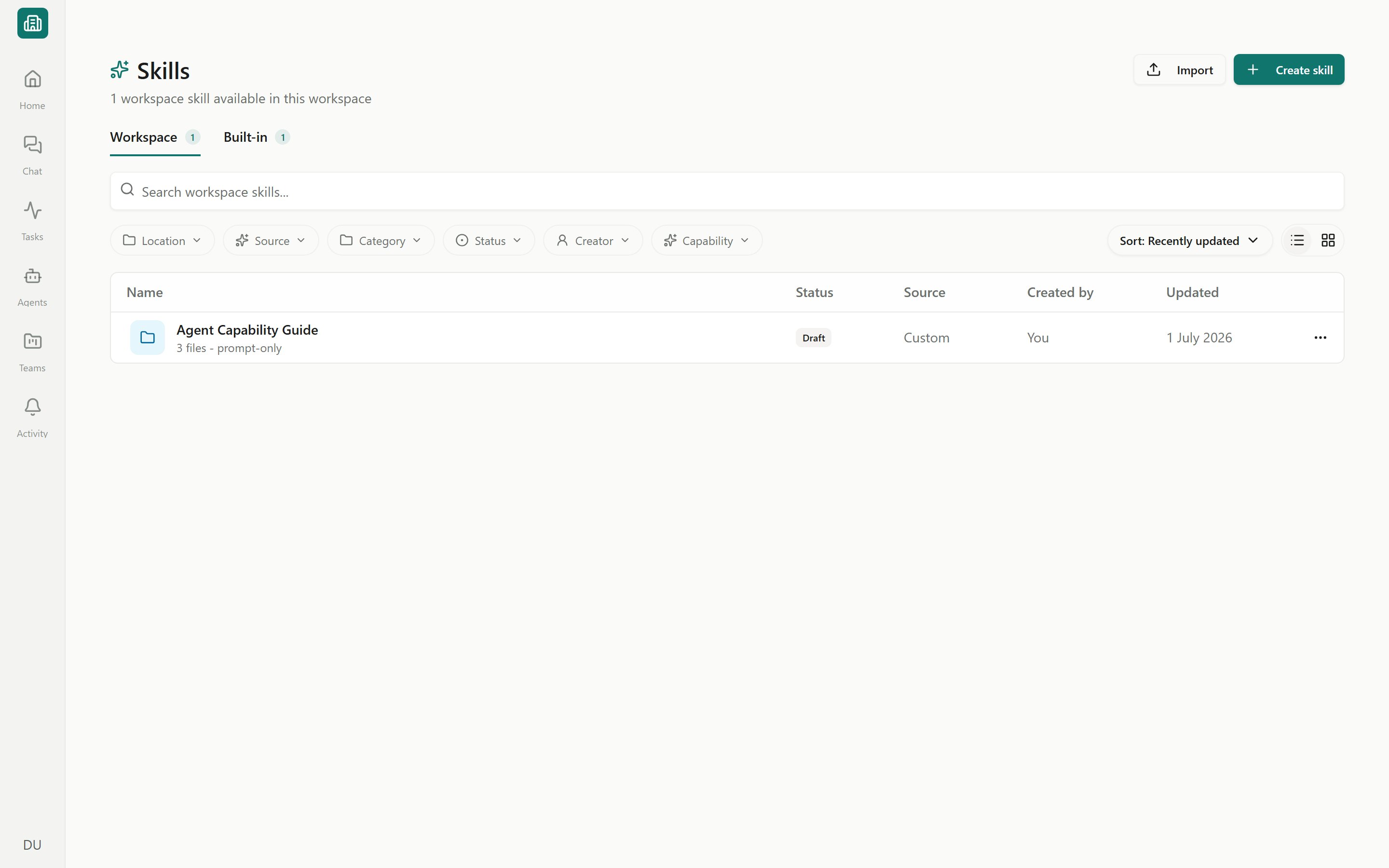
The Skills library (Workspace tab)
What a skill contains
Every skill is a small file package authored in the skill editor:- SKILL.md — the required instructions file. Its YAML
nameis the immutable lowercase package identity, anddescriptiontells agents when to use it. The friendly Display name is stored separately in Erstan; Agent Skills packages do not define aslug. Step-by-step guidance and optional Examples and Gotchas follow the frontmatter. - Supporting files — optional reference material the agent can pull in (templates, lookups, notes).
- Actions — optional executable code attached to the skill. A skill with no actions is labeled Prompt-only; one with actions shows a count like 2 actions.
Prompt-only skills are pure guidance — the most common kind and the easiest to author. Skills with actions can run code, and their entry file can be test-run in a console inside the editor.
Workspace vs Built-in skills
The Skills page (open Skills from the sidebar) has two tabs, each with a count badge.- Workspace
- Built-in
Skills created by you or your teammates (Custom) or installed from Erstan and partners. These are the skills you can edit, publish, share, and organize. Each has a status, a folder, and a visibility setting.
The Skills surface exists both workspace-wide and inside a team. The team version scopes to that team and hides the Built-in tab and the Location filter.
How a skill is classified
When you browse, three properties tell you what a skill is and whether agents can use it.How agents use a skill
When an agent runs a task that matches a skill it has been given, it loads the skill’s SKILL.md and follows those instructions — so the same job is done the same way every time, whether the agent runs from chat, a form, or a schedule. Skills carry guidance only; the ability to read or write NetSuite still comes from the agent’s connectors and write policy, and writes still pause for approval.Browsing, searching, and filtering
1
Open Skills
Choose Skills in the sidebar, then pick the Workspace or Built-in tab.
2
Search
Type in the search box to find skills by name or description.
3
Refine with filter pills
Narrow by Location (Company, Personal, Shared with me, a specific team), Source, Category, Status, Creator, and Capability (Prompt-only / Has actions). The Built-in tab offers a Category filter.
4
Sort and switch views
Change Sort (Recently updated, Name, Usage 30d) and toggle List or Card view. Use Clear filters to reset.
Your filter, sort, and view choices are saved in your browser per workspace and team, so they persist between visits on the same device.
Next steps
Create and edit skills
Author a skill by hand or with Skill Chat in the package editor.
Publish, share & lifecycle
Publish so agents can use it, set visibility, and manage versions.
Built-in skills
Review the skills Erstan ships and prioritize, disable, or replace them.
Starter prompts
Ready-made prompts you can copy, run, or send to the best-fit agent.