

Teams
What a team is
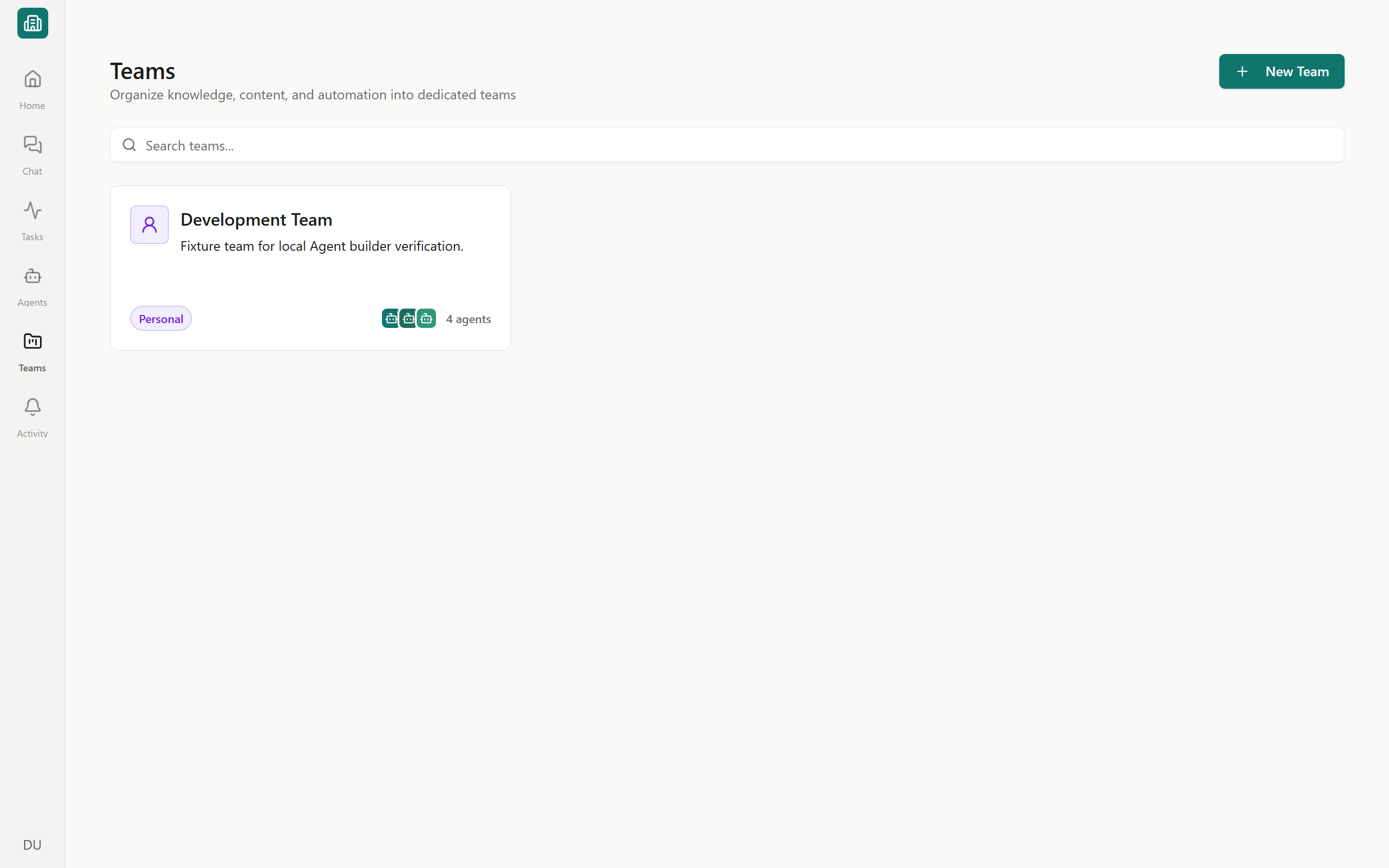
Open Teams from the sidebar to see a searchable grid of team cards. Each card shows the team icon and name, member avatars, an agent count, and a short run-activity pulse from the last couple of weeks. Click New Team to create one with a name, icon, and description; you land on its Overview dashboard. Teams come in three flavors:Personal and Company teams are managed — they can’t be renamed, archived, deleted, or have members added through the normal team UI. Company team membership follows your workspace members. Custom teams are fully editable by their owners and admins.
The team Overview dashboard
Every team opens on an Overview dashboard that summarizes what its agents have been doing. Use the period switcher (Today / This month / Quarter) to change the window.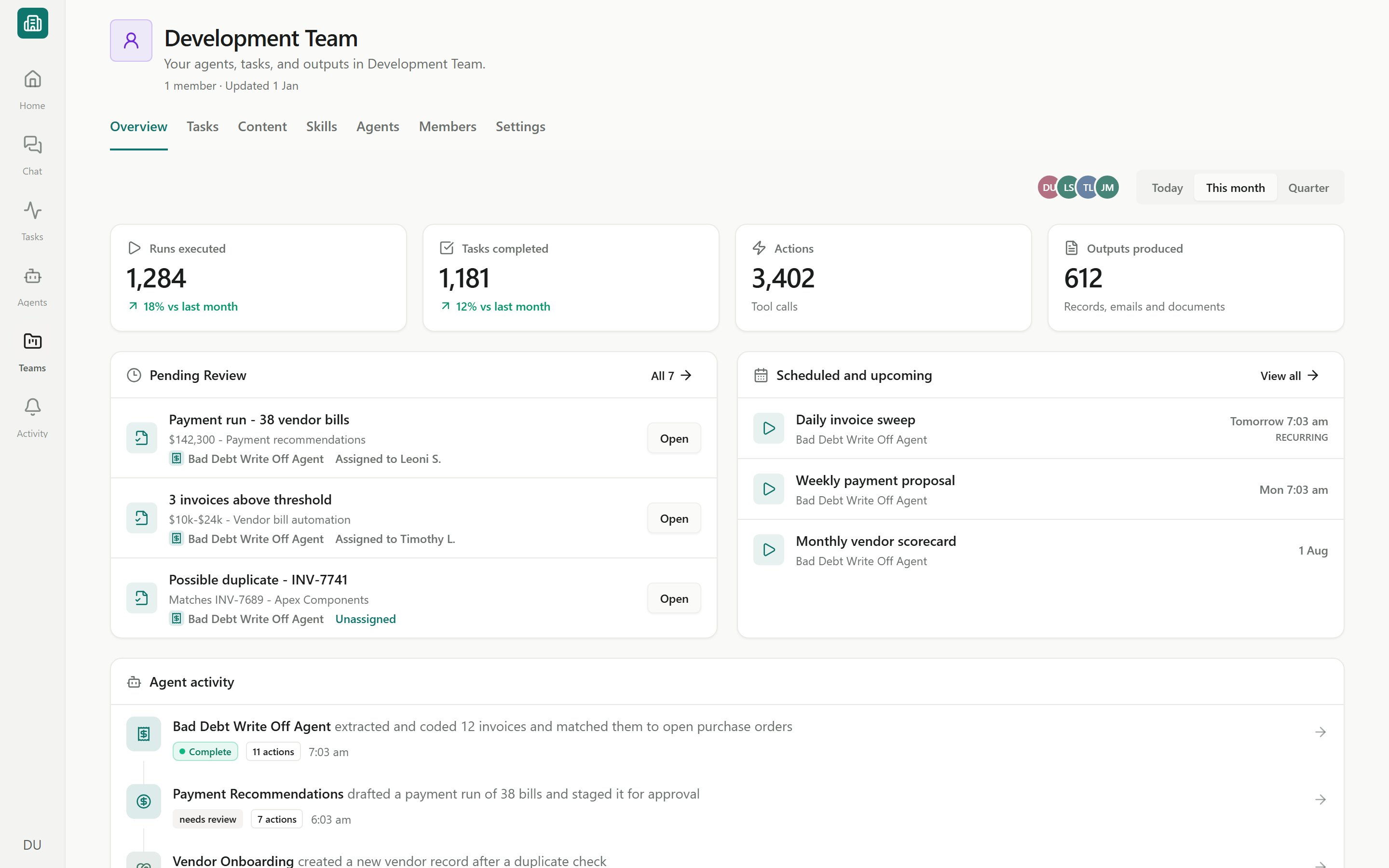
A team Overview dashboard
- KPIs — runs executed, tasks completed, actions taken, and outputs produced for the selected period.
- Pending Review — tasks in Needs Review waiting for a person to sign off; links straight into the team’s review queue.
- Scheduled and upcoming — the next runs queued by schedules and one-time scheduled tasks.
- Agent activity — a timeline of recent runs across the team’s agents.
- Recent outputs — documents, files, and other artifacts agents recently produced.
- Pinned — items you’ve pinned for quick access.
A new or lightly-used team may show empty panels until its agents start running. The activity pulse and agent stack on a team card quietly hide when there’s nothing to show.
What lives in a team
Move between a team’s surfaces using the breadcrumb header at the top of the page.Tasks
Every run an agent does for the team becomes a trackable task that moves Queued → In Progress → Needs Review → Complete.
Content
Documents, files, folders, and Agent knowledge the team’s agents can read and write.
Agents
The agents shared with this team — Assistants, Workforces, and Automations — plus a New agent action scoped to the team.
Members
The people in the team and their roles: Owner, Admin, or Member.
Settings
General details, task defaults, labels, access, workspace usage, and the danger zone.
Overview
The dashboard above — your team’s home for KPIs, pending review, and recent work.
Tasks and Content, in brief
- Tasks is where the team’s agent work shows up. View it as a List or a Board (Kanban), sliced by built-in tabs like Inbox, Review, Active, Scheduled, Recurring, and Approvals. See Tasks overview.
- Content holds the team’s Documents, Files, folders, and Knowledge (files made searchable for agents). See Documents and the editor and Agent knowledge.
Roles in a team
Each member has a team role that sets what they can do:
Only team owners and admins (or workspace admins) can add members and change settings. See Managing a team for the full walkthrough.
Next steps
Managing a team
Add members, set defaults and labels, and manage team content.
Tasks overview
Track and manage the work your team’s agents do.
Agents overview
Meet the three agent shapes and share them with a team.
Workspaces and people
See how teams sit inside a workspace and its members.