

Two different gates. Needs Review is about a completed result waiting for a human to confirm it. Approvals are mid-run requests an agent raises before a sensitive step (often a write to NetSuite). A single task can pass through both.
Where review work shows up
You can find work waiting on you in three places.Home
Home shows a compact link for tasks that need your review. Select it to open your review queue.
Tasks tabs
The Review tab shows tasks in Needs Review; the Approvals tab shows mid-run approval requests. Inbox rolls up what needs your attention.
Team Overview
Each team’s Overview dashboard has its own Pending Review panel scoped to that team’s work.
Reviewing a completed task
When a task requires human confirmation, the agent sends its finished work to Needs Review instead of marking it done. The task waits there until a person approves it.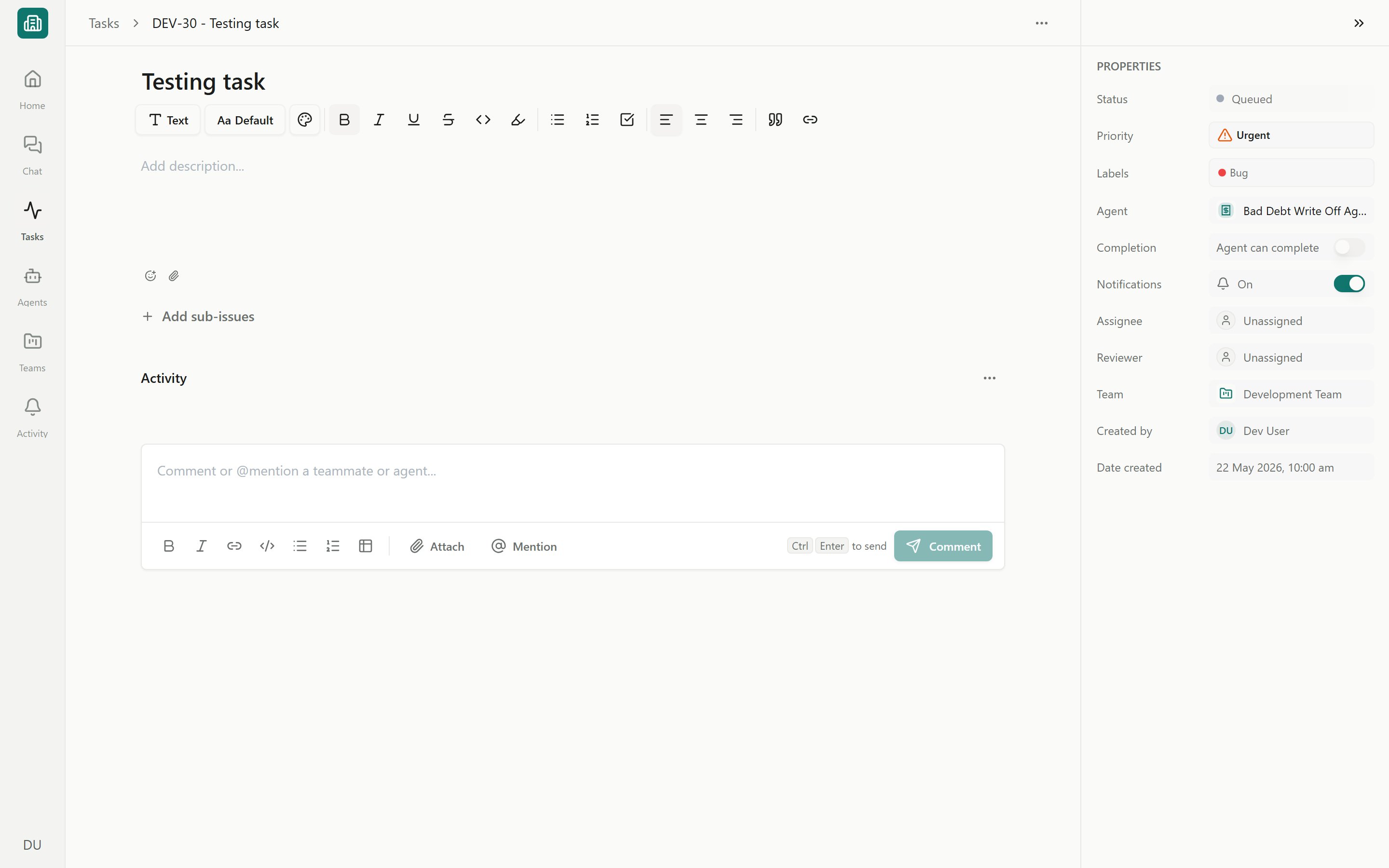
A task detail view
1
Open the Review tab or Inbox
Go to Tasks and choose the Review view for work in Needs Review. You can also follow the review shortcut beneath the Home composer.
2
Read the agent's output
Open the task. The conversation panel shows the agent’s result and outcome, with any documents, files, or SuiteQL output it produced. Open artifacts in the Canvas to inspect them in full.
3
Reply, approve, or send back
Reply or comment to the agent to ask for changes or more detail — it picks up the thread and reworks the task. If the result looks right, move on to completing it.
4
Mark the task Complete
Use the task’s status control to move it to Complete. Sending it back instead returns it to the agent for another pass.
Approving an action mid-run
While a run is in progress, an agent may need to take an action that writes to NetSuite or another connected system. Instead of acting on its own, it raises an approval and pauses. The task remains In Progress while this mid-run decision is pending. It moves to Needs Review only after the agent has finished and the completed result requires human confirmation. If the agent is waiting for information rather than permission, it posts an input request as a task comment; reply in the task to continue. Approval waits do not create a reply-to-approve comment—the authenticated approval card is the only decision control. The approval card shows the action name and an expandable Before / After change preview. You can:- Click Run action (or Run actions) to approve and let the run continue.
- Click Don’t run to reject the action.
Who reviews: reviewer vs assignee
Every task can carry an Assignee and a Reviewer in its properties rail (both default to Unassigned).Assignee
Assignee
The person responsible for the task — usually who the work is for or who drives it forward.
Reviewer
Reviewer
The person who confirms the agent’s output before the task is final. When a task is in Needs Review, it surfaces to its reviewer’s queues.
Setting the default for new tasks
Whether agents stop for review by default is a team setting. In Team Settings → Task defaults, choose the completion policy:- Human confirms — agents send finished work to Needs Review for a person to approve.
- Agent can complete — agents may mark their own work done without a review step.
The team default applies to new tasks only — changing it does not move tasks that already exist. You can still override confirmation on any individual task with the Require human confirmation toggle in its properties rail.
How this ties to write approvals
Needs Review and mid-run Approvals work together with the NetSuite write policy. Each NetSuite tool has a policy of Allow, Require approval, or Deny — Require approval is what produces the mid-run approval card before a write. Layer human confirmation on top, and you get two checkpoints: the agent asks before it writes, and a reviewer confirms the finished task. Because NetSuite uses per-user authorization, the write continues under the run’s established NetSuite user and role; a teammate approving the card does not switch the run to that teammate’s credentials.Next steps
Approving and rejecting AI actions
The full approval-card flow, change previews, and auto-approve.
Working with tasks
Filter, open, and set properties and sub-tasks on tasks.
Managing a team
Set the team’s completion policy and reviewer defaults.
Security & write safety
How write policy, approvals, and per-user authorization keep you in control.