

SKILL.md file plus optional supporting files and actions — that agents load to do a task the same expert way every time. This page covers building one from scratch: naming it, working in the package editor, drafting with Skill Chat, and what has to be in place before you can publish.
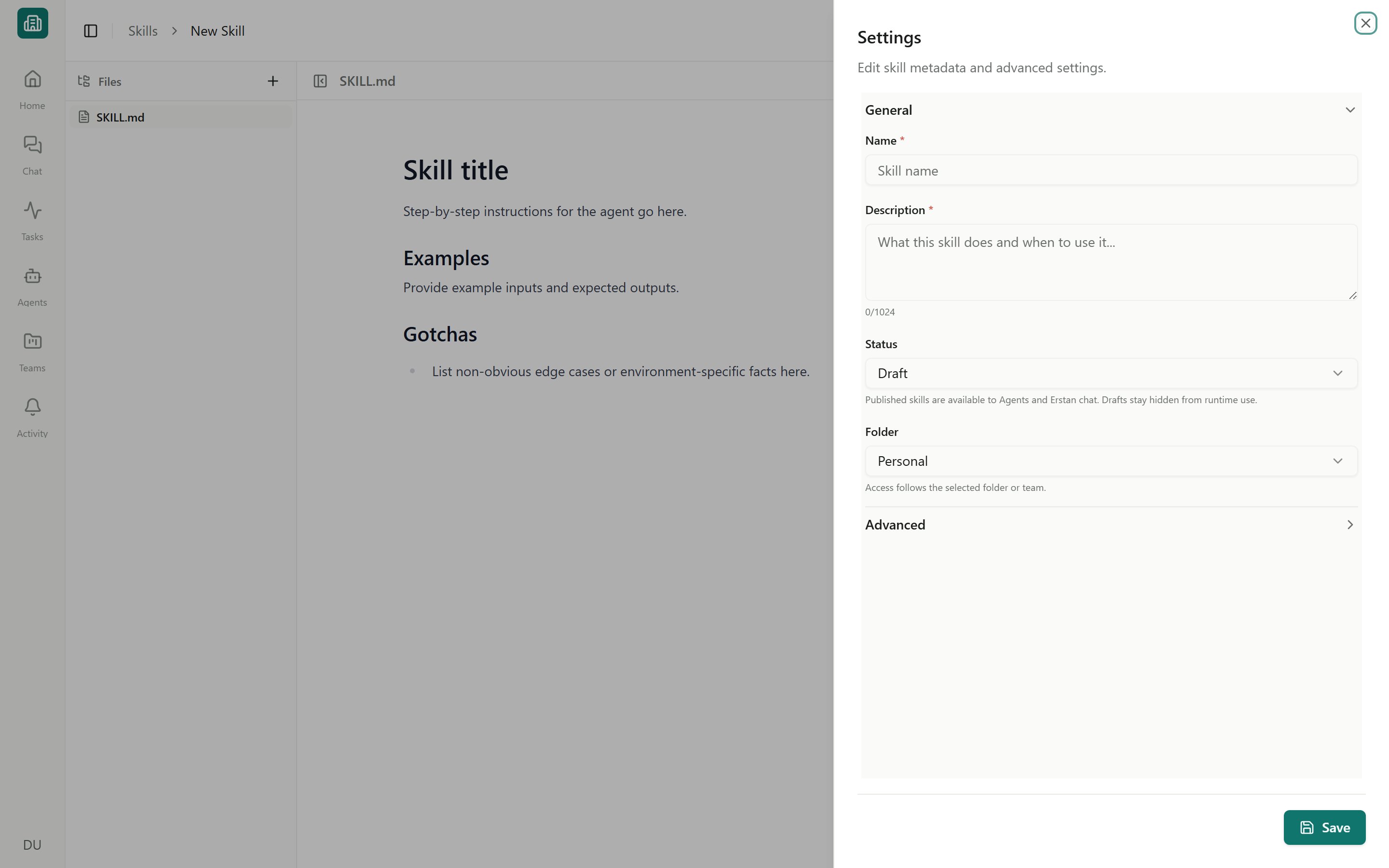
The skill editor
Start a new skill
Open Skills from the sidebar and click Create skill (inside a team it reads New skill). The skill package editor opens with a starterSKILL.md ready to edit.
1
Name the skill
Enter a friendly Display name in the Settings panel. Erstan derives a lowercase, hyphenated Skill name for the package. You can adjust the Skill name before the first save; after creation it is immutable.
2
Write a description
Add a Description that says, in one or two sentences, what the skill does and when an agent should use it. Agents read this to decide whether to load the skill, so make it concrete (for example, “Summarize AR aging by customer and flag balances over 90 days”).
3
Choose a folder
Pick a Folder — Company, Personal, or a specific Team. This sets where the skill lives and who it belongs to. A folder is required: a skill cannot be saved without one.
4
Edit SKILL.md
Flesh out the instructions in the editor (see below). Optionally set License and Compatibility in Settings.
5
Save as a draft
Click Save to keep the skill as a Draft. It does not become available to ordinary Agent runs until you publish it. Draft visibility still follows the skill’s sharing permissions.
Display name, Skill name, Description, and Folder are required to save.
The package editor
For an already published skill on a staged-save deployment, Save retains working changes without replacing the published package used by ordinary Agent runs. Publish is a separate action that promotes the reviewed version. The skill can remain Published while having unpublished working changes; do not change its status to Draft merely to stage an edit. The editor is a VS Code-style workspace with three areas.- File tree
- Markdown editor
- Settings panel
The left panel lists the files in the skill. Every skill has a SKILL.md (it cannot be deleted). Use the file tree to create, rename, duplicate, or remove supporting files, and to insert or copy references to them from inside
SKILL.md.The + menu can create a blank file or a guided package starter. Reference file creates linked guidance under references/, Template file creates linked reusable content under templates/, and Script action creates runnable code under scripts/ together with its action metadata. Guided references and templates are linked from SKILL.md automatically so agents know when supporting content is available.What goes in SKILL.md
Write the instructions the way you would brief a careful new teammate: the goal, the steps to follow, and the things to watch for.- Instructions — the procedure the agent should follow, in order.
- Examples — sample inputs and the expected approach, so the agent generalizes correctly.
- Gotchas — edge cases, exceptions, and rules that are easy to get wrong (for example, a SuiteQL field that isn’t queryable, or a customer to exclude).
Data at scale — Write business rules, validations, and required outcomes — not data-movement mechanics. When an agent runs with the persistent code workbench, the platform owns bulk processing: complete files are processed in code, multi-call reads run as one read-only batch with a durable receipt, and every external write is dispatched individually with normal approval. Skill instructions that tell the agent to page a full dataset through the conversation or accumulate rows mentally are superseded at runtime.
Draft with Skill Chat
If you’d rather not write the files by hand, Skill Chat drafts the skill for you. Open the Skill Chat panel inside the editor, describe what the skill should do in plain language, and Erstan creates or updates the skill’s files and takes you to the result.1
Open Skill Chat
From the skill editor (new or existing), open the Skill Chat panel.
2
Describe the skill
Explain the task in plain language — what it should accomplish, the steps involved, and any rules to enforce.
3
Review the draft
Erstan generates the
SKILL.md and any supporting files and confirms with a toast (Skill draft created or Skill draft updated). Read through the generated files and edit anything that needs adjusting.4
Save or publish
Click Save to keep the draft, or publish when it’s ready for agents.
Skill Chat and hand-editing work on the same files. You can start with Skill Chat and then refine
SKILL.md directly, or the other way around.Skills with actions
Most skills are instructions only — these show as Prompt-only. A skill can also include one or more executable actions (code), in which case it shows a count like 2 actions. Choose + then Script action to create a JavaScript or Python starter, classify whether it needs external access, and add the matching action metadata. When a skill has an action, a Run console in the editor lets you test-run the action’s entry file before you rely on it.Before you publish
Saving keeps a skill as a Draft. Only Published skills (shown on tiles as Agent ready) can be used by agents. Check these before you publish:Names and Folder are set
Names and Folder are set
Confirm the friendly Display name, immutable Skill name, and destination folder (Company, Personal, or the intended Team).
The description is agent-ready
The description is agent-ready
Agents use the description to decide when to load the skill. Make sure it clearly states the task and the trigger conditions.
Package validation passes
Package validation passes
Publishing is blocked until any package validation errors are resolved. The editor flags problems; fix them, then publish.
Actions have been tested
Actions have been tested
If the skill includes actions, run the entry file in the Run console and confirm it behaves as expected.
Editing an existing skill works the same way. If you open a skill you only have view access to (or an Archived skill, which is read-only), Duplicate it first to get an editable draft copy.
Next steps
Publishing, sharing & lifecycle
Publish a skill so agents can use it, set its visibility, and share it with teams.
Skills overview
How skills are organized — Workspace vs Built-in, sources, and statuses.
Giving agents tools, skills & connections
Attach a published skill to an agent so it follows your instructions.
Built-in skills
Review, prioritize, or replace the skills Erstan ships out of the box.