

Where to start a run
You can launch the same agent from several places, and they all open the same run dialog.From the library
On the Agents page, use an agent card’s menu or open the agent and choose Run.
From the runs page
On an agent’s runs page, click Run Agent in the header.
From the builder
A published agent shows a Run action in the visual builder header.
Chat-first agents (Assistants and Workforces) can also be started straight from Chat by @mentioning them. See Working with agents in chat.
The run dialog
When you start a run, a dialog collects what the agent needs to begin. What appears depends on the agent’s trigger:- Trigger inputs — For an Automation with a Form trigger, you fill in the form fields the agent’s creator defined.
- Conversation starters — Chat-first agents may offer ready-made opening messages you can pick instead of typing your own.
- Attachments — Add files for the agent to work with, where the agent supports it.
Assigning a run as a task
Instead of running an agent just for yourself, you can turn the run into a task so the work is tracked, owned, and reviewable. Every assigned run becomes a task that moves through Queued → In Progress → Needs Review → Complete.1
Open the run dialog
Start a run from the library, runs page, or builder as above. You can also click New task on the Tasks page and pick the agent there.
2
Name the work
Give the task a Task name and a short Description of what it should produce or monitor.
3
Set who owns it
Choose an Assignee (who the task belongs to) and a Reviewer (who signs off on the output). Both default to Unassigned.
4
Add priority and labels
Set a Priority (No priority, Urgent, High, Medium, or Low) and apply any Labels to help the task surface in the right views.
5
Choose when it runs
Pick a Schedule mode — Now, Scheduled, or Recurring — then submit.
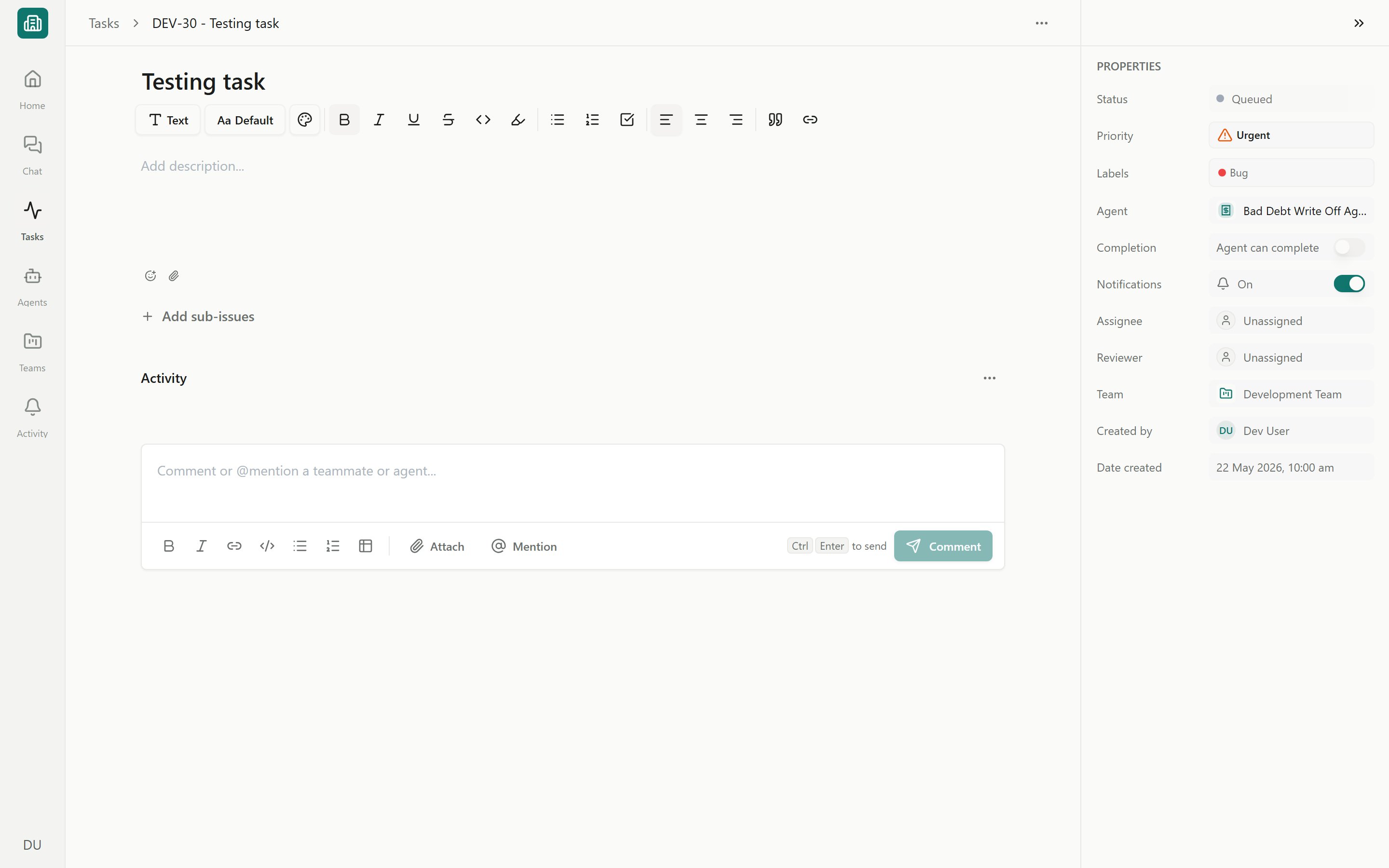
A task detail view
Schedule modes
- Now
- Scheduled
- Recurring
The agent runs immediately and the task moves into In Progress. Use this for one-off work you want done right away.
Approvals during a run
When a write to NetSuite or another system requires approval under the Agent’s policy, the run pauses for a person to approve the change before it goes through. If a team requires human confirmation, completed work is sent to Needs Review rather than marked done automatically. Reviewers can approve it or send it back — see Reviewing and approving agent work.When a run is blocked
Sometimes the run dialog won’t let you start. The common reasons are easy to fix:The agent is archived
The agent is archived
Archived agents cannot be run. Restore the Agent before running it; owners and editors can run a draft, while viewers need a published version. See Preview, publish & versions.
No configured way to start
No configured way to start
The agent has no way to start — for example, a trigger hasn’t been set up. Open the builder and add or finish the trigger, then publish.
Connection required
Connection required
A step needs a connector that isn’t set up — most often NetSuite or an LLM provider. The run shows a Connection required banner. Connect or authorize the system and try again. For NetSuite, each member authorizes their own user.
A run is already active
A run is already active
The agent already has a run in progress for this thread. Wait for it to finish, or open the active run and cancel it before starting a new one.
An agent published with later unsaved edits prompts you to Save before it runs the newest draft, so you always run the version you expect.
Next steps
Run history, traces & analytics
Track every run, read its step-by-step trace, and review usage and cost.
Scheduling recurring runs
Run an agent automatically on a schedule and manage Run As.
Working with tasks
Open a task, chat with the agent, and set its properties.
Approving and rejecting AI actions
Review write actions before they run, and decide when to auto-approve.