

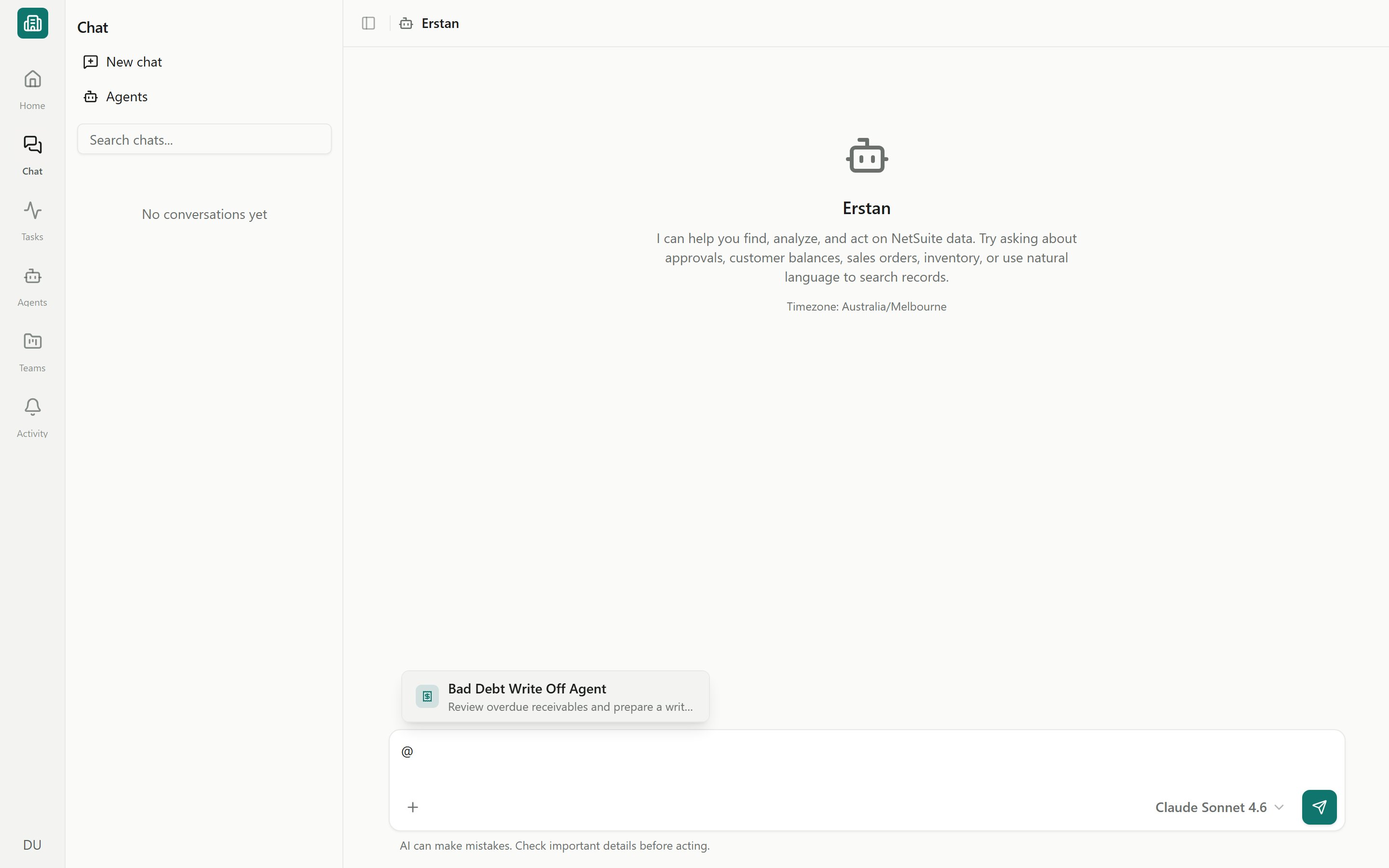
Mentioning an agent with @
Mention an agent
Type@ in the composer (placeholder “Ask anything, or @mention an agent”) to open the mention picker. You can address either an Agent or a workspace member.
1
Type @ in the composer
The mention picker appears. Keep typing to filter by name.
2
Pick an agent or teammate
Choose the agent you want to handle the request. Picking an agent scopes the conversation to it.
3
Send your message
The chat routes to that agent. The header and placeholder update to the agent’s name (for example, “Ask …”), and the thread is grouped under the agent’s name in your chat history.
An agent-scoped chat behaves like the agent you mentioned: it uses that agent’s instructions, skills, and connected tools. A plain chat with Erstan (the default assistant) uses the workspace defaults instead.
Agent thread actions
Once a conversation is scoped to an agent, the thread exposes shortcuts to manage and inspect that agent — from the thread’s menu in the chat history panel and from the agent-scoped chat header.See the full agent toolkit
Builder, triggers, schedules, run history, and traces all live under Agents.
Follow a multi-step run
Some agents — especially Workforces and Automations — execute a multi-step run rather than a single reply. When that happens, a run workspace (Steps) panel becomes available alongside the transcript so you can watch the pipeline progress live.1
Open the run panel
Use Open Run / Show run steps to reveal the steps panel (look for the list-tree icon in an agent-scoped chat).
2
Watch step progress
Each step shows its live status as the run streams. Tool calls and reasoning can appear inline in the transcript as well.
3
Act on prompts inline
If a step needs your sign-off, an approval card appears above the composer; respond there without leaving the chat.
4
Hide or reopen
Use Hide run steps / Close Run to collapse the panel, then reopen it any time.
The Show agent progress toggle in the composer + menu controls whether step-by-step progress is surfaced. It mainly applies to agent-scoped chats, not plain chat with Erstan.
Where the run lives afterward
Every agent run from chat is tracked. To revisit it later:- In chat — reopen the thread; it stays grouped under the agent’s name with a live status indicator (for example, running or failed).
- In run history — use View Run History to see the run table, traces, and outcomes. See Run history, traces & analytics.
- In Tasks — work an agent kicks off can surface as a task that moves through Queued → In Progress → Needs Review → Complete.
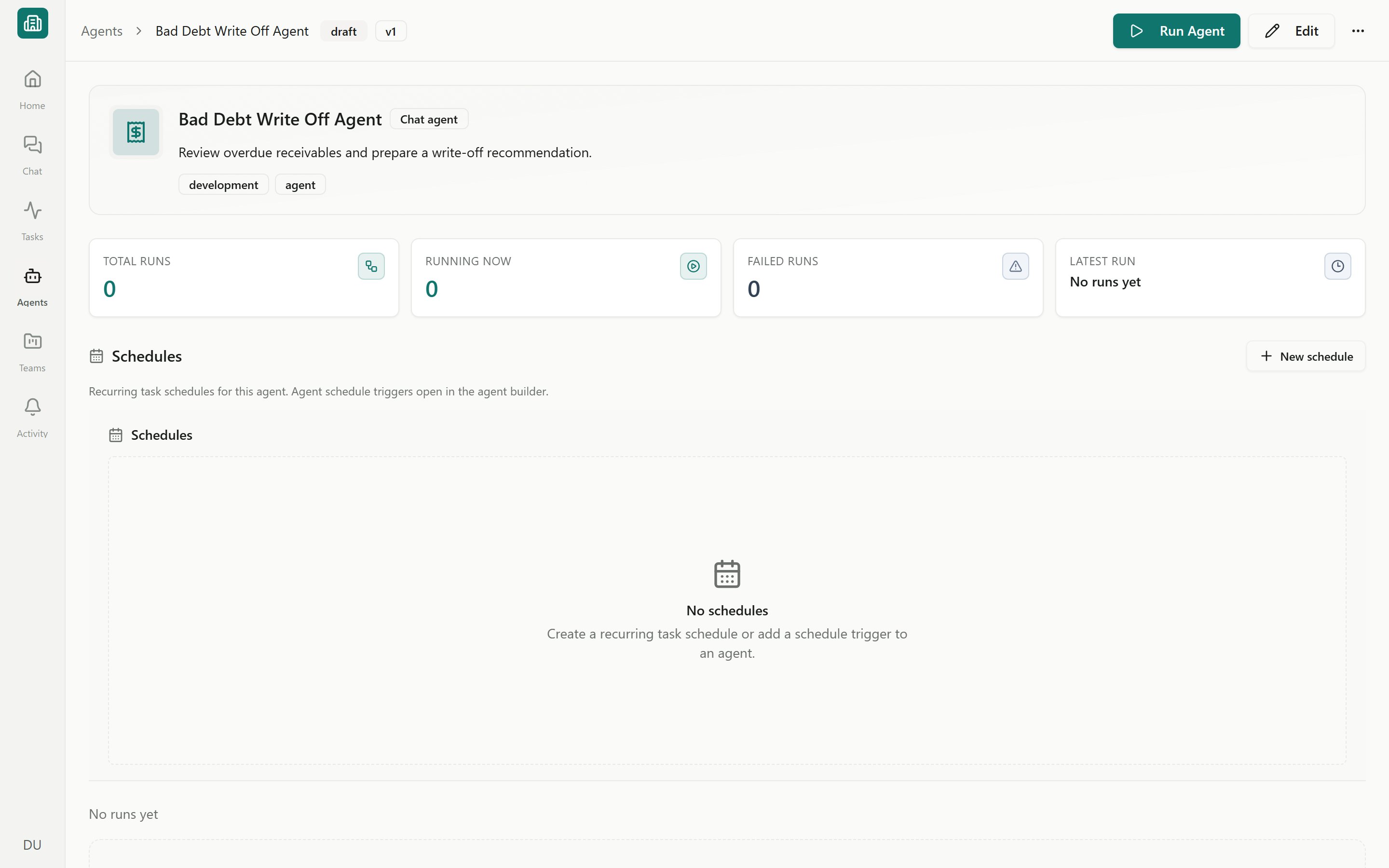
Agent run history
Next steps
Agents overview
Meet Assistants, Workforces, and Automations.
Approving AI actions
Review write actions before they run.
Knowledge, tools & models
Control what an agent can see and use in chat.
Run history & traces
Read a run’s step-by-step trace.